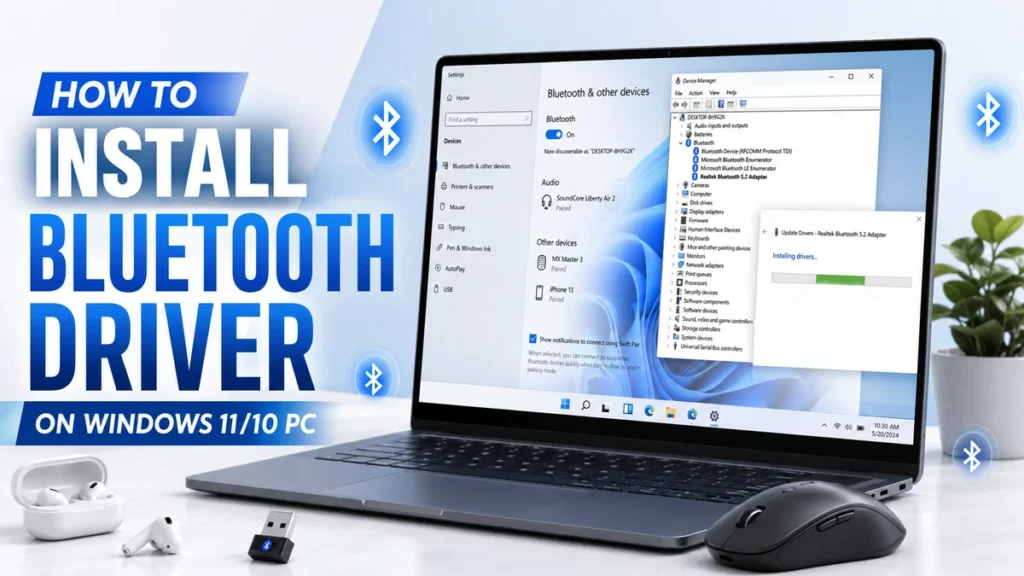
Bluetooth is one of those features you barely think about until it stops working. One day your headphones connect instantly, your mouse works fine, and your phone pairs without a problem. The next day, Bluetooth disappears from Settings, your laptop cannot detect any device, or Windows shows an error in Device Manager.
The good news is that Bluetooth problems on Windows 11 and Windows 10 are often driver-related. Once you install the right Bluetooth driver, update the existing one, or reinstall a damaged driver, most connection issues become much easier to fix.
This guide explains how to install Bluetooth driver on Windows 11/10 PC in a simple, practical way. It also covers laptops, desktop PCs, USB Bluetooth adapters, missing drivers, manual installation, Windows 7 and Windows 8 notes, and common reinstall steps.
How to Install Bluetooth Driver
The fastest way to install Bluetooth driver on a Windows PC is to use Windows Update first, then Device Manager, and then your PC manufacturer’s driver page if Windows does not install the correct version.
If you’re using Windows 10 or Windows 11, make sure your Windows is up to date. In most cases, Windows Update automatically installs the latest updates and any missing drivers for your laptop or PC. It can also automatically install the correct Bluetooth driver when you update Windows.
Here is the simple order that works best for most users:
- Click On window icon and write this text “Window update” then Open Windows Update setting and install all available driver updates.
- Right Click on window icon then click Device Manager and update the Bluetooth Driver automatically.
- Download the correct Bluetooth driver from your laptop, motherboard, or adapter manufacturer.
- Run the driver setup file.
- Restart your PC.
- Turn on Bluetooth and pair your device again.
This process works for most people who want to install Bluetooth drivers for headphones, earbuds, speakers, keyboards, mice, controllers, phones, and other wireless devices.
Before You Start: Make Sure Your PC Has Bluetooth
Before you install bluetooth driver windows packages, make sure your computer actually has Bluetooth hardware. A driver cannot create Bluetooth if your PC does not have a Bluetooth adapter.
How to Check If Your PC Has Bluetooth
Try these quick checks:
- Click On the window icon Open Settings then open devices, bluetooth, printer, mouse .
- Right-click the Start (Windows) icon on the taskbar. Click on device manager and look for a Bluetooth section.
- Check your laptop model specifications.
- Check your desktop motherboard specifications.
- If you use a USB Bluetooth dongle, plug it into another USB port and wait for Windows to detect it.
If Bluetooth does not appear anywhere, your desktop PC may not have built-in Bluetooth. In that case, you may need to install bluetooth adapter driver for a USB Bluetooth adapter.
How Do I Know Which Bluetooth Driver to Install?
A common question is: how do i know which bluetooth driver to install? The correct driver depends on four things: your Windows version, system type, PC model, and Bluetooth adapter brand.
Check Your Windows Version
On Windows 11:
- Right-click the Start button.
- Select Settings.
- Go to System.
- Open About.
- Check the Windows edition and system type.
On Windows 10:
- Right-click the Start button.
- Select System.
- Check the Windows edition.
- Check whether your system is 64-bit or 32-bit.
Most modern Windows 11 and Windows 10 PCs use 64-bit drivers, but it is still worth checking before you download anything.
Check Your Bluetooth Adapter Name
To find your Bluetooth adapter:
- Right-click the Start button.
- Open Device Manager.
- Expand Bluetooth.
- Look for names such as Intel Wireless Bluetooth, Realtek Bluetooth, Qualcomm Bluetooth, Broadcom Bluetooth, or a brand-specific adapter.
If you see an unknown device or a device with a yellow warning icon, Windows may know the hardware exists but may not have the right driver installed yet.
Match the Driver to Your Exact PC Model
For laptops, the safest driver usua-lly comes from the laptop manufacturer. For desktops, use the motherboard manufacturer or Bluetooth adapter manufacturer. This matters because two laptops with similar names can use different wireless chips.
Method 1: Install Bluetooth Driver Using Windows Update
Windows Update is the easiest place to begin because it can install many approved drivers automatically.
Install Bluetooth Driver on Windows 11
To install Bluetooth driver on Windows 11:
- Press Windows + I to open Settings.
- Select Windows Update.
- Click Check for updates.
- Install all available updates.
- Open Advanced options.
- Open Optional updates.
- Install any available driver updates.
- Restart your PC.
The safest answer to how to install bluetooth driver windows 11 is to begin here because Windows can often match the driver to your device without extra downloads.
If you came here wondering how to install Windows 11 Bluetooth driver correctly, do not skip the restart. Many Bluetooth drivers do not work properly until Windows reloads the driver after rebooting.
Install Bluetooth Driver Windows 10
To install bluetooth driver windows 10:
- Open Settings.
- Go to Update & Security.
- Select Windows Update.
- Click Check for updates.
- Open Optional updates if available.
- Install driver updates.
- Restart the computer.
This is a simple first step for anyone asking how to install a bluetooth driver in Windows 10? It is especially useful after a fresh Windows installation or after Bluetooth suddenly disappears.
Method 2: Install Bluetooth Driver Through Device Manager
Device Manager is useful when Windows detects your Bluetooth adapter but the driver is outdated, broken, or incomplete.
Steps to Update the Bluetooth Driver
- Right-click the Start button.
- Open Device Manager.
- Expand Bluetooth.
- Right-click your Bluetooth adapter.
- Select Update driver.
- Choose the automatic driver option.
- Follow the on-screen steps.
- Restart your PC.
This method is good for users who want to know how to install bluetooth drivers without downloading files manually.
What If Bluetooth Is Not Listed?
If Bluetooth is missing from Device Manager:
- Click View at the top.
- Select Show hidden devices.
- Check Bluetooth again.
- Also check Network adapters.
- Look for Unknown device under Other devices.
Sometimes Bluetooth is part of the Wi-Fi card, so it may appear near wireless network hardware instead of under a separate Bluetooth section.
Method 3: Download the Driver from the PC Manufacturer
If Windows Update and Device Manager do not fix the problem, download the driver from the official manufacturer page for your exact device.
This is often the best option after a fresh Windows install, a motherboard change, or a driver conflict.
Where to Get the Correct Driver
Use the official driver page from one of these sources:
- Laptop brand page
- Desktop brand page
- Motherboard brand page
- Bluetooth adapter brand page
- Wireless chip maker page when the PC maker does not provide a newer version
Avoid random driver websites. They may offer outdated packages, unwanted apps, or the wrong driver for your hardware.
How to Install the Downloaded Driver
- Download the correct driver file.
- Open your Downloads folder.
- Double-click the driver file.
- Follow the setup wizard.
- Accept the license terms when prompted.
- Complete the installation.
- Restart your PC.
- Open Bluetooth settings and test a wireless device.
This is the most reliable bluetooth driver installation method when you already know the exact model of your computer or adapter.
Method 4: How to Manually Install Bluetooth Driver
Sometimes the driver comes as a folder instead of a simple setup file. In that case, you need to know how to manually install bluetooth driver through Device Manager.
Manual Installation Steps
- Download and extract the driver folder.
- Right-click the Start button.
- Open Device Manager.
- Expand Bluetooth or Other devices.
- Right-click the Bluetooth device.
- Select Update driver.
- Choose the option to browse your computer.
- Select the folder where you extracted the driver.
- Continue the installation.
- Restart the computer.
This helps when you want to know how to install a bluetooth driver from driver files instead of an automatic installer.
When Manual Installation Is Useful
Manual installation is helpful when:
- The setup file fails.
- Bluetooth appears as Unknown device.
- The driver package includes INF files.
- You are installing a driver after reinstalling Windows.
- Your adapter came with files but no clear installer.
How to Install Bluetooth Driver on PC with a USB Adapter
Desktop PCs do not always include built-in Bluetooth. If your PC does not have Bluetooth, a USB Bluetooth adapter is usually the easiest fix.
Install Bluetooth Adapter Driver
To install bluetooth adapter driver:
- Plug the adapter into a USB port.
- Wait for Windows to detect it.
- Open Windows Update and install driver updates.
- If nothing happens, use the adapter brand’s official driver page.
- Download the correct driver for your adapter model.
- Run the setup file.
- Restart your PC.
- Pair your Bluetooth device.
This is the best route for anyone asking how to install bluetooth driver on pc when the computer has no built-in Bluetooth card.
Tip for USB Bluetooth Dongles
Use a direct USB port on the computer instead of a loose hub. If your wireless device keeps disconnecting, try another USB port, especially one away from crowded cables or metal obstacles.
How to Reinstall Bluetooth Driver
If Bluetooth worked before but stopped after an update, crash, or failed pairing attempt, you may need to reinstall bluetooth driver instead of only updating it.
How to Reinstall Bluetooth Driver Windows 11
To handle how to reinstall bluetooth driver windows 11:
- Right-click Start.
- Open Device Manager.
- Expand Bluetooth.
- Right-click your Bluetooth adapter.
- Select Uninstall device.
- Confirm the action.
- Restart your PC.
- Allow Windows to reinstall the driver.
- Open Bluetooth settings and test the device.
If Windows does not reinstall the driver automatically, download the correct driver from your PC maker and install it manually.
How to Reinstall Bluetooth Driver Windows 10
To handle how to reinstall bluetooth driver windows 10:
- Open Device Manager.
- Expand Bluetooth.
- Right-click the Bluetooth adapter.
- Choose Uninstall device.
- Restart the computer.
- Let Windows load the driver again.
- Install the manufacturer driver if Bluetooth is still missing.
This is a good fix when Bluetooth is visible but unstable, slow, or unable to pair with devices.
How to Delete Bluetooth Driver and Reinstall
If you want to know how to delete bluetooth driver and reinstall, use the uninstall option carefully. If Windows offers a checkbox to remove the driver software, only use it when you already have the correct replacement driver downloaded.
A safe order is:
- Download the correct replacement driver first.
- Uninstall the current Bluetooth device.
- Restart the PC.
- Install the fresh driver.
- Restart again.
- Test Bluetooth with one device at a time.
How to Install Missing Bluetooth Driver on Windows 10
If Bluetooth is missing from Settings, Device Manager, and the taskbar, you may be dealing with a missing driver, disabled adapter, or unsupported hardware.
Fix Missing Bluetooth Driver
For how to install missing bluetooth driver on windows 10:
- Restart the PC first.
- Open Device Manager.
- Enable hidden devices from the View menu.
- Check Bluetooth, Network adapters, and Other devices.
- Open Windows Update and install driver updates.
- Install the driver from your laptop or motherboard brand.
- Restart and check Bluetooth settings again.
If Bluetooth still does not appear, check whether your PC has Bluetooth hardware. Many desktop PCs need a USB adapter or a PCIe wireless card.
Why Bluetooth Disappears
Bluetooth may disappear because:
- The driver is corrupted.
- A Windows update changed the driver.
- The Bluetooth service stopped.
- The wireless card is disabled in BIOS or UEFI.
- The laptop has airplane mode enabled.
- The device does not have Bluetooth hardware.
Brand-Specific Laptop Driver Tips
Every laptop brand handles drivers a little differently. The main rule is simple: match the driver to your exact laptop model, not just the brand name.
How to Install Bluetooth Driver on Windows 10 HP Laptop
For how to install bluetooth driver on windows 10 hp laptop:
- Find the HP laptop model or product number.
- Open the official HP driver page.
- Choose your exact laptop.
- Pick Windows 10 as the operating system.
- Download the Bluetooth or wireless driver.
- Run the setup file.
- Restart the laptop.
- Turn Bluetooth on and pair a device.
Some HP laptops use Intel, Realtek, or Qualcomm wireless hardware, so the driver name may include the chip brand instead of only HP branding.
Toshiba Laptop Bluetooth Driver Windows 10
For toshiba laptop bluetooth driver windows 10, use the exact Toshiba or Dynabook model number. Older laptops often have several hardware versions, so avoid installing a random driver just because it says Toshiba.
A good process is:
- Find the full laptop model from the sticker or system information.
- Match the operating system.
- Download the Bluetooth or wireless driver.
- Install and restart.
- Test with headphones, a mouse, or a phone.
Dell, Lenovo, Acer, ASUS, and Other Laptops
For other laptop brands, the steps are similar. Use the official driver page, enter the model number, choose the correct operating system, download the Bluetooth or wireless driver, and restart after installation.
On some laptops, Bluetooth and Wi-Fi come in one combined wireless package. If you do not see a separate Bluetooth file, check the wireless network driver section.
How to Update Laptop Bluetooth Driver
If Bluetooth works but feels slow, disconnects, or fails with newer devices, you may want to know how to update laptop bluetooth driver.
Best Update Order
Use this order:
- Try Windows Update.
- Try Device Manager.
- Use the laptop brand’s driver page.
- Use the wireless chip maker only when the laptop brand does not provide a suitable version.
Updating can help with pairing issues, audio stutter, random disconnections, and better compatibility with newer accessories.
Do Not Update Just for the Sake of Updating
If Bluetooth works perfectly, you do not need to update every time a new driver appears. Update when you have a problem, after a major Windows upgrade, or when your manufacturer recommends it for your device.
Bluetooth Driver Setup After Installation
After the driver is installed, you still need to complete a basic bluetooth driver setup by turning Bluetooth on and pairing your device. After installing the Bluetooth driver, you can test the connection with a wireless mouse, headphones, or keyboard. If you are setting up a mouse, follow this step-by-step guide on how to connect a Bluetooth mouse to make sure pairing works properly.
Pair Your First Bluetooth Device
- Open Settings.
- Go to Bluetooth & devices.
- Turn Bluetooth on.
- Click Add device.
- Choose Bluetooth.
- Put your accessory into pairing mode.
- Select the device when it appears.
- Follow any pairing prompts.
Test the Connection
After pairing:
- Play audio through Bluetooth headphones.
- Move a Bluetooth mouse.
- Type with a Bluetooth keyboard.
- Send a small file if your device supports it.
- Disconnect and reconnect once to confirm stability.
If the device pairs but does not work properly, remove it from Bluetooth settings and pair it again.
Bluetooth Driver Installer Latest Version: What to Know
Many people look for bluetooth driver installer latest version because they want the newest possible fix. Newer is not always better if the driver does not match your hardware.
Use Official Sources Only
A safe driver should match:
- Your Windows version
- Your system type
- Your PC model
- Your Bluetooth adapter brand
- Your hardware generation
Avoid one-click driver tools from unknown websites. They can install the wrong driver or add unwanted software.
When the Latest Version Helps
The latest driver may help when:
- Bluetooth audio cuts out.
- Devices pair but do not reconnect.
- Bluetooth disappeared after a Windows upgrade.
- A new headset or controller is not detected.
- Device Manager shows a warning icon.
Install Bluetooth Driver Windows 7 and Windows 8
This guide focuses on Windows 11 and Windows 10, but some users still need older systems for legacy hardware.
How to Install Bluetooth Driver Windows 7
For how to install bluetooth driver windows 7, use the manufacturer’s older driver archive for your laptop, desktop, motherboard, or Bluetooth adapter.
To install bluetooth driver windows 7:
- Confirm whether Windows 7 is 32-bit or 64-bit.
- Download the correct older driver package.
- Run the installer as administrator.
- Restart the PC.
- Open Device Manager to confirm the adapter appears.
Windows 7 may not handle newer Bluetooth adapters well, so older PCs often work best with adapters that clearly list Windows 7 compatibility.
How to Install Bluetooth Driver Windows 8
For how to install bluetooth driver windows 8, use the Windows 8 or Windows 8.1 driver made for your exact hardware.
To install bluetooth driver windows 8:
- Confirm the Windows version and system type.
- Get the correct driver from the device maker.
- Install the package.
- Restart the PC.
- Pair your Bluetooth device again.
If a Windows 8 driver is not available, do not force a random driver. Use only a compatible package from the hardware maker.
Common Problems After Installing Bluetooth Drivers
Even after you install bluetooth drivers, Bluetooth may still fail for other reasons. Here are the most common issues and practical fixes.
Bluetooth Toggle Is Missing
Try these fixes:
- Restart the PC.
- Check Device Manager.
- Install optional driver updates.
- Reinstall the Bluetooth adapter.
- Check whether airplane mode is on.
- Make sure the PC has Bluetooth hardware.
Bluetooth Device Will Not Pair
Try this:
- Turn the accessory off and on.
- Charge the accessory.
- Remove the device from Bluetooth settings.
- Put it into pairing mode again.
- Keep it close to the PC.
- Restart Bluetooth on the computer.
Bluetooth Audio Keeps Cutting Out
This often happens with weak signal, outdated drivers, or crowded wireless areas.
Try these steps:
- Move closer to the PC.
- Remove old paired devices.
- Update the Bluetooth driver.
- Update the audio driver.
- Try a different USB port for a Bluetooth dongle.
- Restart the PC.
Device Manager Shows a Yellow Warning Icon
A yellow warning icon usually means Windows sees the hardware but cannot run it correctly. Update the driver, reinstall the device, or install the correct manufacturer package.
When You Need a Bluetooth Adapter Instead of a Driver
A driver is only software. If your PC has no Bluetooth hardware, no driver will make Bluetooth appear.
You may need a Bluetooth adapter if:
- Your desktop PC has no built-in wireless card.
- Bluetooth never appeared in Windows.
- Your motherboard does not include Bluetooth.
- Your old internal adapter no longer works.
- Your laptop wireless card is damaged.
A small USB Bluetooth adapter is usually the simplest solution. After plugging it in, install the adapter driver if Windows does not do it automatically.
FAQ
How to Install Bluetooth Driver?
To install Bluetooth driver, start with Windows Update, then Device Manager, and then the official driver page for your PC, laptop, motherboard, or adapter. Install the driver, restart the PC, and test Bluetooth by pairing a device.
How to Install Bluetooth Drivers on Windows 11 or Windows 10?
To install Bluetooth drivers on Windows 11 or Windows 10, open Windows Update, install driver updates, restart, and then use Device Manager if Bluetooth still does not work. If needed, download the correct driver from the manufacturer.
How to Install a Bluetooth Driver in Windows 10?
For how to install a bluetooth driver in windows 10?, open Settings, go to Update & Security, install available updates, then use Device Manager to update the Bluetooth adapter. If that fails, install the driver from your PC maker.
How Do I Know Which Bluetooth Driver to Install?
Check your Windows version, system type, PC model, and Bluetooth adapter name. The correct driver must match your exact hardware. If you use a laptop, the brand’s official driver page is usually the safest choice.
How to Install Bluetooth Driver Windows 11?
For how to install bluetooth driver windows 11, open Settings, go to Windows Update, install updates, then check Optional updates. If Bluetooth still fails, update the adapter in Device Manager or install the driver from your PC maker.
How to Reinstall Bluetooth Driver?
To reinstall Bluetooth driver, open Device Manager, expand Bluetooth, uninstall the Bluetooth adapter, restart your PC, and let Windows reinstall it. If Windows does not restore it, install the official driver manually.
Is It Safe to Use a Driver Installer App?
It is safer to use Windows Update, Device Manager, or official manufacturer downloads. Unknown driver tools may install the wrong package or include extra software you do not need.
Why Is Bluetooth Missing After Installing Windows?
Bluetooth may be missing because the driver was not installed, the wireless card is disabled, Windows cannot identify the adapter, or the PC does not have Bluetooth hardware. Install the correct driver or use a USB Bluetooth adapter.
Can I Use a Windows 10 Bluetooth Driver on Windows 11?
Use a Windows 11 driver when available. Some driver packages support both Windows 10 and Windows 11, but you should always check the supported operating systems before installing.
Do I Need Internet to Install a Bluetooth Driver?
You need internet access to download the driver. If Bluetooth is missing after a fresh Windows install, use Wi-Fi, Ethernet, or another computer to download the correct driver and transfer it with a USB drive.
Conclusion
Learning how to install Bluetooth driver on Windows 11/10 PC is easier when you follow the right order. Start with Windows Update, use Device Manager next, and then install the correct driver from your PC, laptop, motherboard, or adapter manufacturer.
If Bluetooth is missing, do not panic. Check whether your computer has Bluetooth hardware, reinstall the adapter in Device Manager, and use the exact driver for your model. For desktops without built-in Bluetooth, a USB Bluetooth adapter is often the fastest fix.
Once the right driver is installed, restart your PC, turn Bluetooth on, pair your device, and test the connection. A clean driver setup can bring back wireless headphones, mice, keyboards, speakers, controllers, and other Bluetooth devices without making the process complicated.