Few tech problems are more annoying than seeing your laptop connected to WiFi but no internet. The WiFi icon looks fine. Your laptop says it is connected. Maybe the signal bars are full. But the moment you open Chrome, Edge, Firefox, Zoom, Steam, or your email, nothing loads.
This issue can happen on almost any device, including Acer, ASUS, HP, Lenovo, Dell, MSI, and other Windows laptops. Sometimes it appears as “No internet, secured.” Other times the laptop says connected but no internet, or the browser keeps spinning like your internet disappeared.
The good news is that this problem usually does not mean your laptop is broken. In many cases, it is caused by a router glitch, DNS issue, bad IP address, outdated WiFi driver, VPN conflict, proxy setting, or a Windows network configuration problem.
This guide walks you through practical fixes in the right order, starting with the easiest checks and moving toward deeper solutions. The goal is simple: help you understand why your laptop connects to WiFi but no internet works, then fix it without confusing technical steps.
| Test | What it means | Next step |
|---|---|---|
| Other devices also have no internet | Router, modem, ISP, cable, outage | Restart modem/router, check ISP |
| Only laptop has no internet | Windows, DNS, driver, VPN, proxy | Run laptop fixes |
| Laptop works on mobile hotspot | Home WiFi/router issue | Check router settings |
| Apps work but websites do not | Browser or DNS issue | Change DNS / clear browser |
| Can open router page but not websites | DNS/ISP/router issue | Ping test + DNS change |
What Does “Laptop Connected to WiFi But No Internet” Really Mean?
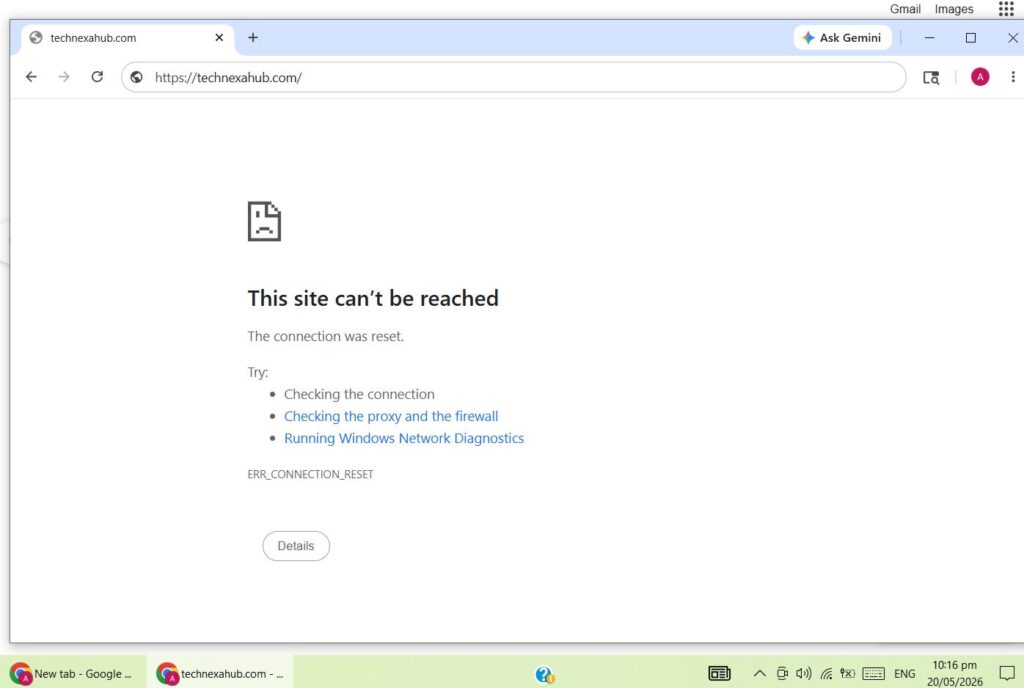
When your laptop connects to WiFi, it has joined your router’s wireless network. But that does not always mean it has reached the wider internet.
Think of WiFi like the hallway to your front door. Your laptop may be standing in the hallway, but the front door may still be locked. That “locked door” could be your router, modem, ISP, DNS server, browser, firewall, or Windows network settings.
Common signs include:
- WiFi connected but no internet laptop message
- “No internet, secured” on Windows 11
- “Connected, no internet” on Windows 10
- Websites not opening even though WiFi is connected
- Apps like WhatsApp, Zoom, or Discord failing to connect
- One laptop not working while phones and other devices work fine
- Laptop connected to internet but browser not working
If you are asking, “why is my laptop connected to WiFi but no internet?”, the fastest answer is this: your laptop is connected to the router, but something is blocking internet traffic after that connection.
First Check: Is the Problem Your Laptop or the WiFi Network?
Before changing settings, check where the problem actually is.
Try connecting another device, such as your phone, tablet, or another computer, to the same WiFi network. Also test your phone on the same WiFi. If your Phone Connected to WiFi But No Internet issue appears too, our phone WiFi troubleshooting guide can help you find the cause faster.
If other devices also have no internet, the issue is likely with:
- Router
- Modem
- Internet provider
- Loose cable
- Expired broadband package
- Router configuration
- Area outage
If only your laptop has no internet, the issue is likely with:
- Windows network settings
- WiFi adapter driver
- DNS configuration
- VPN or proxy
- Firewall or antivirus
- Browser settings
- IP address conflict
This step matters because the fix for “my whole WiFi has no internet” is different from “my Windows laptop connected to WiFi but no internet while everything else works.”
Restart the Router and Laptop Properly
Yes, restarting sounds basic, but it works more often than people expect. Routers can hold temporary errors in memory, especially after power cuts, overheating, or long uptime.
Do this in order:
- Turn off your laptop.
- Unplug the router and modem from power.
- Wait at least 30 seconds.
- Plug the modem in first, if separate.
- Wait until the lights become stable.
- Plug in the router.
- Turn your laptop back on.
- Reconnect to WiFi.
Now test a website. If the laptop connects to WiFi but no internet still appears, keep going.
Forget the WiFi Network and Reconnect
Saved WiFi profiles can become corrupted. Your laptop may remember the old password, wrong security setting, or outdated router configuration.
On Windows 11
- Open Settings.
- Go to Network & internet.
- Click WiFi.
- Open Manage known networks.
- Choose your network.
- Click Forget.
- Reconnect and enter the password again.
On Windows 10
- Open Settings.
- Go to Network & Internet.
- Select WiFi.
- Click Manage known networks.
- Select your WiFi name.
- Click Forget.
- Reconnect.
This can fix the issue when the laptop is connected to wifi but no internet appears after a router password change, new router setup, or security update.
Run the Windows Network Troubleshooter
Windows includes a built-in troubleshooter that can detect common connection problems automatically. It is one of the easiest places to start when WiFi connected no internet Windows 11 or WiFi connected no internet Windows 10 appears on your screen.
On Windows 11
- Go to Settings.
- Select System.
- Click Troubleshoot.
- Open Other troubleshooters.
- Run Network and Internet.
On Windows 10
- Go to Settings.
- Open Network & Internet.
- Select Status.
- Click Network troubleshooter.
Apply any suggested fixes, then restart your laptop.
This is especially useful for WiFi connected no internet Windows 11 and WiFi connected no internet Windows 10 situations where Windows can detect adapter, gateway, or IP configuration problems.
Check Airplane Mode and WiFi Adapter Status
Sometimes the fix is hiding in plain sight. Your laptop may show a saved WiFi connection, but the wireless adapter may be partly disabled or stuck.
Check these:
- Make sure Airplane mode is off.
- Make sure WiFi is turned on.
- Press the laptop’s WiFi function key if it has one.
- Look for a physical wireless switch on older laptops.
- Disable and re-enable the WiFi adapter.
To disable and enable the adapter:
- Right-click the Start button.
- Open Device Manager.
- Expand Network adapters.
- Right-click your wireless adapter.
- Click Disable device.
- Wait a few seconds.
- Right-click again and choose Enable device.
This refreshes the wireless adapter without fully resetting Windows.
Fix “No Internet, Secured” on Windows 11
The no internet secured Windows 11 fix usually involves checking IP settings, DNS, driver updates, and network reset. The phrase means your laptop has connected securely to the router, but internet access is not passing through.
Try these in order:
- Forget and reconnect to the WiFi network.
- Run the Network and Internet troubleshooter.
- Disable VPN temporarily.
- Turn off manual proxy.
- Flush DNS cache.
- Reset Winsock.
- Update the wireless driver.
- Perform a Windows network reset.
If your windows 11 connected to wifi no internet issue started after an update, driver change, or new router installation, pay close attention to driver and DNS fixes below.
Flush DNS and Renew Your IP Address
DNS is like the internet’s phonebook. If DNS becomes corrupted, your laptop may be connected but unable to find websites. This can make it look like the internet is down even when the connection exists.
Use these commands:
- Click Start.
- Type cmd.
- Right-click Command Prompt.
- Choose Run as administrator.
- Enter these commands one by one:
netsh winsock reset
netsh int ip reset
ipconfig /release
ipconfig /renew
ipconfig /flushdns
Restart your laptop after running them.
This can fix problems such as:
- Laptop connects to wifi but no internet
- Browser not opening websites
- Apps failing to connect
- DNS server not responding
- Internet works on phone but not laptop
Change DNS Server Manually
If the ping test shows that ping 8.8.8.8 works but ping google.com fails, your laptop may have a DNS problem. In that case, changing the DNS server can help fix the “WiFi connected but no internet” issue.
Before using custom DNS, first try setting DNS to automatic.
On Windows 11
- Open Settings.
- Go to Network & internet.
- Click Advanced network settings.
- Select More network adapter options.
- Right-click your WiFi adapter.
- Select Properties.
- Click Internet Protocol Version 4 (TCP/IPv4).
- Click Properties.
- First, select Obtain DNS server address automatically.
- Click OK and test your internet again.
On Windows 10
1. Open Settings.
2. Go to Network & Internet.
3. Select Status.
4. Click Change adapter options.
5. Right-click your WiFi adapter.
6. Select Properties.
7. Click Internet Protocol Version 4 (TCP/IPv4).
8. Click Properties.
9. First, choose Obtain DNS server address automatically and test your internet.
10. If that does not work, select Use the following DNS server addresses.
If automatic DNS does not work, enter one of the DNS options below.
Use Google DNS:
Preferred DNS server: 8.8.8.8
Alternate DNS server: 8.8.4.4
Or Cloudflare DNS:
Preferred DNS server: 1.1.1.1
Alternate DNS server: 1.0.0.1
Click OK, restart your browser, and test the internet again.
Also, in your ping-test section, remove this part:
Preferred DNS: 8.8.8.8
Alternate DNS: 8.8.4.4

Preferred DNS: 1.1.1.1
Alternate DNS: 1.0.0.1
Replace it with:
If the ping test shows a DNS problem, continue to the next step and change your DNS server manually.
Turn Off VPN, Proxy, and Custom Firewall Rules
A VPN or proxy can block traffic even while WiFi remains connected. This is common when a VPN app crashes, a work profile is still active, or a proxy was added for school, office, or testing.
To turn off proxy:
- Open Settings.
- Go to Network & internet.
- Select Proxy.
- Turn off Use a proxy server.
- Keep Automatically detect settings on.
Also temporarily disable:
- VPN apps
- Third-party firewall
- Web filtering software
- Security extensions
- Antivirus web shield
Do not leave your antivirus off permanently. This is only a test to find the cause.
Fix “Laptop Connected to Internet But Browser Not Working”
Sometimes the internet is working, but the browser is the problem. You can test this by opening another app, such as Microsoft Store, WhatsApp, Steam, or Zoom.
If apps work but websites do not, try this:
- Open a different browser.
- Clear browser cache.
- Disable browser extensions.
- Reset browser settings.
- Check system date and time.
- Remove suspicious search or proxy extensions.
- Try opening a website in private mode.
If your laptop connected to internet but browser not working problem happens only in one browser, you probably do not need to reset the whole network. Start with browser cache, extensions, and DNS.
Update or Reinstall the WiFi Driver
A damaged or outdated wireless driver is one of the biggest reasons a laptop says connected but no internet. Drivers act like translators between Windows and your WiFi hardware. If that translator breaks, the connection becomes unstable.
To update the driver:
- Right-click Start.
- Open Device Manager.
- Expand Network adapters.
- Right-click your WiFi adapter.
- Choose Update driver.
- Select Search automatically for drivers.
If that does not help:
- Right-click the WiFi adapter again.
- Select Uninstall device.
- Restart the laptop.
- Let Windows reinstall the adapter.
For brand-specific drivers, use the official support site for your exact laptop model. Dell, ASUS, HP, Lenovo, Acer, and MSI all provide wireless driver tools and laptop support pages.
Brand-Specific Tips for Acer, ASUS, HP, Lenovo, Dell, and MSI
Different laptop brands use different wireless cards, power settings, and support tools. The core Windows fixes are similar, but these brand notes can help.
Acer laptop connected to the router but not the internet
For an acer laptop connected to wifi but no internet, check the wireless adapter in Device Manager, run the Windows Network Troubleshooter, turn off manual proxy settings, and reinstall the WiFi driver from Acer’s support page if needed.
ASUS laptop connected to wifi but pages will not load
If your ASUS laptop connected to WiFi but no internet, restart the router, forget and reconnect the WiFi network, run Windows Troubleshooter, update the ASUS wireless driver, flush DNS, and turn off VPN or proxy settings.
HP laptop connected to WiFi but no internet
If your HP laptop connected to WiFi but no internet, start by restarting your router and laptop. Then forget the WiFi network and reconnect with the correct password. Open Windows Network Troubleshooter, update the HP wireless driver through Device Manager or HP Support Assistant, flush DNS, and disable any VPN, proxy, or firewall setting that may block internet access.
Lenovo laptop connected to WiFi but no internet
For a Lenovo laptop connected to wifi but no internet, check Airplane mode, WiFi status, Windows troubleshooting, and Lenovo Vantage updates. Lenovo’s support guidance includes checking WiFi status and using Windows troubleshooting for network issues.
Dell laptop connected to WiFi but no internet
If your Dell laptop connected to WiFi but no internet, try restarting the router, reconnecting WiFi, running Windows Troubleshooter, updating the Dell wireless driver, flushing DNS, and disabling VPN or proxy settings.
MSI laptop connected to WiFi but no internet
For an MSI laptop connected to wifi but no internet, confirm the WiFi function is enabled, reinstall the wireless network card driver, reset the network, and check BIOS or Windows updates if the issue continues. MSI’s notebook WiFi troubleshooting includes driver reinstallation and network reset.
Check Power Management Settings
Windows can turn off the WiFi adapter to save battery. This is helpful for power saving but annoying when it causes random internet drops.
To change it:
- Open Device Manager.
- Expand Network adapters.
- Right-click your WiFi adapter.
- Choose Properties.
- Open the Power Management tab.
- Uncheck Allow the computer to turn off this device to save power.
- Click OK.
This is useful if your laptop connects at first, then loses internet after sleep mode, lid close, or battery saver mode.
Reset Network Settings in Windows
If you have tried the basic fixes and still see Windows laptop connected to WiFi but no internet, a full network reset may help. This removes and reinstalls network adapters and restores networking components to default settings.
On Windows 11
- Open Settings.
- Go to Network & internet.
- Click Advanced network settings.
- Select Network reset.
- Click Reset now.
- Restart the laptop.
On Windows 10
- Open Settings.
- Go to Network & Internet.
- Select Status.
- Click Network reset.
- Choose Reset now.
- Restart.
Use this after trying DNS, driver, VPN, proxy, and router checks. It is powerful, but it may remove saved WiFi networks, VPN profiles, and custom network settings.
Check Router Settings: DHCP, MAC Filtering, and Device Limits
If your laptop is the only device with the issue, your router may be blocking it.
Log in to your router admin panel and check:
- DHCP is enabled.
- MAC filtering is not blocking your laptop.
- Parental controls are not restricting the device.
- Device limit has not been reached.
- Your laptop is not paused in the router app.
- Router firmware is not outdated.
- The correct WiFi band is being used.
DHCP is important because it gives your laptop an IP address. If DHCP fails, your laptop may connect to WiFi but not receive a valid route to the internet.
Try a Mobile Hotspot Test
A hotspot test quickly tells you whether the problem is your laptop or home network.
Turn on hotspot on your phone, then connect your laptop to it.
If the laptop works on hotspot, your laptop is probably fine. The issue may be your router, modem, ISP, or home WiFi settings.
If the laptop does not work on hotspot either, the issue is likely inside Windows, the WiFi driver, DNS settings, VPN, firewall, or the network adapter itself.
This is one of the cleanest tests when you are unsure where to begin.
When Nothing Works: Advanced Checks
If the problem still remains, try these final checks:
- Install pending Windows updates.
- Roll back a recently updated WiFi driver.
- Check for optional driver updates.
- Scan for malware.
- Try Safe Mode with Networking.
- Restore Windows to an earlier restore point.
- Test with a USB WiFi adapter.
- Contact your internet provider if all devices are affected.
- Contact laptop support if the adapter disappears from Device Manager.
If your WiFi adapter is missing, showing a yellow warning symbol, or repeatedly disconnecting, hardware failure is possible. But try official driver installation first before assuming the worst.
FAQs About Laptop Connected to WiFi But No Internet
Why is my laptop connected to WiFi but no internet?
Your laptop is connected to the router, but internet traffic is being blocked somewhere. Common causes include DNS failure, invalid IP address, router issue, VPN conflict, proxy setting, outdated WiFi driver, or ISP outage.
How do I fix WiFi connected no internet Windows 11?
Start with forgetting the network, restarting the router, running the Network and Internet troubleshooter, flushing DNS, disabling VPN/proxy, updating the WiFi driver, and using network reset if needed. This is the most practical no internet secured Windows 11 fix for most users.
How do I fix WiFi connected no internet Windows 10?
For WiFi connected no internet Windows 10, restart the router, forget and reconnect to WiFi, run the Network Troubleshooter, renew your IP address, change DNS, update the WiFi adapter driver, and perform a network reset if the issue continues.
Why does my laptop connect to WiFi but no internet while my phone works?
That usually means the router has internet, but your laptop has a local issue. Check DNS, VPN, proxy, firewall, WiFi driver, IP address, and power management settings.
What does “No internet, secured” mean?
“No internet, secured” means your laptop has securely connected to the WiFi network, but it cannot access the internet. The WiFi password and encryption are working, but the internet route is failing.
Can a bad WiFi driver cause no internet?
Yes. A faulty, outdated, or incompatible WiFi driver can cause slow internet, random disconnections, limited access, or a laptop connected to WiFi but no internet problem.
Should I reset my router or laptop first?
Restart both, but begin with the router if multiple devices are affected. If only your laptop is affected, focus on Windows settings, DNS, driver updates, VPN, and proxy settings.
Final Takeaway
When your laptop connected to WiFi but no internet problem appears, do not panic and do not immediately reset your entire PC. Start small: restart the router, forget the WiFi network, run the Windows troubleshooter, flush DNS, check VPN and proxy settings, then update or reinstall the WiFi driver.
Most cases are fixed before you reach the advanced steps. The key is to test in the right order so you do not waste time changing settings that were never the real problem.