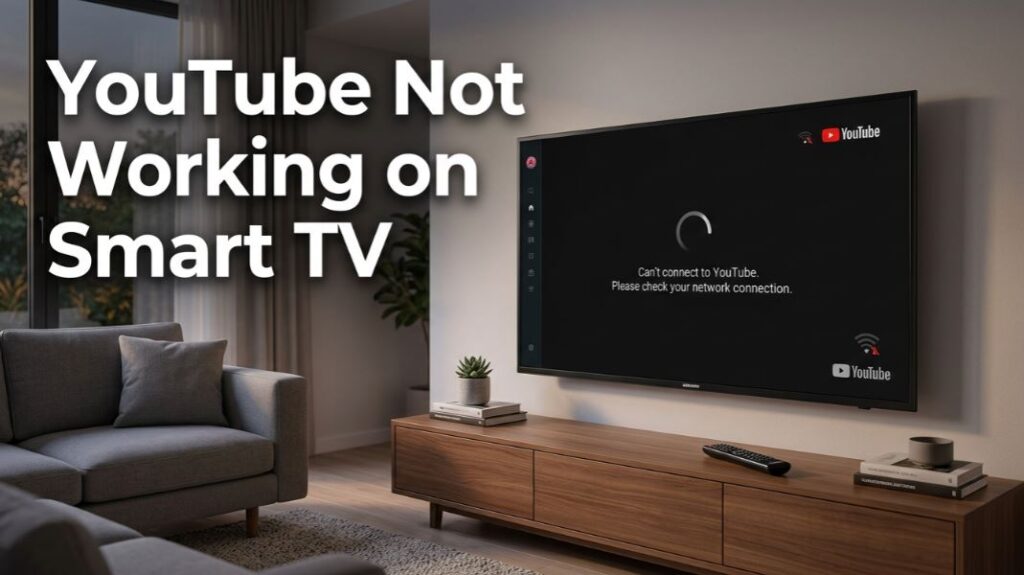
CIs your YouTube not working on Smart TV? You sit down to watch a video, open the YouTube app on your TV, and then nothing happens. Maybe the YouTube logo keeps spinning. Maybe the screen turns black. Maybe your Smart TV says it is connected to wifi but apps are not working. Or maybe YouTube opens, then asks you to sign in again and refuses to load your account.
If YouTube Not Working on Smart TV is the problem you are dealing with right now, the good news is that most cases are fixable at home. You usually do not need a new TV, a paid technician, or a full factory reset as your first step.
This guide covers loading errors, black screen issues, sign-in problems, app crashes, WiFi-connected-but-not-working situations, and brand-related fixes for Samsung, LG, Sony, TCL, Hisense, Panasonic, Philips, Vizio, Roku TV, Amazon Fire TV, Toshiba, Android TV, and Google TV.
Before changing too many settings, remember one safety rule: never share your YouTube sign-in code, Google account password, or TV activation code with anyone. Use only the official YouTube app and official sign-in pages shown on your own TV screen.
Why Is YouTube Not Working on Smart TV?
When YouTube stops working on a Smart TV, the cause is usually one of five things:
- The TV app has frozen in the background.
- The WiFi is connected, but the internet connection is weak or unstable.
- The YouTube app cache or data is corrupted.
- The TV software or YouTube app needs an update.
- Your account sign-in session has expired or failed.
Sometimes the issue is not inside your home at all. YouTube has had service disruptions in the past, including a February 2026 incident where YouTube said a recommendation-system issue affected YouTube, YouTube Music, YouTube Kids, and YouTube TV before service was restored.
That is why the smartest approach is to test the easy causes first, then move toward deeper fixes.
First Check: Is Only YouTube Failing or Are All Apps Not Working?
A common real-world case sounds like this: “My Smart TV is connected to wifi but apps are not working.” This matters because it tells you where the fault may be.
Open another app, such as Netflix, Prime Video, Disney+, Hulu, browser, or the TV app store.
If only YouTube does not work
The issue is likely with the YouTube app, its cache, account session, or app version.
If all apps fail
The issue is more likely your TV network settings, router, DNS, weak WiFi signal, or a temporary TV platform problem.
If some apps work and some do not
Your TV may have a software issue, app store issue, regional service problem, or unstable internet connection.
There have also been cases where Smart TV platform issues affected several streaming apps at once, including YouTube, so checking more than one app saves time.
Quick Fixes to Try First
Start here before deleting apps or resetting the TV.
1. Close and Reopen the YouTube App
Press the back or home button, fully exit YouTube, then open it again. On some TVs, switching apps does not fully close YouTube. If your TV has a recent apps screen, close YouTube from there.
This can fix:
- YouTube stuck on loading screen
- YouTube app not opening on Smart TV
- YouTube frozen after launch
- YouTube black screen after clicking a video
2. Restart the TV the Right Way
Do not only press the power button once. Many Smart TVs go into standby mode instead of fully restarting.
Try this:
- Turn the TV off.
- Unplug it from the wall.
- Wait at least 30 seconds.
- Plug it back in.
- Open YouTube again.
Google’s troubleshooting guidance for TV streaming issues also recommends restarting the device and power cycling network equipment when streaming fails.
3. Restart Your Router
Your TV can show “connected to WiFi” even when the connection is not strong enough for YouTube.
Unplug your router for 30 seconds, plug it back in, then wait until the internet light becomes stable. After that, reconnect the TV and test YouTube again.
This helps when:
- YouTube keeps buffering on Smart TV
- YouTube loads thumbnails but videos will not play
- YouTube says network error
- The TV is connected to WiFi but apps are not working
Fix YouTube Loading Issues on Smart TV
If YouTube opens but keeps spinning, loads slowly, or shows a blank home page, follow these steps.
Check Your Internet Speed
YouTube can open on a weak connection but fail when playing videos. For smoother playback, lower the video quality first. YouTube’s help page lists recommended sustained speeds such as 5 Mbps for 1080p HD and 20 Mbps for 4K playback.
Try this:
- Open YouTube.
- Start any video.
- Choose Settings or Quality.
- Lower the video quality to 720p or 480p.
- Test again.
If lower quality works, your TV or WiFi connection is likely struggling with higher-resolution video.
Move the Router Closer
A Smart TV placed far from the router may connect to WiFi but still perform badly. Thick walls, microwaves, Bluetooth speakers, and other electronics can also affect the signal.
For better results:
- Move the router to an open area.
- Avoid hiding it inside a cabinet.
- Connect the TV to the 5 GHz band if the TV is close to the router.
- Use 2.4 GHz if the TV is far away.
- Use Ethernet if your TV supports it.
Forget and Reconnect WiFi
On your TV, go to network settings, forget your WiFi network, then reconnect with the password. This refreshes the connection and can fix hidden IP or DNS issues.
Fix YouTube Black Screen on Smart TV
A black screen can happen in different ways. You may hear sound but see no picture, or YouTube may open to a completely black page.
Turn Off the TV and Power Cycle It
A black screen often points to a frozen video session or a failed app launch. Unplugging the TV clears temporary memory better than standby mode.
Check If the Black Screen Happens Only on One Video
If one video shows a black screen but other videos work, the issue may be related to that video, ad loading, age restriction, or temporary playback failure.
If every video is black, continue with the app fixes below.
Disable Picture Saving or Energy Saving Modes
Some TVs have aggressive energy-saving settings that dim or blank the screen. Go to picture settings and temporarily turn off eco mode, energy saver, sleep timer, or screen-off mode.
Check HDMI Devices
If you use a Fire TV Stick, Roku device, Apple TV, Android TV box, or game console, remove and reconnect the HDMI cable. Try another HDMI port if needed.
This is useful when YouTube works on the built-in TV app but not on your streaming stick, or the other way around.
Clear YouTube Cache and App Data
Cache is temporary app storage. It helps apps load faster, but when it becomes corrupted, YouTube may crash, freeze, or refuse to load.
On Android Smart TV, Google TV, Sony, TCL, Hisense, Philips, Panasonic, and Toshiba
Steps vary by model, but the path is usually close to this:
- Open Settings.
- Go to Apps.
- Select See all apps.
- Choose YouTube.
- Select Clear cache.
- Reopen YouTube.
If the problem continues, choose Clear data. This may sign you out of YouTube, so make sure you know your Google account details first. Sony’s official guidance for Android TV and Google TV also recommends clearing cache first, then clearing data if the problem continues.
This is especially helpful when youtube does not work on Android smart tv after an update or after weeks of heavy use.
On Samsung Smart TV
Samsung TVs do not always give the same cache options as Android TV. Depending on your model, try:
- Press Home on the remote.
- Go to Settings.
- Open Support.
- Choose Device Care or Self Diagnosis.
- Run app-related checks if available.
- Reopen YouTube.
If youtube not working on samsung smart tv, the next fix is usually updating, reinstalling, or resetting Smart Hub. If YouTube is not working on Samsung TV and apps are not loading properly, this Samsung TV connected to internet but apps not working guide explains DNS, cache, updates, and Smart Hub fixes.
Update the YouTube App and TV Software
Old app versions and outdated TV firmware can cause YouTube to stop loading, show black screens, or fail sign-in.
Update the YouTube App
Open your TV’s app store, search for YouTube, and choose update if available.
On some TVs, apps update automatically only when the TV is idle and connected to the internet. If your YouTube app has not updated in a long time, manual updating can fix playback errors quickly.
Update the TV Software
Look under:
- Settings > Support > Software Update
- Settings > System > About > System Update
- Settings > Device Preferences > About > System Update
The exact menu name depends on the brand.
Samsung’s official app troubleshooting guidance recommends cold booting the TV, updating TV software, deleting and downloading the app again, and using Smart Hub reset as later steps when apps freeze, fail to load, crash, or go missing.
Reinstall the YouTube App
If YouTube still fails, remove and reinstall the app.
When Reinstalling Helps
Reinstalling is useful when:
- YouTube opens then closes
- YouTube app keeps crashing on Smart TV
- YouTube icon is visible but will not launch
- YouTube update failed
- YouTube settings look broken
- You get repeated playback errors
How to Reinstall
- Go to the TV app store or apps menu.
- Find YouTube.
- Delete, remove, or uninstall it.
- Restart the TV.
- Install YouTube again.
- Sign in again.
If youtube does not work on smart tv even after reinstalling, check whether your TV model is still supported.
Check Whether Your Smart TV Still Supports YouTube
Older Smart TVs may lose support for newer app versions. Google notes that the current YouTube app will not work on certain device models, and older YouTube app versions may also stop working.
If your TV is old and the YouTube app is missing, outdated, or cannot be updated, you still have options:
- Use a Roku device.
- Use an Amazon Fire TV Stick.
- Use a Chromecast with Google TV.
- Use an Apple TV box.
- Use a game console with the YouTube app.
- Cast from your phone if supported.
This is often cheaper than replacing a working television.
Fix YouTube Sign-In Problems on Smart TV
Sign-in issues are frustrating because YouTube may open, but your subscriptions, playlists, history, Premium benefits, or family account will not appear.
Use the Official Sign-In Method
YouTube allows sign-in on Smart TVs and game consoles by scanning a QR code, using an activation page such as yt.be/activate, or signing in with the remote.
Follow only the instructions shown inside the official YouTube app on your TV. Do not enter your code on random websites, and do not give it to anyone claiming to be support.
Reset the YouTube App Sign-In Session
In the YouTube TV app menu, open settings and look for reset app, remove account, or sign out. Then restart the app and sign in again.
Google’s YouTube help for Smart TVs recommends making sure the app is updated, using a Google Account, resetting the YouTube app in settings, and checking device support when sign-in fails.
Check the Date and Time on Your TV
Wrong date or time settings can break sign-in pages and secure connections. Set the TV clock to automatic, restart the TV, and try signing in again.
Remove Old Devices From Your Account
If the TV keeps choosing the wrong account, remove the old account from the YouTube app and sign in again. On shared TVs, YouTube also supports privacy controls such as account lock, which can protect your account on a TV used by other people.
Samsung Smart TV Fixes for YouTube Problems
Many readers search phrases like youtube does not work on samsung smart tv or youtube app is not working on samsung smart tv because Samsung menus can be different from Android TV menus.
Try these in order:
Cold Boot the Samsung TV
Hold the power button on the Samsung remote until the TV turns off and back on. If that does not work, unplug the TV for 30 seconds.
Update Samsung TV Software
Go to Settings > Support > Software Update, then install any available update.
Delete and Reinstall YouTube
Open the apps section, select YouTube, remove it if your model allows it, then reinstall it from the Samsung app store.
Reset Smart Hub
Use this only after easier fixes. Resetting Smart Hub signs you out of apps. Samsung warns that resetting Smart Hub signs you out of every app, not only the app you are trying to fix, and you may need your login details afterward.
Typical path:
Settings > Support > Self Diagnosis > Reset Smart Hub
On newer models, it may appear under Device Care or Service Care. The default PIN is often 0000, unless you changed it.
Fix YouTube on LG Smart TV
If YouTube is not opening on an LG Smart TV:
- Restart the TV by unplugging it for 30 seconds.
- Open the LG Content Store.
- Check for a YouTube update.
- Go to TV settings and update the system software.
- Delete and reinstall YouTube if the option is available.
- Test another app to confirm the internet is working.
If YouTube loads slowly, turn off Quick Start or fast startup options, restart the TV, then try again. Fast startup can keep old app sessions alive in the background.
Fix YouTube on Sony, TCL, Hisense, Philips, Panasonic, and Android TV
For Android TV and Google TV models, the best fix is usually cache, data, and updates.
Try this order:
- Restart the TV.
- Open Settings > Apps > YouTube.
- Clear cache.
- Open YouTube again.
- If needed, clear data.
- Update YouTube from Google Play Store.
- Update system software.
- Restart the TV once more.
If YouTube does not work on Android Smart TV, also check Google Play Services updates, especially if you see an error about Play Services or app compatibility.
Fix YouTube on Roku TV and Roku Devices
For Roku TV or Roku streaming devices:
- Press Home.
- Highlight YouTube.
- Press the star button.
- Choose remove channel.
- Restart Roku.
- Add YouTube again from the Channel Store.
Also check Settings > System > System update. If YouTube opens but videos fail, restart your router and test another streaming channel.
Fix YouTube on Amazon Fire TV
For Fire TV Stick, Fire TV Cube, or Fire TV Edition televisions:
- Go to Settings.
- Open Applications.
- Choose Manage Installed Applications.
- Select YouTube.
- Clear cache.
- Force stop the app.
- Reopen YouTube.
If that does not work, clear data, restart Fire TV, then sign in again.
What If YouTube TV Not Working on Smart TV?
Some people search youtube tv not working on smart tv when they mean the normal YouTube app. Others mean YouTube TV, the live TV subscription service.
If the normal YouTube app works but YouTube TV does not, check:
- Your subscription status
- Location permissions
- Home area settings
- Device limits
- App updates
- Internet speed
- Whether YouTube TV is supported in your area
Google’s YouTube TV troubleshooting advice includes closing and reopening the app, restarting the device, checking updates, reinstalling the app, testing internet connection, and checking location permissions.
Safety Tips Before You Reset Anything
When YouTube fails, many people rush into a factory reset. Do not start there.
Before any reset:
- Make sure you know your Google account email.
- Make sure you know your TV account password.
- Check passwords for Netflix, Prime Video, Disney+, and other apps.
- Do not share activation codes with strangers.
- Avoid random “support” phone numbers shown in pop-ups or unknown websites.
- Use only official TV settings and app stores.
A Smart Hub reset, app reset, or factory reset can sign you out of multiple services. It may fix the issue, but it can also create extra work if you do not have login details ready.
Best Fix Order for Fast Results
Use this order to save time:
- Test another app.
- Close and reopen YouTube.
- Restart the TV by unplugging it.
- Restart the router.
- Lower video quality.
- Clear YouTube cache.
- Clear YouTube data.
- Update YouTube.
- Update TV software.
- Reinstall YouTube.
- Reset Smart Hub or app platform.
- Check whether your TV model still supports YouTube.
- Use a streaming device if the TV is too old.
Most people will fix the issue before reaching the final steps.
FAQ: YouTube Not Working on Smart TV
Why is YouTube not working on my Smart TV even though WiFi is connected?
Your TV may be connected to WiFi but not receiving a stable internet connection. Restart the router, forget and reconnect WiFi, test another app, and lower YouTube video quality. If all apps fail, the issue is likely network-related.
Why does YouTube show a black screen on my Smart TV?
A black screen can happen because of a frozen app session, corrupted cache, outdated software, HDMI issues, or display settings. Restart the TV, clear cache, update the app, and check whether other videos work.
Why does YouTube keep loading on my Smart TV?
YouTube may keep loading because of weak WiFi, outdated app data, a stuck app process, or a temporary YouTube service problem. Restarting the TV and router usually helps. If not, clear cache and update the app.
Why is YouTube not working on Samsung Smart TV?
If youtube not working on samsung smart tv is your issue, try cold booting the TV, updating Samsung software, reinstalling YouTube, and resetting Smart Hub only if the first fixes fail.
What should I do if YouTube does not work on Samsung Smart TV after an update?
If youtube does not work on samsung smart tv after an update, restart the TV, reinstall YouTube, and check for another firmware update. If many apps are affected, wait and check whether Samsung services are having a temporary issue.
Why can’t I sign in to YouTube on my TV?
The app may be outdated, your sign-in session may be broken, or your device may not be supported. Update the app, reset the YouTube app from settings, restart the TV, and sign in using the official QR code or activation method.
Will resetting YouTube delete my account?
No, resetting the app does not delete your Google account. It may only remove your account from that TV, which means you will need to sign in again.
Should I factory reset my Smart TV?
Only use a full factory reset after trying restarts, cache clearing, updates, reinstalling the app, and app-platform resets. A factory reset removes many settings and signs you out of apps.
Final Takeaway
When YouTube Not Working on Smart TV becomes the problem, do not panic and do not reset everything right away. Start with the TV restart, router restart, app update, cache clearing, and sign-in refresh. These steps fix most loading, black screen, buffering, and sign-in issues without touching your personal settings.
If YouTube still fails after all fixes, the issue may be a temporary YouTube service problem, an outdated TV model, or a wider Smart TV platform issue. In that case, using an affordable streaming device can bring YouTube back without replacing the whole TV.
For more practical tech help like this, visit TechNexa Hub. We share helpful guides on smartphones, WiFi fixes, Smart TVs, apps, and everyday tech problems in a way that feels clear when you are actually stuck, not just when everything is already working.