The photo and video editing apps mentioned above are completely free for iPhone users. If you know how to use editing tools properly, you can create professional-quality photos and videos even with the free features.
Taking a good photo on an iPhone is easy. Making that photo look clean, bright, sharp, and ready to share is where a good editing app helps.
The problem is simple: there are too many photo editing apps on the App Store. Some look free but lock the best tools behind a subscription. Some are packed with filters but make your image look fake. Others are powerful, but beginners open them once and never touch them again.
So, what is the best free photo editing app for iphone cell phone right now?
For most people, Snapseed is the best overall choice because it gives you powerful editing tools without making the experience feel complicated. But it is not the only good option.
- If you want professional color editing, Lightroom is a strong pick.
- If you make social posts, Canva may be better.
- If you love filters, VSCO can be the right fit.
So you can choose the best free iPhone cell phone photo editor app for your own style, not just download another app you will delete later.
What Is the Best Free Photo Editing App for iPhone?
The best free photo editing app for iPhone cell phone for most users is Snapseed. It is simple enough for beginners, but it still offers advanced tools like selective editing, curves, healing, brush adjustments, RAW support, and detailed tuning. Apple’s App Store listing describes Snapseed as a complete photo editor by Google with more than 25 tools and filters, including healing, brush, HDR, perspective, curves, RAW develop, and selective adjustments.
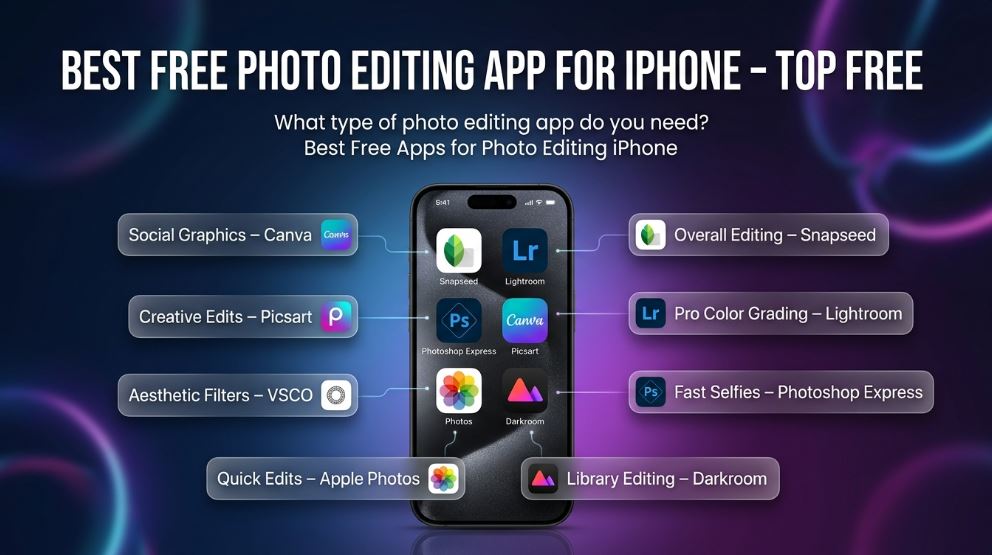
The best app depends on what you want to do:
| What type of photo editing app do you need? | Best Free Apps for Photo Editing iPhone cell phone |
|---|---|
| Overall photo editing | Snapseed |
| Professional color grading | Lightroom |
| Fast selfies and social edits | Photoshop Express |
| Social media graphics | Canva |
| Creative edits and stickers | Picsart |
| Aesthetic filters | VSCO |
| Built-in quick edits | Apple Photos |
| Fast library-based editing | Darkroom |
A free photo editor for iPhone should not only make your photos look better. It should also save time, keep image quality high, and feel easy to use after the first few minutes.
How to Choose a Free iPhone Photo Editing App
Before installing any app, think about your editing goal. A person who wants natural travel photos does not need the same tools as someone making thumbnails, Instagram posts, or product photos.
A good iPhone photo editing app should offer:
- Basic tools like crop, rotate, exposure, contrast, warmth, and saturation
- Filters that do not destroy the natural look of the photo
- Retouching tools for small distractions
- Easy export without confusing settings
- A clean interface
- Free features that are actually useful
- No forced watermark on normal edits
Many apps are free to download but include in-app purchases. That is not always bad. A freemium app can still be excellent if the free version gives enough value.
Best Free Photo Editing Apps for iPhone
Before choosing any photo editing app, first understand what type of photo you want to edit. Install the app that fits your needs best—I’ll break down each tool’s features so you know exactly which one is right for you.
1. Snapseed — Best Overall Free Photo Editing App for iPhone
Snapseed is the first app I would recommend to someone who asks for the best free photo editing app for iphone without wanting a long explanation.
It gives you the right balance of power and simplicity. You can open a photo, make quick brightness and color changes, crop it, sharpen it, remove small distractions, add a soft background blur, or create a more dramatic look with filters.
The best thing about Snapseed is that it does not force you into one editing style. You can make photos look natural, bold, cinematic, bright, moody, or clean. It works well for portraits, food photos, travel shots, product photos, and everyday pictures.
Snapseed also supports detailed tools such as curves, white balance, perspective correction, selective edits, healing, lens blur, double exposure, and RAW editing, according to its App Store feature list.
Why Snapseed Is Great
- It is beginner-friendly
- It has advanced tools without feeling heavy
- It works well for natural edits
- It includes selective editing
- It supports RAW files
- It is good for quick and detailed edits
Where Snapseed Could Be Better
Snapseed is not the best app for trendy stickers, social templates, or AI-style creative designs. It is a photo editor first. If your goal is to make posters, thumbnails, stories, or branded graphics, Canva or Picsart may be more useful.
Best For
Snapseed is best for people who want clean, high-quality edits without paying for a subscription.
2. Adobe Lightroom — Best Free iPhone Photo Editor for Color and RAW Editing
Lightroom is one of the strongest apps for people who care about color, light, and a professional photo style. It is especially useful if you like editing landscapes, portraits, street photos, travel shots, or mobile photography in a more serious way.
Lightroom can feel slightly more advanced than Snapseed, but once you understand the main sliders, it becomes very enjoyable. You can adjust exposure, contrast, highlights, shadows, whites, blacks, color mix, sharpness, and more.
Adobe’s App Store listing describes Lightroom as a free photo and video editor with tools for quick edits and creative enhancement. It is free to download, with optional paid features available through in-app purchases.
Why Lightroom Is Great
- Excellent color control
- Clean editing interface
- Good for RAW photos
- Useful presets
- Great for consistent photo styles
- Works well for natural and professional edits
Where Lightroom Could Be Better
Some advanced tools are locked behind paid plans. If you only want simple edits, Lightroom may feel more serious than necessary. But if you enjoy learning photo editing, it is one of the best free photo editing apps for iPhone to grow with.
Best For
Lightroom is best for users who want professional-looking edits, better colors, and more control over their photos.
3. Photoshop Express — Best for Quick Fixes, Collages, and Social Photos
Photoshop Express is a good choice if you want a fast and friendly app for everyday editing. It is not as complex as full Photoshop, and that is the point. It is designed for quick improvements, easy effects, collage creation, and shareable images.
You can use it to brighten selfies, fix contrast, add filters, remove small marks, create collages, and prepare photos for social platforms. Adobe’s App Store listing describes Photoshop Express as a photo and video editor focused on one-touch transformations, collage images, quick fixes, and social content.
Why Photoshop Express Is Great
- Simple interface
- Good one-tap edits
- Useful collage tools
- Nice for selfies and lifestyle photos
- Good for quick social media edits
Where Photoshop Express Could Be Better
Some effects and premium features may require payment. It is also not always the best choice for deep manual editing compared with Snapseed or Lightroom.
Best For
Photoshop Express is best for people who want quick edits, good-looking filters, and easy collage options without learning advanced editing.
4. Canva — Best Free App for Social Media Graphics and Designed Photos
Canva is not only a photo editor. It is more like a full design studio on your iPhone.
This makes it perfect for people who want to turn photos into social media posts, YouTube thumbnails, Pinterest pins, posters, banners, profile images, invitations, or business graphics.
If your photo needs text, shapes, templates, icons, frames, or a polished layout, Canva is usually easier than a traditional editing app. Its App Store listing describes Canva as an all-in-one creative platform for graphic design, photo editing, video creation, presentations, resumes, and social media content.
Why Canva Is Great
- Excellent templates
- Easy text and design tools
- Great for social media posts
- Beginner-friendly layout
- Useful for creators, students, and small brands
- Good for thumbnails, posters, and story designs
Where Canva Could Be Better
Canva is not the best choice for detailed photo correction. You can use free on web browser without install app. You can edit photos inside Canva, but if you want careful exposure, color, sharpening, and selective adjustments, Snapseed or Lightroom is better.
Best For
Canva is best for users who want to create designed content, not just edit a photo.
5. Picsart — Best for Creative Edits, Stickers, and AI-Style Effects
Picsart is a fun app for people who want more than basic editing. It is packed with creative tools such as effects, stickers, background tools, collage features, design options, and AI-powered editing features.
If you like bold edits, creative portraits, cutouts, social media designs, or playful effects, Picsart is worth trying. The App Store listing describes Picsart as an all-in-one AI photo editor, video editor, and design studio with tools like background remover, filters, effects, retouch tools, collages, and AI generator features.
Why Picsart Is Great
- Strong creative editing tools
- Good for stickers and effects
- Useful background remover tools
- Fun collage options
- Good for social content
- Many design-style features
Where Picsart Could Be Better
Picsart can feel busy because it offers so many tools. Also, some features may require a paid plan. If you want a simple, distraction-free editor, Snapseed may feel cleaner.
Best For
Picsart is best for creative users who want eye-catching edits, social posts, stickers, and playful photo effects.
6. VSCO — Best Free iPhone Photo Editor for Aesthetic Filters
VSCO is popular because of its clean filters. It is a great choice if you want your photos to have a soft, stylish, film-like, or minimal look without spending too much time adjusting every detail.
VSCO is especially good for lifestyle photography, portraits, travel photos, coffee shop shots, nature images, and social feeds where a consistent style matters.
The App Store listing describes VSCO as a photo editor with free presets, RAW photo import, and editing tools such as contrast. Some regional listings mention 10 free presets, which makes it useful for users who mainly want quick filter-based editing.
Why VSCO Is Great
- Beautiful filters
- Clean and simple interface
- Good for consistent social feeds
- RAW photo import
- Nice for lifestyle and travel edits
Where VSCO Could Be Better
The free version is more limited than some other apps. If you want many filters and advanced features, you may need a membership. For full free editing power, Snapseed offers more tools.
Best For
VSCO is best for users who care about soft, stylish, aesthetic photo filters.
7. Apple Photos — Best Built-In Free Photo Editor for iPhone
Many people forget that the iPhone already has a free photo editor built into the Photos app. You do not need to download anything to crop, rotate, adjust brightness, change color, add filters, or mark up images.
Apple’s official guide explains that the Photos app lets users adjust light and color, crop, rotate, add filters, and edit photos directly on iPhone.
The built-in editor is perfect when you only need a small fix. For example, you can brighten a dark dinner photo, straighten a tilted landscape, crop a screenshot, or make a selfie look more balanced.
Why Apple Photos Is Great
- Already installed
- Simple and fast
- No extra account needed
- Good for basic edits
- Easy to use with iCloud Photos
- Works well for quick corrections
Where Apple Photos Could Be Better
It does not offer the same creative control as Snapseed, Lightroom, or Picsart. There are no advanced design templates, deep retouching tools, or creative effects like you get in third-party apps.
Best For
Apple Photos is best for quick edits when you do not want to install another app.
8. Darkroom — Best for Fast Editing Inside Your Photo Library
Darkroom is a polished photo and video editor that feels smooth on iPhone. It is useful if you want to move quickly through your photo library and edit images without importing them one by one.
The App Store listing highlights Darkroom’s ability to access the photo library quickly, crop images, adjust curves, use preset filters, and create custom looks. It is also listed as free with in-app purchases.
Darkroom is a good middle ground between a simple editor and a professional tool. It is cleaner than many creative apps and faster than some heavier editing tools.
Why Darkroom Is Great
- Fast library access
- Clean editing workflow
- Good curves and presets
- Smooth design
- Useful for batch-style editing habits
Where Darkroom Could Be Better
Some advanced tools may require payment. For completely free all-around editing, Snapseed is still the safer first choice.
Best For
Darkroom is best for users who want a fast, smooth editor that feels built for iPhone.
Free vs Freemium: What You Should Know Before Downloading
When searching for the best free photo editing app for iPhone, it is important to understand the difference between “free” and “freemium.”
A free app gives you useful tools without asking for payment right away. A freemium app is free to download but may lock some filters, AI tools, export options, or advanced features behind a subscription.
This does not mean freemium apps are bad. Lightroom, Photoshop Express, Canva, Picsart, VSCO, and Darkroom can all be useful even if you never pay. But you should check what you actually get for free before building your whole editing workflow around one app.
A simple rule works well:
- Use Snapseed for free full editing
- Use Apple Photos for quick basic fixes
- Use Lightroom for color and RAW editing
- Use Canva for designed posts
- Use Picsart for creative effects
- Use VSCO for stylish filters
Best Free Photo Editing App for iPhone by Use Case
Best for Beginners: Snapseed
Snapseed is easy to learn but still powerful. Start with Tune Image, Crop, Details, and Selective. These tools cover most everyday edits.
Best for Selfies: Photoshop Express
Photoshop Express is good for quick portrait improvements, filters, and social-ready results. It keeps the process simple.
Best for Professional-Looking Photos: Lightroom
Lightroom is ideal if you want better colors, softer highlights, balanced shadows, and a consistent editing style.
Best for Instagram-Style Posts: Canva
Canva is the best option when your photo needs text, templates, frames, or a clean layout.
Best for Creative Edits: Picsart
Picsart is great for users who want stickers, background changes, AI effects, collages, and fun edits.
Best for Aesthetic Filters: VSCO
VSCO is best when you want a soft, clean, stylish filter without doing too much manual editing.
Best Without Downloading Anything: Apple Photos
Apple Photos is enough for simple cropping, light correction, color changes, and quick filters.
Simple iPhone Photo Editing Workflow for Better Results
You do not need to be a professional editor to make your iPhone photos look better. Follow this simple workflow in any good free iPhone photo editing app.
Step 1: Crop First
Remove empty space and distractions. A good crop can make an average photo look much stronger.
Step 2: Fix Brightness and Contrast
If the photo looks dull, raise exposure slightly. If it looks flat, add a little contrast. Do not overdo it.
Step 3: Adjust Highlights and Shadows
Lower highlights if the sky or face looks too bright. Lift shadows if dark areas have useful detail.
Step 4: Correct Warmth and White Balance
If the photo looks too yellow or too blue, adjust the temperature. Natural color usually looks better than extreme color.
Step 5: Add Sharpness Carefully
A small amount of sharpening helps details. Too much can make skin, hair, and edges look rough.
Step 6: Use Filters Lightly
Filters are helpful, but strong filters can make photos look fake. Lower the filter strength when possible.
Step 7: Remove Small Distractions
Use healing or object removal tools only when needed. Removing a small mark, spot, or background distraction can make the photo cleaner.
My Honest Recommendation
If you only want to install one app, choose Snapseed. It is the safest recommendation for most people because it covers basic edits, detailed adjustments, portrait improvements, RAW editing, healing, curves, and creative filters without making the app feel too difficult.
If you want two apps, use Snapseed + Canva. Snapseed will handle the photo editing, and Canva will help you turn that photo into a clean post, thumbnail, banner, or story.
If you want a more professional setup, use Lightroom + Snapseed. Lightroom is better for color and consistent style, while Snapseed is great for selective edits and quick finishing touches.
The best free photo editing app for iPhone is not always the app with the most tools. It is the app that helps you create the result you want without wasting your time.
FAQs About the Best Free Photo Editing App for iPhone
What is the best free photo editing app for iPhone?
Snapseed is the best free photo editing app for iPhone for most users because it offers powerful tools, simple controls, selective editing, filters, RAW support, and clean exports without feeling complicated.
Is Snapseed completely free on iPhone?
Snapseed is free to download and use. Its App Store listing highlights a wide set of editing tools, including healing, brush, HDR, perspective, curves, and RAW develop.
Is Lightroom free on iPhone?
Lightroom is free to download and includes useful editing tools, but some advanced features and premium options require in-app purchases.
Which free iPhone photo editor is best for selfies?
Photoshop Express is a strong choice for selfies because it is simple, quick, and useful for one-tap edits, portrait-style improvements, filters, and social photos.
Which app is best for Instagram photos on iPhone?
For normal photo editing, Snapseed and Lightroom are great. For designed posts, stories, text, and templates, Canva is the better choice.
Does iPhone have a built-in photo editor?
Yes. The Photos app on iPhone includes built-in editing tools for light, color, crop, rotation, filters, and markup.
What is the best free app for aesthetic filters?
VSCO is one of the best free iPhone photo editing apps for aesthetic filters. It is useful for soft, clean, film-like edits and consistent social media styles.
Which free photo editing app is best for beginners?
Snapseed is the best beginner-friendly option because it is simple at the start but still powerful as your editing skills improve.
Final Thoughts
Choosing the best free photo editing app for iphone cell phone depends on how you edit and what kind of photos you create.
For most people, Snapseed is the best overall choice. It is powerful, clean, easy to learn, and useful for almost every type of photo. Lightroom is better for serious color editing. Canva is better for social designs. Picsart is better for creative edits. VSCO is better for filters. Apple Photos is best when you only need a quick fix.
Start with one app, learn the basic tools, and keep your edits natural. A clean, balanced photo will almost always look better than an over-edited one.