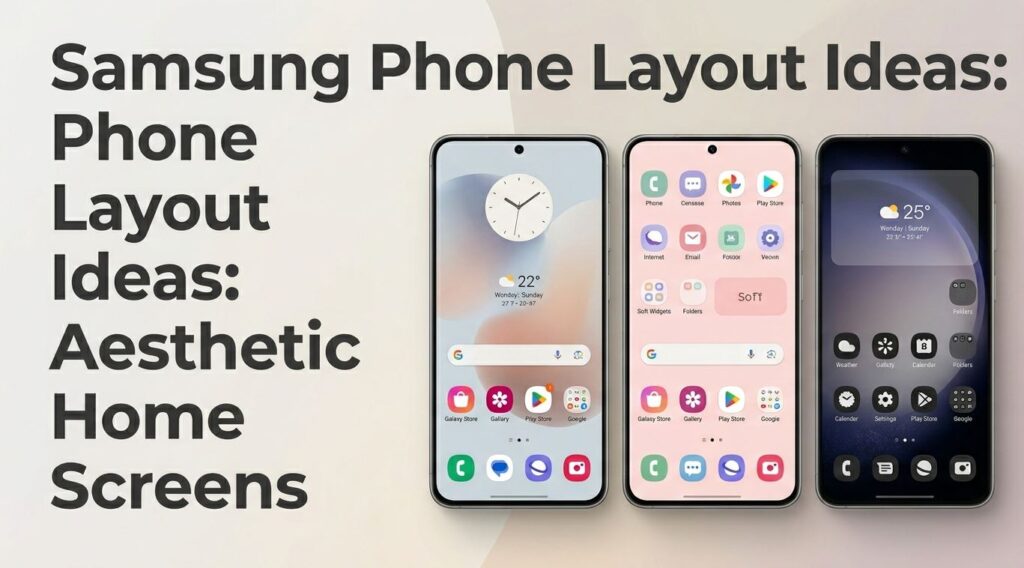
Your phone home screen is something you look at many times a day, so it should feel good to use. It should not look messy, confusing, or filled with random apps you barely open. A clean setup can make your phone feel fresh again, and a beautiful layout can turn a normal screen into something personal.
That is why Samsung Phone Layout Ideas are so popular. People do not just want a wallpaper. They want a complete look. They want icons that match, widgets that make sense, folders that are easy to understand, and a home screen that feels aesthetic without becoming hard to use.
Samsung phones are great for this because One UI gives users many simple ways to customize the screen. You can change wallpapers, move apps, adjust widgets, use Galaxy themes, apply icon packs, edit the lock screen, and organize your apps in a way that fits your daily routine. Good Lock and Home Up also add deeper customization for users who want more control over the layout. Samsung describes Good Lock as a customization suite for Galaxy users, and Home Up is designed for home screen personalization.
You will find practical Samsung home screen layout ideas, creative design styles, widget tips, folder ideas, and simple setup examples you can actually use. The goal is not to copy someone else’s phone exactly. The goal is to build a home screen that looks clean, feels personal, and helps you use your phone faster.
Why Samsung Phone Layout Ideas Matter
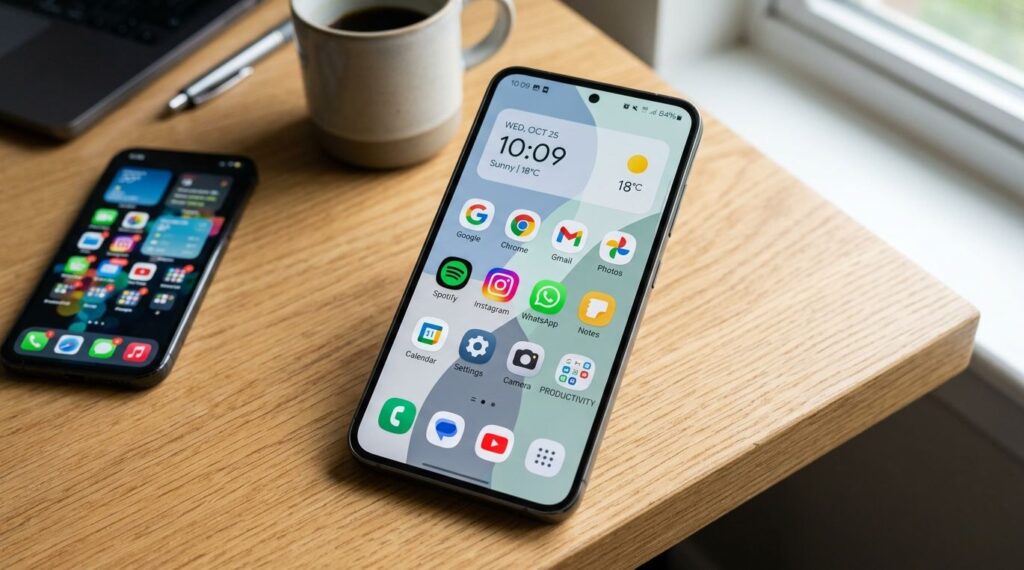
A good home screen is not only about decoration. It affects how quickly you open apps, how often you get distracted, and how organized your phone feels.
When your home screen is cluttered, your phone can feel stressful. You unlock it to check the time, but suddenly you see social apps, shopping apps, games, unread badges, and random folders everywhere. That small visual mess can pull your attention away from what you wanted to do.
A smart One UI home screen layout helps you:
- Keep your most-used apps easy to reach.
- Hide distracting apps from the first screen.
- Make your wallpaper, icons, and widgets feel connected.
- Create a smoother daily phone experience.
- Build a personal style that still feels practical.
Many users search for Samsung home screen ideas because they want their phone to look better but still remain easy to use. The best setup gives you both: style and function.
Start With One Clear Home Screen Style
Before changing icons or adding widgets, choose the overall mood of your layout. This makes the design feel intentional instead of random.
Minimalist Samsung Setup
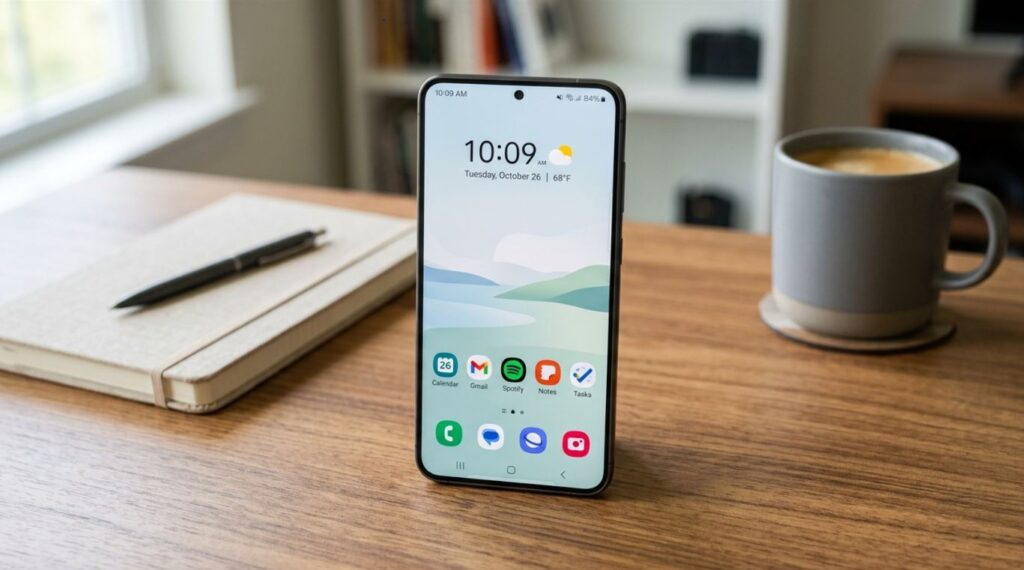
A minimalist Samsung setup is perfect if you like a clean Android home screen with fewer distractions. Use one calm wallpaper, one main widget, and only your daily apps on the first page.
A simple layout could include:
- Clock widget at the top.
- Weather widget below it.
- Four to six important apps.
- A clean dock with phone, messages, browser, and camera.
This style works well for people who want their screen to feel calm and easy to scan.
Cute Samsung Phone Layout
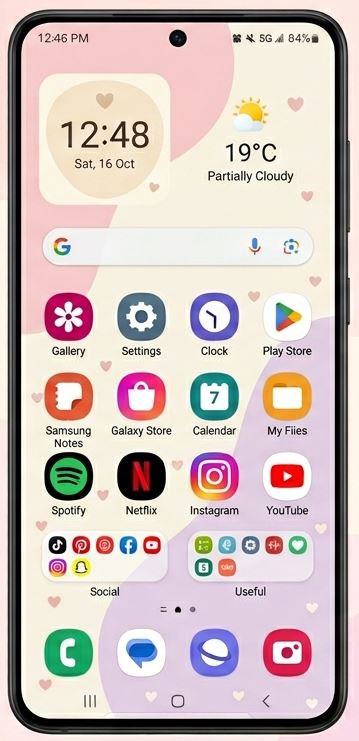
A cute Samsung phone layout usually uses soft colors, playful icons, and cozy widgets. Think pastel wallpaper, rounded app icons, small heart details, simple folders, and a friendly clock widget.
Good color ideas include:
- Pink and cream.
- Lavender and white.
- Mint and beige.
- Sky blue and soft gray.
- Peach and ivory.
This is a popular choice for anyone who wants a warmer Samsung home screen aesthetic without making the screen look too busy.
Dark Samsung Theme
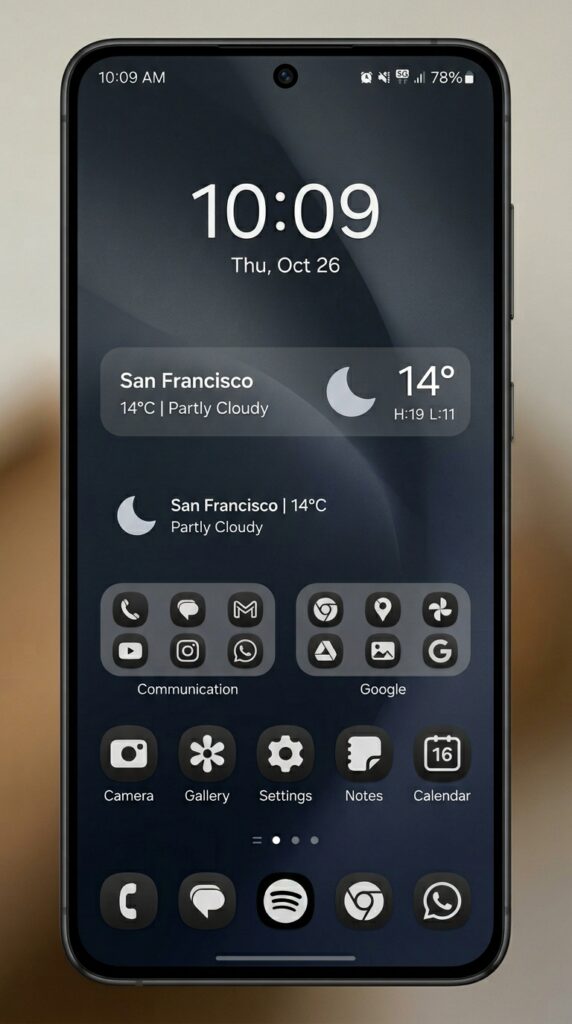
A dark Samsung theme gives your phone a modern and polished look. Use black, charcoal, navy, or deep purple wallpaper. Pair it with white icons, gray widgets, or a neon accent color.
This style works well with:
- Minimal clock widgets.
- Transparent weather widgets.
- Monochrome icon packs.
- Dark lock screen wallpaper.
- Simple app folders.
A dark layout is one of the easiest Samsung layout ideas to make look premium.
Productivity Home Screen
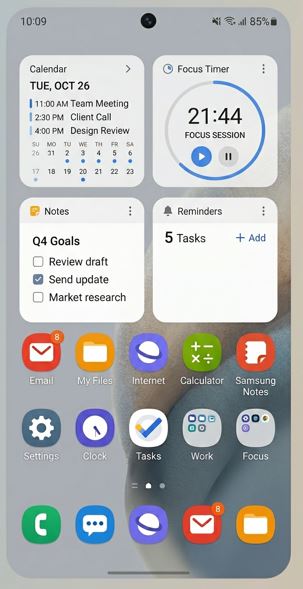
A productivity layout is for users who want the home screen to help with daily tasks. It can still look aesthetic, but the main focus is usefulness.
Add widgets and apps like:
- Calendar.
- Notes.
- Reminders.
- Email.
- Files.
- Browser.
- Calculator.
- Clock or focus timer.
This setup is great for students, workers, creators, and anyone who uses their phone as a daily planning tool.
Choose the Best Samsung Home Screen Grid Size
The Samsung home screen grid size controls how many apps and widgets fit on the screen. This small setting changes the whole layout.
Older Samsung software versions offered grid options such as 4×5, 4×6, 5×5, and 5×6. With One UI 7, Samsung states that only 4×6 and 5×6 home screen grids are supported on updated devices, and older layouts may shift after the update.
How to Pick the Right Grid
Use this simple guide:
- 4×6 grid: Better for a clean look with more breathing room.
- 5×6 grid: Better if you want more apps on one screen.
- Home Up layout: Useful if you want deeper customization through Good Lock where available.
If you like large widgets and empty space, choose the wider-looking setup. If you like more shortcuts and folders, use the tighter layout.
A good Samsung home screen layout ideas aesthetic setup usually starts with the grid. If the grid feels wrong, even a beautiful wallpaper can look crowded.
Build the Layout Around Your Wallpaper
Wallpaper is the foundation of your home screen. Icons and widgets sit on top of it, so your background needs to support the design.
A busy wallpaper can make the screen hard to read. A very plain wallpaper can feel boring. The best choice is something that matches your style while leaving enough empty space for widgets.
Samsung Best Wallpaper Ideas
Try these Samsung wallpaper ideas based on your layout style:
- Soft gradient wallpaper for a calm setup.
- Nature wallpaper for a peaceful look.
- Abstract wallpaper for a modern screen.
- Solid color wallpaper for minimal layouts.
- Anime or illustration wallpaper for a cute design.
- City night wallpaper for a dark theme.
- Beige or brown wallpaper for a cozy aesthetic.
Quick Wallpaper Tip
Look at the top and middle of the image before applying it. That is where clock, weather, and calendar widgets usually sit. If that area is too detailed, your widget text may be hard to read.
A strong samsung home screen aesthetic starts with a wallpaper that makes everything else easier to see.
Use Widgets Like Design Pieces
Widgets are not just tools. They are also part of the design. A good widget can make your screen look finished. Too many widgets can make it feel crowded.
Samsung Widgets Ideas for Daily Use
Here are practical Samsung widgets ideas you can use:
- Clock widget for a clean visual anchor.
- Weather widget for quick daily planning.
- Calendar widget for events and reminders.
- Battery widget Samsung users can use for phone and connected devices.
- Notes widget for quick thoughts.
- Music widget for playlists.
- Reminder widget for tasks.
- SmartThings widget for connected devices.
Samsung also allows lock screen and Always On Display widget customization on supported One UI versions. For One UI 7 or later, Samsung says users can add one or two widgets to the lock screen or AOD from the lock screen customization area.
Widget Placement Ideas
For a balanced home screen, try this:
- Top: clock widget.
- Middle: weather widget or calendar widget layout.
- Lower area: daily apps.
- Dock: four most-used apps.
This gives you a clean layout that looks good and stays useful.
Make Icons Match the Home Screen Mood
Icons can quickly ruin or improve your layout. If your wallpaper is soft but your icons are bright and random, the screen may feel messy. Matching icons create a smoother look.
Samsung lets users customize Galaxy themes, Samsung wallpapers, and icons from the phone’s theme options. Samsung’s support page also explains that themes can change parts of the system design, including apps like Contacts, Messages, Settings, and Quick settings.
Samsung Theme Park Icon Pack
The Samsung Theme Park icon pack option is useful if you want a more custom look. Theme Park can create a theme from your wallpaper colors, and Samsung notes that it can help fine-tune colors or change icon styles using icon packs.
You can use it for:
- Pastel phone theme icons.
- Neutral icon pack styles.
- Dark icon designs.
- Color-matched folders.
- Custom icon shapes.
This is helpful when you want an aesthetic Samsung home screen that feels complete from wallpaper to app icons.
Organize Apps by Real-Life Use
A pretty layout is useless if you cannot find your apps. Your home screen should match how you actually use your phone.
Instead of placing apps randomly, group them by purpose.
Simple Folder Ideas
Try folders like:
- Social
- Work
- Money
- Shopping
- Travel
- Health
- Editing
- Learning
- Tools
- Entertainment
Good app drawer organization also matters. You do not need every app on the home screen. Keep daily apps visible and move the rest into folders or the app drawer.
The Three-Zone Layout
Use this simple three-zone method:
Top zone: widgets and information.
Middle zone: folders or secondary apps.
Bottom zone: apps you open every day.
This works because your thumb reaches the lower screen more easily. Put important apps near the bottom and less-used apps higher up.
Create a Clean One-Page Layout
One of the best Samsung home screen layout ideas is a one-page setup. This means you keep only one main home screen and use the app drawer for everything else.
One-Page Layout Example
Use this setup:
- One large clock widget.
- One weather widget setup.
- One folder for extra apps.
- Six daily apps.
- Four dock apps.
This layout is simple, fast, and easy to maintain. It also makes your wallpaper more visible.
People searching for aesthetic home screen Samsung ideas often want this kind of clean setup. It looks stylish without needing too much customization.
Try a Soft Aesthetic Samsung Home Screen
A soft layout is calm, gentle, and easy to look at. It usually includes light colors, simple icons, and rounded widgets.
Soft Color Combinations
Try these:
- Cream wallpaper with brown icons.
- Pink wallpaper with white widgets.
- Lavender wallpaper with gray icons.
- Sage green wallpaper with beige folders.
- Blue gradient wallpaper with transparent widgets.
A soft samsung aesthetic home screen works best when everything feels connected. Do not mix too many colors. Choose two or three main colors and repeat them through wallpaper, widgets, folders, and icons.
Design a Dark Aesthetic Layout
A dark layout is great if you want a modern phone screen. It also works well if you prefer less brightness at night.
Dark Layout Example
Use:
- Black or deep gray wallpaper.
- White digital clock widget.
- Small weather widget.
- Monochrome icons.
- Minimal folders.
- Four dock apps only.
Always On Display can also match this look. Samsung says AOD lets users view details like time, date, notifications, missed calls, and more while the screen is off, depending on device and software version.
This creates a smooth style from lock screen to home screen.
Use Samsung Always On Display Widgets
Samsung Always On Display widgets are useful because they let you see important information without fully opening your phone.
Good AOD widget ideas include:
- Clock.
- Weather.
- Calendar.
- Battery.
- Reminder.
- Music controls.
Keep your AOD simple. If you add too much, it may stop looking clean. Match the AOD clock style with your lock screen and home screen for a more finished look.
Match Your Lock Screen With Your Home Screen
Your lock screen is part of the full phone aesthetic. If your lock screen is bright and colorful but your home screen is dark and minimal, the design may feel disconnected.
Samsung lock screen customization can help you make both screens feel like one complete setup.
Matching Ideas
Try these combinations:
- Same wallpaper on both screens.
- Blurred wallpaper on the home screen.
- Dark lock screen with dark home screen.
- Pastel lock screen with pastel icons.
- Minimal lock screen with clean widgets.
LockStar lock screen customization through Good Lock can also help users who want more control, depending on device and availability.
Use Edge Panel Shortcuts for a Cleaner Screen
Edge panel shortcuts are helpful because they let you access apps and tools without placing everything on your home screen.
You can keep your layout clean and still reach:
- Calculator.
- Notes.
- Calendar.
- Files.
- Gallery.
- Voice recorder.
- Screenshot tools.
- Favorite contacts.
This is a smart choice for a clean Android home screen because it hides extra tools while keeping them close.
Samsung Layout Ideas for Different Users
Not everyone wants the same screen. Here are a few complete layout styles you can use as inspiration.
1. Clean Everyday Layout
Use a neutral wallpaper, one clock widget, one weather widget, and only the apps you use daily. This layout is simple and works for almost anyone.
Best for: users who want a calm, clutter-free phone.
2. Student Layout
Use calendar, notes, reminders, browser, files, calculator, and study apps. Put entertainment apps on the second page or in the app drawer.
Best for: school, college, online classes, and daily planning.
3. Creator Layout
Use camera, gallery, editing apps, cloud storage, notes, and social apps. Add a battery widget and a simple calendar widget to stay organized.
Best for: creators, vloggers, editors, and social media users.
4. Cozy Weekend Layout
Use a soft wallpaper, cute icons, music widget, weather widget, and entertainment apps. This layout should feel relaxed and personal.
Best for: users who love cozy, cute, and fun designs.
5. Business Layout
Use email, calendar, notes, files, browser, banking, and communication apps. Choose a dark or neutral theme for a professional look.
Best for: work, meetings, travel, and productivity.
Common Home Screen Mistakes to Avoid
Many people start customizing their phone and make it too complicated. A good home screen should be easy to use after the first day.
Avoid these mistakes:
- Adding too many widgets.
- Using wallpaper that hides text.
- Filling every empty space.
- Mixing too many icon styles.
- Creating unclear folder names.
- Keeping distracting apps in the easiest spots.
- Copying a layout that does not match your routine.
The best Samsung home screen ideas are personal. Inspiration is useful, but your final setup should fit how you live.
Simple Step-by-Step Setup Plan
Use this quick plan to build your layout:
- Pick one style: minimal, cute, dark, soft, or productive.
- Choose a wallpaper that matches that style.
- Select the right grid size.
- Add one main widget.
- Add one useful second widget.
- Apply matching icons or a Theme Park design.
- Place daily apps near the bottom.
- Move distractions into folders or the app drawer.
- Match the lock screen and Always On Display.
- Use the layout for two days, then adjust what feels wrong.
This simple method works better than trying to redesign everything at once.
Many users want their Samsung phone to feel clean, personal, and easy to use. A good aesthetic home screen is not only about wallpaper or icons. It is about choosing a layout that matches your daily routine, keeps important apps close, and makes your phone feel more organized every time you unlock it.
FAQs About Samsung Phone Layout Ideas
What are the best Samsung Phone Layout Ideas for beginners?
The best beginner layout is simple. Use one wallpaper, one clock widget, one weather widget, and your most-used apps near the bottom. Keep everything else in folders or the app drawer.
How do I make my Samsung home screen look aesthetic?
Choose one color theme, use matching icons, keep widgets consistent, and avoid overcrowding the screen. A clean Samsung home screen aesthetic depends on balance more than decoration.
What is the best Samsung home screen grid size?
For many users, 4×6 feels clean and 5×6 gives more space for apps. On One UI 7, Samsung lists 4×6 and 5×6 as supported home screen grid options.
Can I change icons on a Samsung phone?
Yes. You can use Galaxy themes, icon packs, and Theme Park. Samsung’s theme tools allow users to customize wallpapers, themes, and icons depending on device and software version.
What widgets should I use on my Samsung home screen?
Useful widgets include clock, weather, calendar, notes, reminders, battery, and music. Pick widgets you actually check every day.
How do I make my Samsung layout less cluttered?
Remove apps you do not use daily, use simple folders, clean up the dock, and move extra apps into the app drawer. Also choose wallpaper that does not make icons hard to read.
Are Samsung Always On Display widgets worth using?
Yes, if you want quick information without opening your phone. Use only one or two important widgets so the screen stays clean.
Conclusion: Build a Samsung Layout That Feels Like Yours
The best Samsung Phone Layout Ideas are not about making your phone look like someone else’s screenshot. They are about creating a home screen that fits your habits, your style, and your daily routine.
Start with a clear theme. Choose a wallpaper that supports your design. Pick the right grid size. Add useful widgets. Match your icons. Organize apps by real-life use. Then connect your lock screen and Always On Display so the whole phone feels polished.
A great layout should be aesthetic, but it should also be easy. When your home screen looks clean and helps you move faster, your phone feels better every time you unlock it.
For more simple tech help, TechNexa hub for practical phone, Wi-Fi, smart TV, laptop, and PC guides written for everyday users who want quick answers without confusing steps and tech stress.