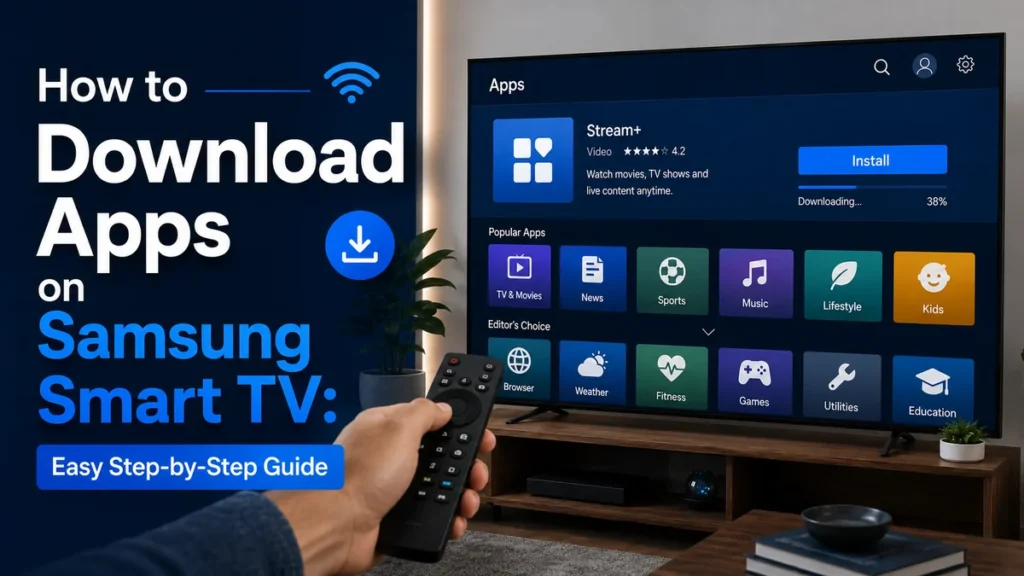
Trying to add a new app to your Samsung TV should be simple. Still, many people open the Home screen, move through rows of icons, and wonder where the app store is hiding.
Here is the simple answer: to download apps on a Samsung Smart TV, press the Home button, open Apps, choose the magnifying-glass icon, type the app name, select the app, and press Install. After that, you can open the app or add it to your Home screen for faster access.
This guide explains how to download apps on Samsung Smart TV in a clear, practical way. You will also learn what to do when an app is missing, why some older TVs cannot install certain apps, and how to add popular apps like Sony LIV and Xfinity Stream when your TV supports them.
How to Download Apps on Samsung Smart TV
Follow these steps:
- Turn on your Samsung Smart TV.
- Make sure it is connected to Wi-Fi or Ethernet.
- Press the Home button on your remote.
- Choose Apps from the menu.
- Select the magnifying-glass icon.
- Type the name of the app you want.
- Select the app from the results.
- Choose Install.
- Open the app or add it to your Home screen.
You may need to sign in with a Samsung account before the app installs. If the app does not appear, it may not be available for your TV model, location, or software version.
Before You Install Apps, Check These Things First
Before learning how to download apps on the Samsung Smart TV, make sure the basics are ready. A small setup issue can make the Apps menu look empty or stop downloads from working.
Check these first:
- Your TV is connected to the internet.
- You are signed in to a Samsung account.
- Your TV software is updated.
- There is enough storage space.
- The app is available for Samsung Smart TV.
- The app supports your TV model year.
Samsung Smart TVs do not work exactly like Android phones. You usually cannot install random phone apps or APK files. Apps must be available through the Samsung TV Apps area.
Step-by-Step: How to Download an App on Samsung Smart TV
Here is the full process in more detail.
1. Connect Your Samsung TV to the Internet
Apps need an internet connection to install and run. You can use Wi-Fi or a wired Ethernet cable.
To check your connection, open Settings, go to the network area, and confirm that the TV is online. If your connection is weak, move the router closer, restart the router, or use a wired connection if possible.
A stable connection also helps apps open faster after installation.
2. Press the Home Button on the Remote
The Home button opens the main smart TV menu. On many Samsung remotes, it looks like a small house.
If you have an older remote, you may see a Smart Hub button instead. Press that to reach the smart TV menu.
3. Open the Apps Section
Move across the menu until you find Apps. On some Samsung TVs, Apps appears along the bottom row. On newer models, it may appear in a side menu or inside a media area.
If you cannot see Apps right away, keep moving through the main menu. It is often there, but Samsung’s layout can look different depending on the model and software version.
4. Use the Magnifying-Glass Icon
Inside Apps, choose the magnifying-glass icon. Type the name of the app you want using the on-screen keyboard.
For example, you can type names like Netflix, YouTube, Prime Video, Apple TV, Spotify, Sony LIV, or Xfinity Stream.
5. Select the App and Press Install
When the app appears, open its page and choose Install. The TV will download and add the app automatically.
If the button says Open, the app is already installed. You can open it right away or add it to your Home screen.
6. Add the App to the Home Screen
After installing the app, highlight it and look for an option such as Add to Home. This places the app on your main row so you do not have to open the Apps area every time.
This is useful for apps you use every day.
How to Download a New App on Samsung Smart TV
If you already use apps on your TV and only want to add another one, the process is the same. To understand how to download a new app on Samsung Smart TV, think of it like adding a new tile to your entertainment menu.
Open Apps, use the magnifying-glass icon, type the app name, select it, and install it.
After installation, move it near the front of your Home screen. This makes your favorite apps easier to reach.
How to Download New Apps on Samsung Smart TV and Keep Them Updated
Knowing how to download new apps on Samsung Smart TV is helpful, but keeping those apps updated is just as important.
App updates can improve speed, fix bugs, and add new features. To turn on automatic updates:
- Press Home.
- Open Apps.
- Go to the settings area inside Apps.
- Turn Auto Update on.
If an app starts freezing or closing by itself, try updating the TV software, reinstalling the app, or restarting the TV.
Can You Download Any App on Samsung Smart TV?
Many people ask how to download any app on samsung smart tv, but there is an important limit: you can only install apps that are available for Samsung Smart TV.
That means an app may be available on a phone, tablet, Fire TV, Roku, or Android TV, but still not be available on your Samsung TV.
If the app you want is missing, try these options:
- Check if the service has a Samsung TV app.
- Update your TV software and check again.
- Use screen mirroring from your phone if supported.
- Cast from a compatible mobile app.
- Use a streaming device through HDMI.
- Use a game console or set-top box that supports the app.
For most users, an HDMI streaming device is the easiest workaround when an app is not offered on the TV itself. If you use a streaming stick, game console, laptop, or set-top box through HDMI and the TV shows no signal, this guide on HDMI not working on TV can help you fix cable, port, input, and audio issues.
How to Download Apps on Older Samsung Smart TV
If you want to know how to download apps on older Samsung Smart TV, the steps may look a little different.
Older models may use Smart Hub instead of the newer Home menu. Press Smart Hub on the remote, open Apps or Samsung Apps, choose the app, and install it if available.
However, older TVs have more limits. Some apps stop supporting older model years because the hardware, memory, or software cannot handle newer app versions.
If your older Samsung TV does not show the app you want, try this:
- Update the TV software.
- Restart the TV.
- Reset Smart Hub if menus are not loading properly.
- Check whether the app supports your model year.
- Use a streaming stick if the app is no longer supported.
A streaming device can often give an older TV access to newer apps without replacing the screen.
How to Download Sony LIV App on Samsung Smart TV
To learn how to download sony liv app on samsung smart tv, follow the same app-install process:
- Press Home.
- Open Apps.
- Choose the magnifying-glass icon.
- Type Sony LIV.
- Select the app.
- Choose Install.
- Open the app and sign in if needed.
If Sony LIV does not appear, your TV model or location may not support it. Update the TV software and try again. If it still does not appear, use Sony LIV on another supported device.
How to Download Comcast App on Samsung Smart TV
If you are asking how to download comcast app on samsung smart tv, the app you probably need is Xfinity Stream.
Here is how to add it:
- Press Home on your Samsung remote.
- Open Apps.
- Select the magnifying-glass icon.
- Type Xfinity Stream.
- Open the app page.
- Choose Install.
- Open the app and follow the activation steps.
Xfinity Stream is supported on many Samsung Smart TVs from 2018 and newer. If your TV is from 2017 or older, the app may not be available. In that case, use a supported streaming device or another compatible screen.
What If There Is No Install Button?
Sometimes you open an app page but do not see Install. Here are the most common reasons.
The App Is Already Installed
If the button says Open, the app is already on your TV. You do not need to install it again.
The App Is Not Available for Your TV
Some apps only work on certain Samsung TV models. If your TV is older, the app may not support it.
Your TV Software Is Outdated
Open Settings, go to Support, then choose Software Update. Install any available update, restart the TV, and try again.
Storage Is Full
Samsung TVs have limited storage. Remove apps you no longer use, then try installing the new app again.
You Are Not Signed In
Some Samsung TVs require a Samsung account before new apps can be installed. Sign in through the TV settings and repeat the steps.
How to Download an App on My Samsung Smart TV When Apps Is Missing
If your main question is how to download an app on my samsung smart tv because the Apps icon is missing, try these fixes:
- Restart the TV.
- Make sure the TV is online.
- Sign in to your Samsung account.
- Update the TV software.
- Open Smart Hub if your remote has that button.
- Reset Smart Hub if the Apps area will not load.
To reset Smart Hub, open the TV settings and look for Support, Device Care, Self Diagnosis, or Reset Smart Hub. The exact wording may vary by model.
What About “How to Download App on Samsung Smart TV”?
Some people type how to download app on samsung smart tv when they want the fastest answer. The short version is:
Press Home, open Apps, choose the magnifying-glass icon, type the app name, select the app, and press Install.
If it does not appear, it is probably not available for your TV.
What About “How to Download a App on Samsung Smart TV”?
The phrase how to download a app on samsung smart tv is not grammatically perfect, but the need behind it is clear. You want to add an app that is not already on your Home screen.
The answer is still the same: open Apps, find the app by name, and install it. If the app is missing, update the TV or use another supported device.
How to Move, Delete, and Manage Apps
After installing apps, organize them so your TV is easier to use.
Move an App
Highlight the app on the Home screen, press down or hold the select button, then choose Move. Place your most-used apps first.
Delete an App
Open Apps, go to the app settings area, select the app, and choose Delete if the option is available.
Some built-in apps cannot be removed.
Lock an App
If you share the TV with children, you can lock selected apps with a PIN. Open the app settings area, choose the app, and select Lock.
Turn On Automatic Updates
Go to Apps, open the settings area, and turn on Auto Update. This helps your apps stay current without extra work.
Why Your Samsung TV Will Not Download Apps
If app installation fails, do not panic. Try these fixes in order.
- Restart your TV.
- Restart your router.
- Check the internet connection.
- Sign out of your Samsung account and sign back in.
- Update the TV software.
- Delete unused apps.
- Try installing a different app.
- Reset Smart Hub if nothing else works.
If only one app fails, the issue is probably app compatibility. If every app fails, the issue is more likely your internet, account, storage, or Smart Hub. For a deeper fix when your TV is connected but apps still freeze, crash, or refuse to load, read this guide on Samsung TV connected to internet but apps not working.
Helpful Tips for a Better App Experience
A few simple habits can make your Samsung TV easier to use:
- Keep your favorite apps on the Home screen.
- Remove apps you never open.
- Turn on automatic updates.
- Restart the TV when apps act strange.
- Check app compatibility before blaming the TV.
- Use a streaming device when your TV is too old for newer apps.
Samsung TVs are good for popular entertainment apps, but they do not support every app in the world. Knowing that can save you a lot of frustration.
If you use different TV brands at home and apps fail even though WiFi is connected, this broader guide on smart TV connected to WiFi but apps not working can help with general app-loading issues.
FAQs
Where are apps on Samsung Smart TV?
Press the Home button and choose Apps. On some models, Apps may appear inside a media menu or Smart Hub area.
Do I need a Samsung account to install apps?
Yes, many Samsung TVs require a Samsung account to install new apps. Sign in through the TV settings if prompted.
Can I install apps outside the Samsung TV Apps area?
For normal everyday use, no. Samsung Smart TVs are designed to install apps made available for Samsung TV. Random phone apps or APK files usually will not work.
Why can I not find an app on my Samsung TV?
The app may not support your TV model, model year, software version, or location. Update the TV and check again. If it still does not appear, use another supported device.
Can I install Google Play Store on Samsung Smart TV?
No. Samsung Smart TVs do not normally use Google Play Store. They use Samsung’s own Apps area.
How do I add an installed app to the Home screen?
Highlight the app, press down or hold the select button, then choose Add to Home when the option appears.
Why is my older Samsung TV missing popular apps?
Older TVs may not have enough memory or current software support for newer app versions. A streaming device is often the easiest fix.
Is Xfinity Stream the same as the Comcast app?
For most users, yes. If you are looking for the Comcast app on Samsung TV, look for Xfinity Stream.
Final Takeaway
Learning how to download apps on Samsung Smart TV is simple once you know where to go. Press Home, open Apps, use the magnifying-glass icon, choose the app, and press Install.
If the app does not appear, your TV may not support it. Update the TV, check your Samsung account, free up storage, and try again. For older TVs or missing apps, a streaming device can be the easiest way to get the apps you want without buying a new television.