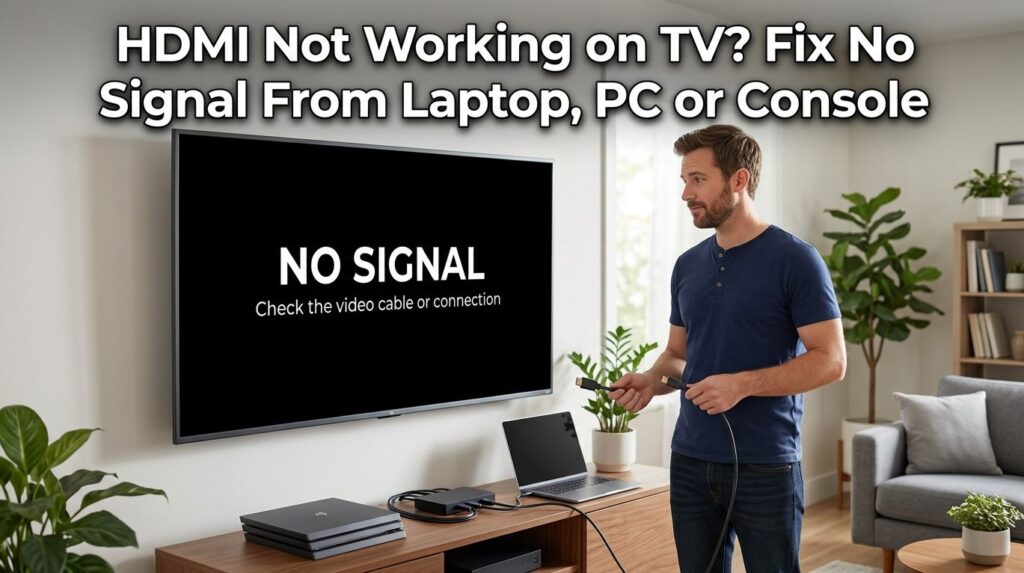
You connect your laptop, PC, gaming console, streaming box, or Blu-ray player to your TV with an HDMI cable, expecting everything to show up instantly. But instead, the screen says No Signal, stays black, flickers, or the picture appears with no sound. It is frustrating, especially when the cable looks perfectly fine.
If HDMI Not Working on TV is the problem you are facing, the good news is that it is usually fixable at home. In many cases, the issue is not a broken TV. It can be a loose cable, wrong input source, bad HDMI port, audio setting, display resolution mismatch, or a device that needs a simple restart.
Follow these step-by-step fixes to solve HDMI problems on your TV, including no signal, black screen, no picture, and HDMI audio issues.
Common Reasons Why HDMI Is Not Working on Your TV
HDMI carries both video and audio, so one small problem in the connection chain can stop the TV from detecting the device.
Common reasons include:
- The HDMI cable is loose or damaged.
- The TV is on the wrong HDMI input.
- The laptop, PC, or console is not sending a signal.
- The HDMI port is dirty, loose, or faulty.
- The device resolution is not supported by the TV.
- HDMI audio output is not selected.
- The TV software or device driver needs an update.
- A USB-C to HDMI adapter is not compatible.
- HDCP or HDMI handshake fails between devices.
Sometimes HDMI works on one TV but not another. Sometimes one HDMI port works and another does not. That is why the best approach is to test the problem step by step instead of replacing the TV immediately.
First Quick Checks Before Changing Settings
Before going deep into settings, start with the simple fixes. Many HDMI issues happen because the connection is not properly seated.
1. Unplug and Reconnect the HDMI Cable
- Turn off the TV and the connected device. Remove the HDMI cable from both ends. Wait around 20–30 seconds, then plug it back in firmly.
- Make sure the cable is pushed in fully. A slightly loose cable can cause a black screen, flickering, no audio, or random signal loss.
If HDMI gives sound but the screen stays black, read our TV has sound but no picture guide to check backlight, picture, input, and cable issues before paying for repair or replacing the TV.
2. Select the Correct HDMI Input
Most TVs have multiple HDMI ports such as HDMI 1, HDMI 2, HDMI 3, ARC, or eARC. If your cable is connected to HDMI 2 but your TV is showing HDMI 1, you will see “No Signal.”
Press the Input, Source, or Home button on your TV remote and choose the correct HDMI input.
If you cannot change HDMI input because the remote is not responding, follow our Smart TV remote not working guide first, then return here and select the right HDMI source on your television.
This simple mistake is one of the biggest reasons people think their hdmi on tv not working issue is serious.
3. Restart Both Devices
Power cycling often fixes HDMI handshake problems. Do this:
- Turn off the TV.
- Turn off the laptop, PC, console, or streaming device.
- Unplug both devices from power.
- Wait one minute.
- Plug everything back in.
- Turn on the TV first, then the connected device.
This refreshes the HDMI connection and helps the devices detect each other again.
Fix HDMI No Signal on TV
If your TV says No Signal, it means the TV is not receiving a usable video signal from the connected device. The cable may be connected, but the TV still cannot read the source.
Try a Different HDMI Port
Move the cable to another HDMI port on the TV. For example, if HDMI 1 does not work, try HDMI 2 or HDMI 3.
If one port works and another does not, the problem may be a damaged HDMI port. This is common when the cable has been pulled, bent, or plugged in roughly many times.
If hdmi ports not working on tv happens across all ports, the problem may be the cable, source device, TV settings, or motherboard board inside the TV.
Try a Different HDMI Cable
A cable can look fine outside but still fail inside. Try another HDMI cable that you know works. For 4K devices, use a High-Speed or Ultra High-Speed HDMI cable.
- A weak cable may work for 1080p but fail with 4K, HDR, 120Hz, or gaming consoles.
- If the screen flickers, cuts out, or shows random colors, the cable may not support the required bandwidth.
Test Another Device
Connect a different device to the same TV using the same HDMI port. For example, try a gaming console, laptop, TV box, or another PC.
If the new device works, your TV and HDMI port are probably fine. The issue is likely with the first device’s output settings.
If no device works on the same port, the port may be faulty.
Fix HDMI From Laptop or PC Not Showing on TV
When HDMI is not working from a laptop or desktop computer, the issue is often display settings, graphics drivers, or resolution.
Change Display Mode on Windows
Press:
Windows key + P
Then choose one of these options:
- Duplicate: Shows the same screen on laptop and TV.
- Extend: Uses TV as a second screen.
- Second screen only: Shows display only on TV.
If your TV is black, choose Duplicate first. It is the easiest mode for testing.
Check Display Settings
Right-click on the desktop and open Display settings. Click Detect if the TV is not showing.
Also check:
- Resolution
- Refresh rate
- Scale settings
- Multiple display mode
Set the resolution to 1920 x 1080 first. Some older TVs cannot handle high refresh rates or unusual PC resolutions. After the TV works, you can try 4K or higher settings again.
Update Graphics Drivers
If HDMI worked before but suddenly stopped after a system update, your graphics driver may be the reason. Update the graphics driver from Device Manager or from your laptop/PC manufacturer’s website.
A driver problem can make the TV say no signal even when the HDMI cable is good.
Fix HDMI Not Working on Game Console
If HDMI does not work on a PlayStation, Xbox, Nintendo Switch dock, or other console, the issue may be video output settings.
Use Safe Video Mode
Some consoles allow safe mode or low-resolution mode. This helps when the console is outputting a resolution your TV cannot support.
Try these general steps:
- Turn off the console completely.
- Disconnect the HDMI cable.
- Reconnect the cable firmly.
- Restart the console.
- Choose automatic video output if available.
For gaming, also check whether the HDMI cable supports the console’s resolution and refresh rate. A 4K 120Hz console needs a better cable and compatible HDMI port than a basic 1080p device.
Fix HDMI Sound Not Working on TV
- Sometimes the picture works but there is no sound, hdmi sound not working on tv.
- The picture and audio travel through the same HDMI cable, but your device still needs to send sound to the TV, hdmi audio not working on tv.
- If the TV shows video but no audio, this is a common case of sound on tv not working with hdmi.
Check TV Volume and Mute
Start with the obvious checks. Make sure the TV is not muted and the volume is not too low. Also check the source device volume.
Some laptops and PCs have separate volume controls for HDMI output.
Select HDMI Audio Output on Windows
On Windows:
- Right-click the speaker icon.
- Open Sound settings.
- Choose the TV or HDMI device as the output.
- Test the sound.
If you see your TV name, select it. If not, unplug and reconnect HDMI, then restart the PC.
This often fixes audio not working on tv with hdmi from a laptop or desktop.
Check App Audio Settings
If YouTube has sound but Netflix does not, or a media player has no sound while other apps work, the issue may be inside that app.
Close the app, reopen it, and check its audio settings. Also try another video to confirm the problem is not only one file. If YouTube also shows a black screen or loading issue on the same TV, open our YouTube not working on Smart TV guide to check app cache, sign-in, connection, and update problems.
Apple HDMI Sound Not Working on TV
If apple hdmi sound not working on tv is your issue, check the sound output on your Mac, iPhone, or iPad.
On Mac:
- Open System Settings.
- Go to Sound.
- Select your TV or HDMI device as output.
If you use USB-C to HDMI, make sure your adapter supports audio. Some cheap adapters only handle video properly and create audio problems.
Brand-Specific HDMI Fixes
Different TV brands can show HDMI issues in slightly different ways. The basic steps are the same, but a few brand settings are worth checking.
HDMI Port Not Working on TV LG
If hdmi port not working on tv lg or hdmi on lg tv not working is your issue, try these steps:
- Go to the LG input menu and rename or reselect the HDMI source.
- Disable and re-enable HDMI-CEC, called Simplink on many LG TVs.
- Unplug the TV from power for one minute.
- Try another HDMI port.
- Update the TV software.
If only one LG HDMI port fails, the port may be physically damaged. If all ports fail, it may be a settings or board-level issue.
HDMI Ports on Samsung TV Not Working
If hdmi ports on samsung tv not working or hdmi port not working on samsung tv happens, try a Samsung TV power reset.
- Turn off the TV.
- Unplug it from the wall.
- Hold the TV power button for 15–20 seconds.
- Wait one minute.
- Plug it back in.
Also check Samsung’s external device manager settings if available. Turn HDMI-CEC, often called Anynet+, off and on again.
HDMI Not Working on Vizio TV
If hdmi not working on vizio tv, restart the TV and connected device first. Vizio TVs can sometimes fail to detect HDMI after sleep mode.
Try:
- Switching to another input and back.
- Unplugging the TV for one minute.
- Testing another HDMI cable.
- Turning off CEC in settings.
- Updating the TV firmware.
If one port works and another does not, avoid the bad port and use the working one until repair is needed.
HDMI Not Working on Hisense TV
If hdmi not working on hisense tv, check the HDMI format setting. Some Hisense TVs have enhanced HDMI mode for 4K devices.
If a device shows no signal in enhanced mode, switch the HDMI format back to standard. If a 4K console or streaming box is not showing full quality, turn enhanced mode on for that port.
This setting can make a big difference with newer devices.
Fix HDMI Audio Problems With ARC and eARC
HDMI ARC and eARC are used to send sound from the TV to a soundbar or receiver. If your regular HDMI device works but your soundbar has no audio, the problem may be ARC settings.
Check these:
- Use the HDMI ARC/eARC port on the TV.
- Enable HDMI-CEC in TV settings.
- Select ARC or eARC audio output.
- Use a compatible HDMI cable.
- Restart TV and soundbar together.
If hdmi sound on tv not working only happens with a soundbar, the HDMI cable may be plugged into a normal HDMI port instead of ARC/eARC.
When HDMI Does Not Work on TV After an Update
Sometimes hdmi does not work on tv after a TV software update, laptop update, graphics driver update, or console update.
Try this order:
- Restart both devices.
- Reset picture or input settings.
- Update the source device again if a newer patch is available.
- Change resolution to 1080p.
- Reset HDMI-CEC settings.
- Try a different cable and port.
Updates can change display output, audio output, or HDMI security behavior. That is why a connection that worked yesterday can fail today. If Netflix stops opening after HDMI devices or input changes, check our Netflix not opening on Smart TV guide for app restart, Wi-Fi, cache, update, sign-in, and reinstall fixes.
How to Tell If the HDMI Port Is Bad
A faulty HDMI port is possible, but check it carefully before assuming the TV is broken.
Signs of a bad HDMI port include:
- Cable feels loose inside the port.
- TV works on other HDMI ports but not one specific port.
- Picture flickers when the cable moves.
- No device works on that port.
- Port looks bent, dusty, cracked, or damaged.
Use a flashlight and look inside the port. If you see bent pins or physical damage, do not force the cable. Use another port or contact a repair technician.
When Should You Replace the HDMI Cable?
Replace the cable if:
- The TV randomly loses signal.
- Picture flickers or shows colored lines.
- Audio cuts in and out.
- 4K or HDR does not work.
- The cable is bent, twisted, or damaged.
- It works only when held at a certain angle.
For normal TV use, a decent High-Speed HDMI cable is enough. For modern gaming consoles, 4K 120Hz, or high-refresh displays, choose an Ultra High-Speed HDMI cable.
Do not buy the most expensive cable just because it looks premium. Buy the right cable for your device’s resolution and refresh rate.
Best Troubleshooting Order for HDMI Not Working on TV
If you want the fastest fix, follow this order:
- Check the TV input source.
- Unplug and reconnect HDMI cable.
- Restart TV and source device.
- Try another HDMI port.
- Try another HDMI cable.
- Test another device.
- Lower resolution to 1080p.
- Check HDMI audio output.
- Update TV and device software.
- Reset TV input or picture settings.
This process helps you find whether the problem is the TV, cable, HDMI port, or connected device.
Related Smart TV Problems
If HDMI works but streaming apps fail after switching inputs, see our Smart TV connected to WiFi but apps not working guide for network, app, router, and TV software fixes.
FAQ About HDMI Not Working on TV
Why does my TV say no signal when HDMI is plugged in?
Your TV may be on the wrong input, the HDMI cable may be loose, the source device may be off, or the device may be using a resolution the TV cannot display. Try another HDMI port and restart both devices.
Why is HDMI connected but no picture on TV?
This usually happens because of a failed HDMI handshake, wrong display mode, bad cable, unsupported resolution, or faulty HDMI port. Set the source device to 1080p and test another cable.
Why is HDMI sound not working on TV?
The device may be sending audio to laptop speakers, headphones, or another output instead of the TV. Select your TV as the audio output and make sure the TV volume is not muted.
How do I fix HDMI on TV not working with laptop?
Press Windows + P, choose Duplicate, check display settings, select the correct HDMI input on your TV, and update your graphics driver if the TV is not detected.
Can a bad HDMI cable cause no sound but picture works?
Yes. A damaged or low-quality HDMI cable can cause sound issues, screen flickering, or no signal. Test with another cable before changing TV settings.
Why are all HDMI ports not working on my TV?
If all HDMI ports fail, it may be a TV software issue, power problem, HDMI board issue, or settings conflict. Unplug the TV for one minute, update software, and test multiple devices.
Is it expensive to fix a broken HDMI port?
It depends on the TV model and whether only the port is damaged or the HDMI board needs repair. If other ports still work, using a working port may be the easiest solution.
Conclusion
When HDMI Not Working on TV appears as no signal, black screen, flickering picture, or no sound, do not panic. Most HDMI problems are caused by simple issues like wrong input source, loose cable, bad port, incorrect display settings, or audio output selection.
Start with the easiest fixes first: reconnect the cable, choose the right input, restart both devices, test another HDMI port, and try a different cable. If the picture works but sound does not, check the audio output settings on your laptop, PC, console, or Apple device.
If you test multiple working cables and devices but one HDMI port still fails, that port may be damaged. But in most cases, you can fix the problem yourself without replacing the TV.