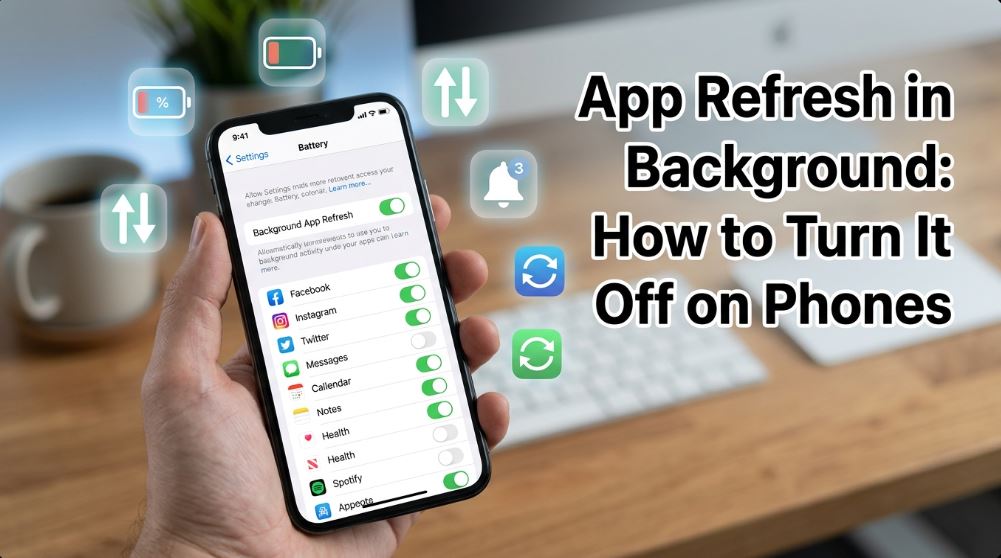
Your phone may look quiet when the screen is off, but some apps are still checking for new content, syncing data, updating feeds, tracking location, or preparing notifications. That hidden activity is often called App Refresh in Background, background app activity, background data usage, or app background refresh.
Sometimes it is useful. Your email can update before you open it. Your weather app can show fresh conditions. Your messaging app can receive alerts. But when too many apps refresh in the background, your phone may lose battery faster, use extra mobile data, feel warm, or slow down.
The good news is that you do not have to turn everything off blindly. You can control which apps refresh, which apps sleep, and which apps stay active for important alerts.
Need more device help? TechNexa hub shares practical phone, Wi-Fi, Smart TV, laptop, and PC guides written for everyday troubleshooting.
What Does App Refresh in Background Mean?
App Refresh in Background means an app can update its content even when you are not actively using it. On iPhone, Apple uses the name Background App Refresh. Apple explains that suspended apps can check for updates and new content when this feature is enabled.
On Android phones, the wording changes by brand. You may see options such as:
- Background usage
- Background data
- App battery usage
- Allow background usage
- Battery optimization
- Restricted battery use
- Sleeping apps or Deep sleeping apps
The idea is similar: apps may keep doing small tasks behind the scenes. A news app may refresh headlines. A social media app may load new posts. A cloud app may sync files. A shopping app may send offer notifications.
This is why many people search for how to turn off background app refresh, stop apps running in background, or restrict background data when their phone battery starts draining too quickly.
Why You Might Want to Turn It Off
Turning off App Refresh in Background can help when your phone is behaving strangely. It is especially worth checking if:
- Battery drops quickly while the phone is idle
- Mobile data is being used faster than expected
- The phone gets warm in your pocket
- Social apps show hours of background activity
- Games, shopping apps, or video apps keep sending unnecessary alerts
- You want fewer distractions
- You prefer to refresh app content manually
Google’s Android battery guidance says Battery Saver can limit or turn off background activity, which may delay some apps and features. Apple also notes that Low Data Mode can reduce background network use and turns off Background App Refresh.
That said, do not block every app without thinking. Some apps need background access to work properly.
Apps You Should Usually Leave On
Before you turn off App Refresh in Background for everything, make a quick list of apps that matter in real time. These may include:
- Messaging apps
- Email apps used for work
- Banking or payment security alerts
- Calendar reminders
- Ride-share or delivery apps during active use
- Navigation apps
- Smartwatch or fitness tracker apps
- Home security camera apps
- Weather alert apps
If you restrict these too aggressively, notifications may arrive late, widgets may stop updating, or connected devices may not sync properly.
A better approach is to disable background refresh for low-priority apps first. Start with games, shopping apps, entertainment apps, social feeds, photo editors, wallpaper apps, and apps you rarely open.
How to Turn Off App Refresh in Background on iPhone
On iPhone, the setting is easy to find.
Turn It Off for All Apps
- Open Settings.
- Tap General.
- Tap Background App Refresh.
- Tap Background App Refresh again.
- Choose Off.
You can also choose Wi-Fi or Wi-Fi & Cellular Data if you do not want to fully disable it. Apple’s current iPhone guidance shows these same options under Settings > General > Background App Refresh.
Turn It Off for Specific iPhone Apps
If you want better control:
- Open Settings.
- Tap General.
- Tap Background App Refresh.
- Leave the main setting on Wi-Fi or Wi-Fi & Cellular Data.
- Scroll through the app list.
- Turn off the switch beside apps that do not need background updates.
This is the best setup for most people. You keep important apps active while stopping unnecessary refresh app behavior from apps that only waste battery or data.
Use Low Data Mode on iPhone
Low Data Mode is helpful when you are traveling, using a limited plan, or dealing with slow internet. Apple says Low Data Mode restricts background network use and turns off Background App Refresh.
For cellular data:
- Open Settings.
- Tap Cellular.
- Tap Cellular Data Options.
- Tap Data Mode if shown.
- Turn on Low Data Mode.
For Wi-Fi:
- Open Settings.
- Tap Wi-Fi.
- Tap the info button beside your connected network.
- Turn on Low Data Mode.
This does not remove apps from your phone. It simply tells your iPhone to be more careful with background internet use.
If your iPhone keeps dropping Wi-Fi even after saving battery and data, it may need a different fix. Follow this simple iPhone Wi-Fi disconnecting guide to check network settings, router issues and quick steps that help your phone stay connected too.
How to enable background app refresh in iphone
On iPhone, open Settings > General > Background App Refresh, tap it again, then choose Wi-Fi or Wi-Fi & Cellular Data. After that, turn on the switch beside any app you want to refresh in the background.
How to Turn Off Background App Activity on Android
Android settings vary because Samsung, Google Pixel, OnePlus, Xiaomi, Motorola, and other brands use different menus. Still, the goal is the same: restrict background battery use, background data, or both.
Method 1: Restrict Battery Usage for One App
On many Android phones:
- Open Settings.
- Tap Apps.
- Choose the app you want to control.
- Tap Battery or App battery usage.
- Select Restricted or turn off Allow background usage if that option appears.
On Pixel phones, Google says you can open Battery usage, tap an app, and review or change how it uses battery, including background usage. Google also recommends keeping apps Optimized for general battery management.
Use Restricted for apps that do not need instant updates, such as games, shopping apps, casual social apps, or apps you open only once in a while.
Want better battery life after managing background refresh? This how to optimize smartphone battery guide shares simple habits, settings, and quick fixes to help your phone last longer each day without making it harder to use.
Method 2: Restrict Background Data
If your main problem is data usage, not battery:
- Open Settings.
- Tap Apps.
- Select the app.
- Tap Mobile data, Data usage, or Mobile data & Wi-Fi.
- Turn off Background data.
This helps stop an app from using mobile data when you are not actively using it. Be careful with messaging, email, and security apps, because background data restrictions can delay alerts.
Method 3: Turn On Data Saver
Many Android phones include Data Saver. It limits background data for apps that are not open on your screen.
- Open Settings.
- Tap Network & Internet or Connections.
- Tap Data Saver.
- Turn it on.
You can usually allow exceptions for apps that must stay connected. For example, you may allow messaging apps while limiting video, shopping, and social apps.
How to enable background app refresh in android
On Android, open Settings > Apps, choose the app, tap Battery, then select Optimized or Unrestricted. Also turn on Background data if you want the app to refresh and send updates when it’s not open.
How to Stop Background Apps on Samsung Galaxy Phones
Samsung Galaxy phones include extra controls for sleeping apps. Samsung’s support page says you can go to Settings > Battery and device care > Battery > Background usage limits to manage sleeping app settings.
Put Apps to Sleep on Samsung
- Open Settings.
- Tap Battery and device care.
- Tap Battery.
- Tap Background usage limits.
- Choose Sleeping apps or Deep sleeping apps.
- Add apps that do not need background activity.
Sleeping Apps vs Deep Sleeping Apps
Sleeping apps may run less often in the background.
Deep sleeping apps are more restricted and may not run until you open them.
Deep sleep is useful for apps you rarely use. For example, a calculator, old game, photo filter app, or shopping app does not need to keep refreshing all day.
Samsung also offers Never sleeping apps, which is useful for apps that must keep working, such as fitness trackers, messaging apps, or security apps. Samsung’s battery optimization guidance includes the Never sleeping apps option.
Should You Force Stop Apps?
Force Stop can help when an app is frozen, overheating the phone, or acting strangely. But it is not the same as turning off App Refresh in Background.
When you force stop an app, Android stops it temporarily. The app may start again later after you open it, reboot the phone, receive a system event, or update. For daily battery control, app battery settings are usually better than force stopping apps again and again.
Use Force Stop only when an app is misbehaving.
Will Notifications Still Work After Turning It Off?
Sometimes yes, sometimes no. It depends on the app and how strict your settings are.
On iPhone, turning off Background App Refresh does not always stop notifications. Many notifications use separate push notification systems. However, some apps may not update their content until you open them.
On Android, strict battery restriction, background data limits, or deep sleeping apps can delay notifications. This is why you should avoid restricting apps that handle urgent alerts.
A good rule is:
- Restrict apps you check manually.
- Leave active apps that must alert you immediately.
- Test important apps after changing settings.
For example, after restricting a messaging app, ask someone to send you a test message while your screen is locked. If the alert arrives late, change that app back to Optimized or Unrestricted.
Best Apps to Turn Off First
Not sure where to begin? Start with apps that refresh often but do not need to.
Good candidates include:
- Shopping apps
- Food delivery apps when not in use
- Travel apps after a trip
- Games
- Social media apps you check manually
- Streaming apps
- Wallpaper apps
- Photo editing apps
- Apps with constant promotional notifications
- Old apps you forgot about
This is a practical way to refresh smartphone performance without breaking the apps you actually depend on.
Check Battery Usage Before You Change Everything
Instead of guessing, check which apps are using the most power.
On iPhone
- Open Settings.
- Tap Battery.
- Review battery usage by app.
- Look for apps with high background activity.
On Android
- Open Settings.
- Tap Battery.
- Tap Battery usage.
- Review app usage.
- Tap high-drain apps and adjust background settings.
This makes the fix more accurate. If one social app is draining 20% of your battery in the background, there is no need to punish every app on the phone.
Do App Updates Matter?
Yes. A buggy app can drain battery even if your phone settings are normal. Before uninstalling anything, check for updates.
Update Apps on iPhone
- Open the App Store.
- Tap your profile picture.
- Scroll to available updates.
- Update problem apps.
Update Apps on Android
- Open the Google Play Store.
- Tap your profile icon.
- Tap Manage apps & device.
- Update apps.
If an app keeps draining battery after updates, restrict it, reinstall it, or replace it with a better alternative.
Extra Tips to Reduce Background Battery Drain
Turning off App Refresh in Background is a strong start, but a few extra settings can help too.
Review Location Access
Some apps use location in the background. Set location permission to While Using the App unless the app truly needs constant access.
Disable Unneeded Notifications
Notifications can wake your phone and encourage apps to stay active. Turn off promotional alerts from shopping, food, and social apps.
Remove Apps You Do Not Use
Android can automatically manage unused apps by removing temporary files, revoking permissions, stopping unused apps from running in the background, and stopping notifications. Still, deleting apps you never use is cleaner and better for privacy.
Restart Your Phone
A restart can stop stuck processes and clear temporary issues. If your phone suddenly gets hot or drains fast after an app update, restart before changing every setting.
Avoid Extreme Battery Saver for Important Apps
Battery Saver is useful, but it may delay background tasks. Google notes that Battery Saver limits or turns off background activity, which can cause delays in some apps and features. Use it when needed, but do not rely on it as your only fix.
Common Mistakes to Avoid
Turning Off Everything at Once
This may save battery, but it can also break reminders, delayed messages, calendar alerts, and smartwatch syncing.
Restricting Messaging Apps Too Hard
If you need instant messages, do not put your main chat app into deep sleep or strict restriction.
Ignoring Mobile Data Settings
Battery settings and data settings are different. If your data plan is the problem, restrict background data or use Data Saver.
Blaming Background Refresh for Every Battery Issue
A weak signal, old battery, high screen brightness, gaming, video calls, poor app design, or constant GPS use can also drain power.
Force Closing Apps All Day
Constantly swiping apps away does not always improve battery life. In many cases, the phone already manages suspended apps efficiently. Focus on background permissions and battery usage instead.
Quick Recommended Setup
For most users, this setup works well:
- Keep background refresh on for messaging, email, calendar, banking alerts, maps, and security apps.
- Turn it off for games, shopping apps, social apps, and rarely used apps.
- Use Low Data Mode or Data Saver when your data plan is limited.
- Check battery usage weekly if your phone drains fast.
- Put unused Samsung apps into Sleep or Deep Sleep.
- Update or uninstall apps that keep abusing background activity.
This gives you better battery life without making your phone feel broken.
FAQ: App Refresh in Background
What is App Refresh in Background?
App Refresh in Background allows apps to update content when you are not actively using them. It can help apps show fresh information, but it may also use battery and data.
Should I turn off App Refresh in Background?
Yes, for apps that do not need live updates. Keep it on for important apps like messaging, email, calendars, security alerts, navigation, and connected device apps.
Does turning off Background App Refresh save battery?
It can help, especially if certain apps are checking for updates too often. The biggest improvement usually comes from restricting high-drain apps rather than turning off every app.
Will my messages stop if I turn off Background App Refresh?
Usually, normal push notifications may still work, but some apps can be delayed depending on your phone, app, and battery settings. Test your important messaging apps after making changes.
What is the difference between Background App Refresh and Background Data?
Background App Refresh is about apps updating content in the background. Background Data is about apps using internet data while not open. You can restrict one or both depending on your problem.
How to stop apps from refreshing in the background android?
On Android, open Settings > Apps, choose the app you want to control, tap Battery, and select Restricted. To save mobile data, turn off Background data for apps that don’t need live updates.
How do I turn off Background App Refresh on iPhone?
Go to Settings > General > Background App Refresh, tap Background App Refresh again, then choose Off. You can also turn it off for individual apps.
Is it safe to put apps into Deep Sleep?
Yes, for apps you rarely use. Do not put important apps into Deep Sleep if you need instant notifications, syncing, or connected device support.
Conclusion
App Refresh in Background is not bad by itself. It is designed to keep apps ready, updated, and useful. The problem starts when too many apps refresh in background without giving you much value.
The best fix is not to shut down everything. Instead, control it app by app. Turn off background refresh for low-priority apps, restrict background data when you need to save mobile data, and keep important alerts active.
A few careful changes can make your phone last longer, feel smoother, and use less data—without missing the notifications that matter.