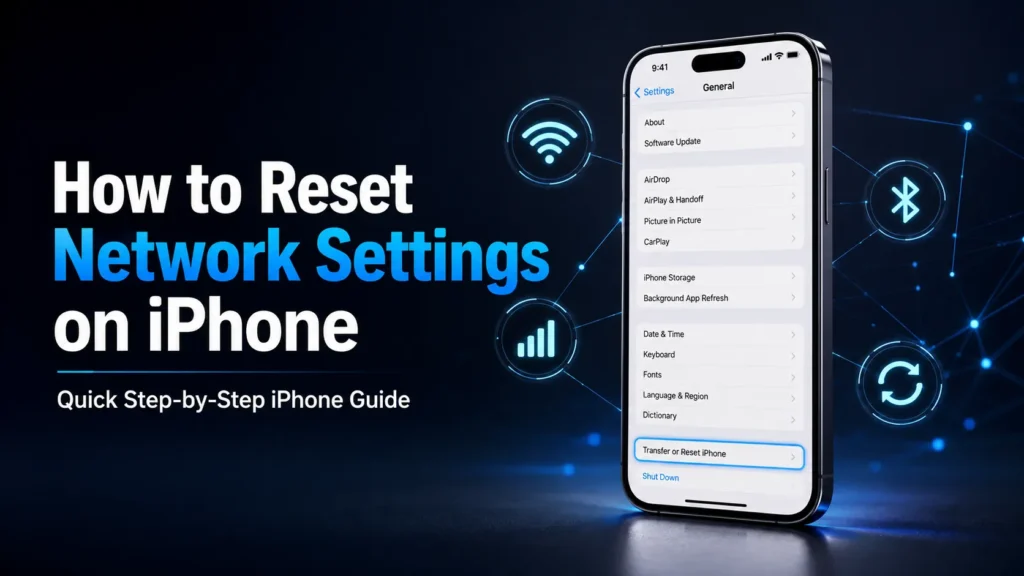
The same basic process for How to Reset Network Settings on iPhone works on recent iPhone models, including iPhone 11, iPhone 12, iPhone 13, iPhone 14, iPhone 15, iPhone 16, and iPhone 17.
How to Reset Network Settings on iPhone: Easy Step-by-Step Guide
1. Open Settings
Open the Settings app on your iPhone.
2. Tap General
Scroll down and tap General.
3. Open Transfer or Reset iPhone
Scroll to the bottom and select Transfer or Reset iPhone.
4. Tap Reset
Tap Reset to see the available reset options.
5. Choose Reset Network Settings
Tap Reset Network Settings.
6. Enter Your Passcode
Enter your iPhone passcode when prompted.
7. Confirm the Reset
Tap Reset Network Settings again to confirm.
Your iPhone will reset its network configuration. Afterward, reconnect to Wi-Fi and pair Bluetooth devices again.
What Does Reset Network Settings Do on iPhone?
The reset network settings iPhone option removes network-related configurations and returns them to their defaults.
It can remove:
- Saved Wi-Fi networks and passwords
- Cellular network settings
- VPN settings that were not installed through a managed profile
- APN settings
- Previously used network configurations
Wi-Fi is turned off and back on during the process, and you will need to reconnect to your networks.
Does Reset Network Settings Delete Everything?
No. Reset network settings on iPhone is not a factory reset.
It does not delete your:
- Photos
- Videos
- Apps
- Messages
- Contacts
- Documents
- Personal files
So, how to reset network settings on iPhone without losing data is straightforward: choose Reset Network Settings, not Erase All Content and Settings.
Does Reset Network Settings Delete Wi-Fi Passwords?
Yes. This is one of the main things to expect.
After an iPhone reset network settings, previously saved Wi-Fi networks and passwords are removed. You will need to enter the Wi-Fi password again when reconnecting.
When Should You Reset Network Settings?
A reset network settings iPhone can be useful when:
- Your iPhone Wi-Fi is not working
- Your iPhone cannot connect to the internet
- Cellular data is not working correctly
- Bluetooth devices will not connect
- Your iPhone keeps dropping its network connection
- You see persistent connection problems after other basic fixes
Apple recommends trying simpler troubleshooting steps first and using a network reset when those steps do not solve the problem.
Reset Network Settings on iPhone for Wi-Fi Problems
If you have reset network settings iPhone WiFi not working problems, first restart your iPhone and router.
If your iPhone keeps losing its Wi-Fi connection, see our guide on iPhone Keeps Disconnecting From WiFi for quick fixes, connection checks, and simple steps to restore a stable, reliable connection.
If that does not help, use:
Settings → General → Transfer or Reset iPhone → Reset → Reset Network Settings
After the reset, go to Settings → Wi-Fi, select your network, and enter its password again.
Reset Network Settings for Cellular Data or No Service
For reset network settings iPhone cellular data not working or reset network settings iPhone no service problems, resetting network settings can clear incorrect cellular configurations.
It can also reset mobile network, VPN, and APN-related settings. If the problem continues afterward, your carrier may need to check the account or network connection.
Reset Network Settings for Bluetooth Problems
If you have reset network settings iPhone bluetooth not working issues, a network reset can help clear connection-related settings.
Remember that your Bluetooth pairings may need to be established again after the reset.
Does This Work on Every iPhone Model?
Yes. The process for reset network settings iPhone 11, reset network settings iPhone 12, reset network settings iPhone 13, reset network settings iPhone 14, reset network settings iPhone 15, reset network settings iPhone 16, and reset network settings iPhone 17 follows the same Settings path on current iOS versions.
The wording may vary slightly by iOS version, but the reset remains under General → Transfer or Reset iPhone → Reset.
Network Reset vs. Factory Reset
These two options are very different.
Reset Network Settings only targets network configurations.
Erase All Content and Settings removes your personal content and completely erases the iPhone.
So, iphone factory reset without password is not the same process as a network reset. A network reset still requires the normal device authentication when prompted and does not bypass an iPhone passcode or Activation Lock.
Learn how to factory reset an iPhone without a password using simple, step-by-step methods. Discover safe reset options, recovery steps, and useful tips to restore your iPhone.
What to Do After the Network Reset
Once the iphone network reset is complete:
- Connect to your Wi-Fi network again.
- Re-enter the Wi-Fi password.
- Pair Bluetooth accessories again.
- Test cellular data.
- Check VPN or APN settings if your connection requires them.
If Wi-Fi shows as connected but the internet still does not work, the issue may be with the router or internet provider rather than the iPhone.
Frequently Asked Questions
How do I reset network settings on iPhone?
Go to Settings → General → Transfer or Reset iPhone → Reset → Reset Network Settings, enter your passcode, and confirm.
How do you reset network settings on iPhone without deleting data?
Use Reset Network Settings. It resets network configurations but does not delete photos, apps, messages, or personal files.
How to reset the network settings on iPhone to fix Wi-Fi?
Follow the same reset path, then reconnect to your Wi-Fi network and enter the password again.
What happens after resetting network settings on iPhone?
Saved network configurations are removed. You may need to reconnect to Wi-Fi, pair Bluetooth accessories, and restore certain network settings.
Will resetting network settings delete my data?
No. Your personal data and media remain on the iPhone.
How to perform a network reset on iPhone if Wi-Fi is not working?
Open Settings, go to General, select Transfer or Reset iPhone, tap Reset, and choose Reset Network Settings.
How to do a network reset on iPhone when cellular data is not working?
Use the same steps. The reset includes cellular-related network settings and can help when incorrect network configuration is causing the problem.
What gets deleted when you reset network settings on iPhone?
Saved Wi-Fi networks and passwords, certain cellular settings, and applicable VPN/APN configurations are removed. Personal content is not deleted.
Can reset network settings fix iPhone internet problems?
It can help when the problem is caused by incorrect network configuration. If your iPhone connects to Wi-Fi but the internet still does not work, check the router or contact your internet provider.
If your iPhone connects to Wi-Fi but still has no internet access, see our guide on Phone Connected to WiFi But No Internet for additional troubleshooting steps.
Final Takeaway
For most iPhone network settings, the quickest route is:
Settings → General → Transfer or Reset iPhone → Reset → Reset Network Settings
Use this when Wi-Fi, cellular data, Bluetooth, or other network connections continue to misbehave after basic troubleshooting. Just remember that saved Wi-Fi passwords and other network configurations will need to be entered again.