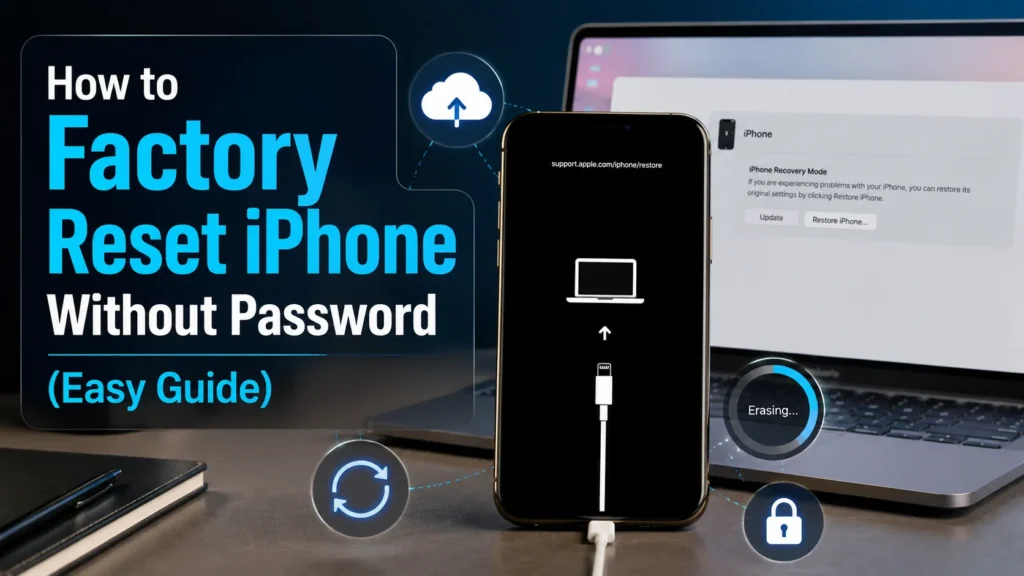
Forgotten your iPhone passcode or entered the wrong one too many times? You are not necessarily locked out forever. Apple provides several legitimate ways to erase the device, remove its current passcode, and begin the setup process again.
The most reliable way to factory reset an iPhone without a password is to use recovery mode with a Mac or Windows PC. On compatible software versions, you may also reset the phone directly from its unavailable screen or erase it remotely through Find My.
There is one important warning before you begin: a factory reset deletes the information currently stored on the iPhone. Apple confirms that resetting a device after forgetting its passcode erases its existing data. You can recover your content afterward only if you have a suitable iCloud or computer backup.
Only use these instructions for an iPhone you own or have permission to manage.
How Can You Reset a Locked iPhone?
Choose the method that matches your situation:
| Your situation | Best reset method |
|---|---|
| The iPhone shows Security Lockout or iPhone Unavailable | Use the onscreen Forgot Passcode option |
| You know the connected Apple Account password | Use the lock screen or Find My |
| You cannot use the onscreen reset feature | Restore the iPhone through recovery mode |
| You recently changed and forgot the new passcode | Try your previous passcode within 72 hours |
| You have no computer | Use the onscreen reset feature or Find My |
| You forgot both the passcode and Apple Account password | Recover the Apple Account before activation |
None of these methods unlocks personal data without authorization. They erase the current content so the device can be set up again.
What Does a Factory Reset Remove?
A factory reset returns the iPhone to its setup screen and removes locally stored information, including:
- The screen passcode
- Installed apps
- Photos and videos stored only on the device
- Messages and downloaded files
- Face ID or Touch ID information
- Saved accounts and preferences
- Personal system settings
This process differs from a forced restart. Restarting an iPhone merely turns it off and back on; it does not remove the passcode or erase its contents.
The option called Erase All Content and Settings is normally available inside Settings when you can unlock the phone. Because a forgotten passcode prevents access to Settings, you must use an alternative reset method.
Method 1: Factory Reset iPhone Without Password or Computer
An onscreen reset may be the fastest option when you do not have access to a computer.
Apple says an iPhone running iOS 15.2 or later may allow you to erase and reset it directly from the unavailable or Security Lockout screen. The device needs a working Wi-Fi or cellular connection, and you generally need the password for the Apple Account already connected to it.
Steps to Reset the iPhone from Its Lock Screen
- Enter the incorrect passcode until the unavailable or Security Lockout screen appears.
- Tap Forgot Passcode? or the reset option shown near the bottom of the screen.
- Choose the option to begin the iPhone reset.
- Enter the password for the Apple Account connected to the device.
- Confirm that you want to erase the iPhone.
- Wait for it to remove the data and restart.
- Follow the setup instructions.
- Restore an available backup when prompted.
The exact wording may vary depending on the iOS version. Older compatible versions may display Erase iPhone, while newer versions may present a Forgot Passcode workflow.
This is the most practical answer for someone asking how to factory reset iPhone without password or computer, but it works only when the necessary onscreen option and network connection are available.
Try Your Previous Passcode First
Did you recently change your passcode and then forget the new one? You may be able to avoid erasing the device.
On iOS 17 and later, Apple’s Passcode Reset feature allows the previous passcode to be used within 72 hours of a change. After you regain access, the phone asks you to create another passcode immediately.
From the unavailable screen:
- Tap Forgot Passcode?
- Choose Enter Previous Passcode or Try Passcode Reset.
- Enter the old passcode.
- Create a secure new passcode.
This option is unavailable once the 72-hour period expires or if the previous passcode was manually expired in Settings.
Method 2: Erase a Locked iPhone Through Find My
Find My can remotely erase an iPhone without its screen password. This option is useful when the phone is not beside you or its lock-screen reset button does not appear.
You will need:
- Find My enabled on the locked iPhone
- The associated Apple Account credentials
- Another internet-connected device
- A network connection on the locked iPhone
How to Erase the iPhone with Find My
- Open Find My on another Apple device, or open Find Devices through iCloud in a browser.
- Sign in to the Apple Account associated with the locked iPhone.
- Select the iPhone from the device list.
- Choose Erase This Device or Erase iPhone.
- Review the warning and confirm the request.
- Keep the locked phone connected to Wi-Fi or cellular service.
- Wait for the erase command to complete.
When the phone is offline, the request may stay pending until the device reconnects.
Find My can remove the local passcode and content, but it does not normally disable Activation Lock. Apple states that Activation Lock remains active after a remote erase and that the connected Apple Account is required to reactivate the phone.
Method 3: Reset iPhone Using Recovery Mode
Recovery mode is the best option when the lock-screen reset feature and Find My are unavailable. It can be used to reset a disabled iPhone, erase a locked iPhone, or restore an iPhone without knowing its screen passcode.
You need:
- A Mac or Windows PC
- A compatible charging and data cable
- A stable internet connection
- Finder, Apple Devices, or iTunes
Use Finder on a Mac. On a current Windows PC, use the Apple Devices app. Older supported systems may still use iTunes. Apple’s current instructions direct Windows users to Apple Devices for the restore process.
Step 1: Turn Off the iPhone
Disconnect the phone from the computer first.
For an iPhone with Face ID, hold the Side button and either Volume button until the power-off slider appears. For a model with a Home or Top button, hold the relevant Side or Top button until the slider appears.
Drag the slider and wait for the device to shut down completely.
Step 2: Put the iPhone in Recovery Mode
The button you use depends on the model.
iPhone 8 or Later
This group includes newer Face ID models and iPhone SE second and third generations.
- Connect the cable to the computer.
- Hold the iPhone’s Side button.
- While continuing to hold it, connect the cable to the iPhone.
- Do not release the button when the Apple logo appears.
- Release it when the recovery screen shows a cable and computer.
These steps cover common questions about how to factory reset iPhone 8, XR, 11, 12, 13, 14, 15, 16, and newer compatible models without a password.
iPhone 7 or iPhone 7 Plus
- Connect the cable to the computer.
- Hold the Volume Down button.
- Connect the cable to the iPhone while continuing to hold the button.
- Release it when the recovery-mode screen appears.
iPhone 6s, Earlier Models, or iPhone SE First Generation
- Connect the cable to the computer.
- Press and hold the Home button.
- Connect the cable to the iPhone while holding the button.
- Keep holding it until the recovery screen appears.
Apple’s current support material provides different recovery controls for Face ID devices, iPhone 7 models, and iPhone 6s or earlier devices.
Step 3: Restore the iPhone
Once the computer detects the device:
- Open Finder, Apple Devices, or iTunes.
- Select the connected iPhone.
- Choose Restore, not Update, when both options appear.
- Allow the computer to download and install the required software.
- Keep the device connected until the process finishes.
- Begin setup when the Hello screen appears.
If the download takes longer than about 15 minutes and the iPhone leaves recovery mode, allow the download to finish. Then turn off the phone and repeat the recovery-mode steps.
Can You Factory Reset an iPhone Using Buttons Alone?
No. The physical buttons can force a restart or place the iPhone into recovery mode, but they cannot independently complete a factory reset.
To finish the erase, you need one of these:
- The onscreen lockout reset feature
- Find My
- Finder on a Mac
- Apple Devices or iTunes on Windows
Claims that a secret button sequence can remove a passcode, Apple Account, or Activation Lock are misleading.
Can You Reset an iPhone Without an Apple ID Password?
It may be possible to erase the local content through recovery mode without entering the Apple Account password at the beginning. However, erasing and activating are separate stages.
If Find My was enabled, the iPhone may display Activation Lock during setup and request the Apple Account previously linked to it. A factory restore does not automatically remove this ownership protection.
Therefore, guides about how to factory reset an iPhone without an Apple ID or iCloud password must make this distinction clear:
- The device may be erased.
- The screen passcode may be removed.
- Activation Lock may remain.
- The original Apple Account may still be required.
If it is your phone and you forgot the account password, use Apple’s password-reset or account-recovery process. Apple may also consider an Activation Lock support request when valid proof-of-purchase documentation is available.
Should You Use DFU Mode?
DFU mode is a deeper restoration state commonly associated with advanced firmware troubleshooting. It is usually unnecessary when the only problem is a forgotten screen passcode.
Begin with:
- The previous-passcode option
- The onscreen reset feature
- Find My
- Standard recovery mode
Consider technical support when the buttons do not work, the computer cannot detect the phone, or recovery mode repeatedly fails.
What to Do After the Reset
When the Hello screen appears:
- Select your language and region.
- Connect to Wi-Fi.
- Enter the associated Apple Account if requested.
- Create a new device passcode.
- Configure Face ID or Touch ID.
- Restore an iCloud or computer backup.
- Confirm that your photos, contacts, and apps return correctly.
- Enable automatic backups for future protection.
Choose a passcode you can remember but others cannot easily guess. Avoid simple patterns, birthdays, repeated digits, and sequences such as 123456.
After setting up your iPhone again, you may also want to review common messaging settings, including how to leave a group chat on iPhone, especially if old conversations return after restoring a backup.
Frequently Asked Questions
Can I factory reset an iPhone if I forgot the password?
Yes. Use the onscreen reset option, Find My, or recovery mode. Every full reset method erases the data currently stored on the device.
How do I reset an iPhone to factory settings without the passcode?
Connect it to a computer, place it in recovery mode, and select Restore in Finder or Apple Devices. Compatible devices may also provide a reset option on the unavailable screen.
Can I reset an iPhone without a computer?
Yes, when the Forgot Passcode or Erase iPhone option is available. Find My can also erase the device remotely.
Does restoring an iPhone remove the screen passcode?
Yes. A complete restore erases the existing screen passcode along with the other locally stored content.
Does a factory reset remove Activation Lock?
No. Activation Lock can remain after the device is erased. The associated Apple Account or an approved ownership process may be required.
Can I recover my photos after resetting?
You can restore photos included in an iCloud or computer backup. Photos synchronized with iCloud may return after you sign in. Files that were never backed up or synchronized may be permanently lost. If some of your pictures are still missing after restoring your backup, our guide on how to recover deleted photos on iPhone fast explains the available recovery methods and when deleted photos may still be recoverable from iCloud, backups, or the Recently Deleted album.
Can a repair shop bypass the Apple Account lock?
A legitimate repair provider cannot simply bypass Apple’s ownership protections. Avoid services claiming that they can secretly remove Activation Lock without the owner’s credentials or valid documentation.
Related iphones Guides
After restoring your iPhone, you may also want to explore practical communication features, such as how to record a phone call on iPhone, while following the recording laws that apply in your location.
If you’re trying to recover conversations after restoring your device, you may also find our guide on how to find deleted messages on iPhone helpful. It explains the available recovery methods and when deleted messages may still be recoverable from backups or recently deleted folders.
Final Takeaway
To factory reset iPhone without password, begin with the option that preserves the simplest path. Try the previous passcode if it was changed within the last 72 hours. Next, check for the onscreen reset feature or use Find My. When those options are unavailable, restore the device through recovery mode with Finder or Apple Devices.
The reset will remove the current screen passcode, but it will also erase locally stored information. It will not automatically remove Activation Lock. Keep your Apple Account details and backup information ready before starting, and use only Apple-supported procedures for a safe, reliable reset.