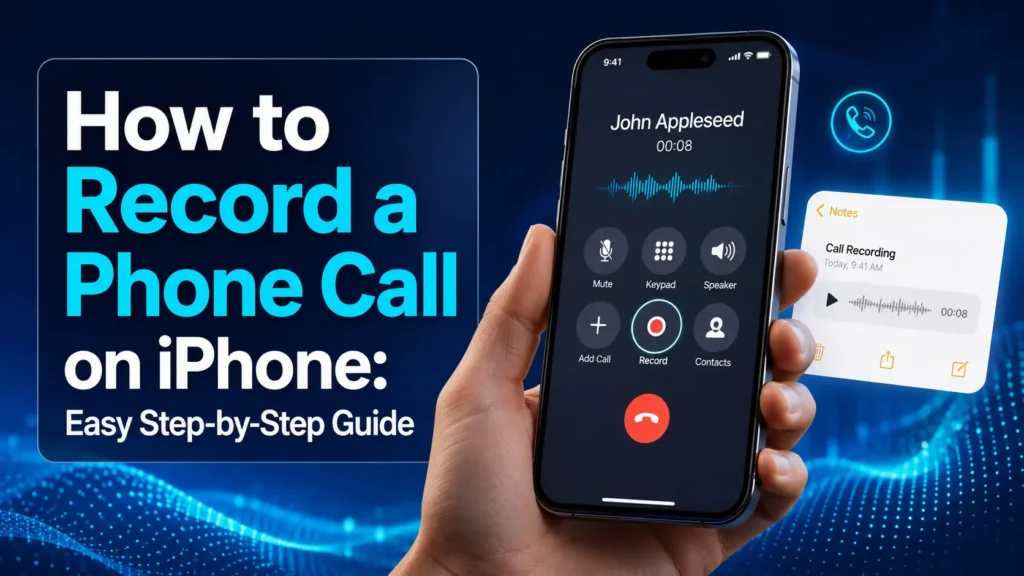
Recording an important conversation can save you from trying to remember every instruction, date, price, or decision afterward. Maybe you are speaking with a client, receiving directions from a family member, or confirming details with a service provider. Instead of writing notes while trying to listen, you can save the call and review it later.
The easiest way to record a phone call on a supported iPhone is to use Apple’s built-in call-recording feature. During the call, tap More, choose Call Recording, and wait for the automatic announcement. When the conversation ends, the recording is saved in the Notes app.
This guide explains how to record a phone call on iPhone, where to find the audio, how transcripts work, why the recording control may be missing, and which alternatives are worth considering.
How to Record Phone Call on iPhone
Follow these steps on a supported device:
- Open the Phone app.
- Make or answer a call.
- After the call connects, tap the More button.
- Tap Call Recording.
- Wait for the audible notice informing everyone that recording has started.
- Continue the conversation.
- Tap Stop Recording or end the call.
- Open Notes > Call Recordings to play the saved audio.
Apple introduced built-in call recording with iOS 18.1. The feature is not available in every language or region, so the control may not appear on every iPhone.
What You Need Before Recording a Call
Before starting, check that your iPhone meets the basic requirements.
You generally need:
- An iPhone running iOS 18.1 or later
- The Apple Phone app
- The Notes app
- A supported language and region
- Enough available storage
- Permission from the other participant
To check your software version, open:
Settings > General > About
Look beside iOS Version.
To install an available update, go to:
Settings > General > Software Update
Updating the phone may add the recording feature, improve reliability, and fix temporary problems. However, installing the latest software will not activate call recording in a location where Apple does not currently offer it.
How to Record a Phone Call on iPhone Step by Step
1. Start or Answer the Call
Open the Phone app and call the person you want to speak with. You can also answer an incoming call normally.
Wait until the call has connected. The recording control is not available while the phone is still ringing.
2. Open the More Menu
Look at the controls on the active call screen and tap More.
The exact appearance may vary slightly depending on your iOS version, but the feature is listed as Call Recording on supported devices.
3. Tap Call Recording
Select Call Recording.
Your iPhone will play an audible announcement telling both participants that the call is being recorded. This notification is part of Apple’s built-in privacy design and cannot be silently disabled.
Pause for a moment and make sure the other person is comfortable continuing.
4. Continue the Conversation
Once the announcement finishes, speak as you normally would.
You do not need to activate speakerphone or hold a second device near the iPhone. The built-in function records the call directly.
For better results:
- Stay somewhere with a reliable mobile or Wi-Fi connection.
- Reduce loud background sounds.
- Avoid moving repeatedly between Bluetooth devices and the handset.
- Repeat important names, numbers, and dates clearly.
- Confirm essential details before ending the call.
A poor connection can affect both the recording and any transcript created afterward.
5. Stop and Save the Recording
Tap the stop control when you no longer need to record.
You can also end the call, which stops the recording automatically. The audio is then saved as a note in the Notes app.
Where Are iPhone Call Recordings Saved?
Recordings created through Apple’s feature are stored in a dedicated folder inside Notes.
To find them:
- Open the Notes app.
- Return to the main folders screen.
- Select Call Recordings.
- Open the relevant note.
- Tap Play to hear the conversation.
The note may show caller information, the date, the audio file, and a transcript when transcription is supported.
This setup is useful because you can add your own written notes beneath the recording. For example, after a project call, you could write:
- Send the revised quotation
- Confirm delivery by Friday
- Schedule a follow-up meeting
- Share the final document with the team
Keeping the recording and your action points together makes the conversation easier to use later.
How to Read the Call Transcript
Some recorded calls can also be converted into written text.
Open the recording in Notes and tap the transcript control. A long call may take a little time to process.
Transcripts are helpful when you need to find one detail without listening to the entire recording. You can use them to review:
- Dates and appointment times
- Addresses
- Prices or reference numbers
- Instructions
- Decisions
- Assigned responsibilities
Automatic transcription is not always perfect. Accents, technical terms, similar-sounding names, overlapping voices, and weak connections can create errors.
Always listen to the original audio before relying on an important quote, payment amount, legal statement, medical instruction, or deadline.
How to Share an iPhone Call Recording
You can share a saved recording from its note.
Open the recording and tap the Share button. Available options may include Messages, Mail, AirDrop, Files, or another compatible app.
Before sharing it, consider what the call contains. A recording may include personal details, account information, workplace discussions, or private opinions.
Only send it to someone who has a legitimate reason to receive it.
For sensitive material, it is safer to:
- Confirm the recipient before sending.
- Avoid posting the audio publicly.
- Use a protected device and account.
- Remove unnecessary copies.
- Delete the file when it is no longer needed.
How to Delete a Recorded Call
To remove a saved call:
- Open Notes.
- Select the Call Recordings folder.
- Find the appropriate note.
- Tap the More button.
- Choose Delete.
The note may remain temporarily in the Recently Deleted folder. Open that folder and delete it again when you need to remove it immediately.
Deleting the note also removes the associated recording and transcript.
Accidentally removed an important conversation? Learn how to find deleted messages on iPhone using Recently Deleted, iCloud backups, computer backups, and other safe recovery methods.
Why Is Call Recording Not Showing on My iPhone?
A missing control is usually caused by software, availability, or call-type limitations.
Your iPhone Is Not Updated
The built-in feature requires iOS 18.1 or later.
Check Settings > General > Software Update and install an available version that your device supports.
Call Recording Is Unavailable in Your Region
Apple does not offer the feature everywhere. Regional privacy rules, language support, and service availability can affect whether it appears.
Changing the region setting on the phone does not guarantee that the function will become available.
You Are Using an Unsupported App
Apple’s built-in recording option applies to calls handled through the Phone app and supported FaceTime audio calls.
A call made through a messaging, social, meeting, or workplace app may not show the same control. In that case, check whether that particular app provides its own meeting or call-recording function.
The Call Has Not Connected Yet
The option appears during an active call. It will not normally appear while dialing or waiting for someone to answer.
Your iPhone Has a Temporary Software Issue
Try these basic fixes:
- End the call.
- Close and reopen the Phone app.
- Restart the iPhone.
- Confirm that Notes is installed.
- Check available storage.
- Install pending software updates.
- Test the function on another ordinary call.
When the feature should be supported but remains unavailable, Apple Support can help confirm whether the issue relates to your device, account, software, carrier, or location.
How to Record Phone Calls on iPhone Without Apple’s Feature
When the built-in tool is unavailable, an external recording setup is usually the simplest alternative.
Use a Second Device
Place the call on speakerphone and use another phone, tablet, computer, or voice recorder to capture the audio.
For clearer sound:
- Sit in a quiet room.
- Place the second device close to the iPhone.
- Make a short test recording.
- Set the speaker volume high enough to hear both sides.
- Keep both devices still.
- Tell the other participant before recording.
This method is easy to understand and does not require access to your calls through an outside service. Its main disadvantage is lower sound quality.
Use a Reputable Call-Recording Service
Some services record calls by connecting an additional recording line through a conference call.
Before choosing one, review:
- Whether it works with your carrier
- Supported countries and phone numbers
- Monthly or per-minute charges
- Where the audio is stored
- How long recordings are retained
- Whether files can be downloaded
- How personal information is handled
- How the service deletes your data
Do not use an unfamiliar provider for confidential business, financial, medical, or personal conversations without carefully reviewing its privacy practices.
Use the Recording Feature Inside a Calling App
Some meeting and communication apps include their own recording tools. Availability may depend on the account type, host permissions, subscription plan, or local rules.
Look for a clearly labeled recording option inside the app rather than assuming Apple’s Phone controls will work there.
Is It Legal to Record a Phone Call on iPhone?
Recording laws are not the same everywhere.
In some places, one participant’s consent may be enough. Elsewhere, everyone involved must agree. The rules can become more complicated when the callers are in different states, countries, or regions.
The safest habit is to ask clearly before you begin.
You could say:
“Is it okay if I record this call so I can review the details later?”
Wait for a clear answer before continuing.
Apple’s built-in announcement informs both participants that recording has started, but an automated notice should not be treated as personal legal advice. For legal, employment, financial, healthcare, or confidential business conversations, confirm the rules that apply to everyone involved.
Tips for Clearer and More Useful Recordings
State the Purpose
At the beginning, briefly explain why you are recording. People are more likely to feel comfortable when the reason is clear.
Confirm Important Information
Repeat names, dates, prices, addresses, and deadlines. This reduces misunderstandings and improves transcript quality.
Summarize Before Ending
Use the final minute to confirm what happens next.
For example:
“So I will send the document today, and you will review it by Thursday. Is that correct?”
Review the File Promptly
Open the recording after the call and make sure it saved correctly. Add written notes while the details are fresh.
Protect Sensitive Audio
Use a strong passcode and biometric security on your iPhone. Avoid leaving private recordings on shared devices or in openly accessible folders.
Delete Unneeded Files
A recording should not be kept forever without a reason. Removing old files reduces privacy risks and frees storage space.
Related iPhone Guides
Need help recovering lost content on your device? Learn how to recover deleted photos on iPhone using Recently Deleted, iCloud, backups, and other safe recovery options.
Frequently Asked Questions
Can I record an incoming phone call on iPhone?
Yes. Answer the call, tap More, and select Call Recording after the connection is active. This works only where Apple’s feature is supported.
Does the other person know when I record the call?
Yes. Apple’s built-in tool plays an audible notification to both participants when recording begins.
Can I record a call secretly?
The Apple feature does not record silently. Everyone hears the notice. Secret recording may also violate privacy or consent laws.
Can screen recording capture a normal iPhone call?
Screen Recording is not the recommended method for saving a standard phone conversation. Use the dedicated Call Recording control when available.
Can I record a FaceTime audio call?
Apple supports recording for FaceTime audio calls in eligible regions and languages. The participants receive the same type of recording notification.
Does the other caller need an iPhone?
No. The person starting the recording needs the supported iPhone feature. The other caller can be using a different type of phone.
Are call transcripts completely accurate?
No. A transcript can misinterpret words, names, numbers, or overlapping speech. Verify important details by replaying the audio.
Can I turn off the recording announcement?
No. Apple’s built-in feature notifies the participants when recording begins. The notice is an intentional privacy measure.
Where did my recorded call go?
Open Notes, return to the folder list, and select Call Recordings. The audio should appear there after the call ends.
Final Takeaway
Learning how to record phone call on iPhone is straightforward when Apple’s built-in feature is available. Start or answer the call, open More, tap Call Recording, and allow the audible announcement to play. Afterward, open the Call Recordings folder in Notes to hear the audio or review its transcript.
The most important steps are not technical. Tell the other person, receive permission, verify critical details against the audio, and protect the saved file.
Used responsibly, call recording can help you remember instructions, document decisions, create accurate follow-up notes, and avoid losing important information from a conversation.