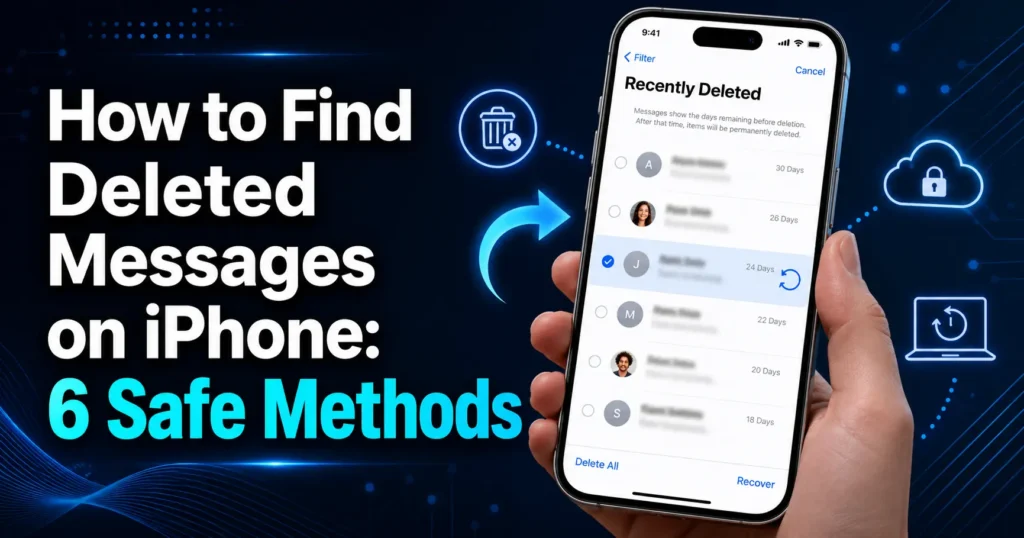
Deleted an important text by mistake? Do not reset your phone or install recovery software yet. The message may still be available in the Messages app.
To find deleted messages on an iPhone, open Messages, tap Edit or Filters, choose Recently Deleted, select the conversation, and tap Recover. Apple says eligible messages deleted within the previous 30 to 40 days can be recovered on devices running iOS 16 or later.
When the conversation is no longer in Recently Deleted, recovery depends on whether an older backup or another copy still exists. This guide explains every realistic option, starting with the safest method.
Quick Guide to Recovering Deleted iPhone Messages
| Situation | Best method | Risk to current data |
|---|---|---|
| Deleted within the past month | Recently Deleted | None |
| Conversation appears missing | Check message filters | None |
| Deleted more than a month ago | Restore an older backup | May replace newer data |
| No iCloud backup | Check a computer backup | May require full restoration |
| No backup at all | Another device or recipient’s copy | None |
| WhatsApp or Messenger chat | Use that app’s recovery options | Varies by app |
Always begin with Recently Deleted. Restoring a backup should be considered only after simpler options fail.
How to Find Recently Deleted Messages on iPhone
Recently Deleted works like a temporary holding area for removed text conversations.
Recover a Deleted Conversation
Follow these steps:
- Open the Messages app.
- Go to the main conversation list.
- Tap Edit in the upper-left corner.
- Choose Show Recently Deleted.
When message filtering is enabled, you may see Filters instead of Edit. In that case:
- Tap Filters.
- Tap Recently Deleted.
- Select the conversation you want.
- Tap Recover.
- Confirm by tapping Recover Messages.
Apple’s current instructions state that recovery requires iOS 16 or later. Eligible conversations usually remain recoverable for approximately 30 to 40 days after deletion.
How to Find a Deleted Text Message on iPhone
The recovery screen usually groups deleted texts by conversation. To restore one particular message, select the conversation containing it and tap Recover.
After the thread returns to the normal Messages list, open it and locate the individual text.
You do not need to restore every deleted conversation.
What Happens When You Recover a Conversation?
The conversation returns to your regular message list. When Messages in iCloud is enabled, recovering it may also update other Apple devices connected to the same Apple Account.
Why Recently Deleted Is Not Showing
If you cannot see Recently Deleted, one of the following explanations may apply.
The Recovery Period Has Expired
A conversation deleted more than 30 to 40 days ago will usually no longer appear. At that point, an older backup or another surviving copy is required.
The Conversation Was Deleted Twice
A message can first be moved to Recently Deleted and then permanently removed from that folder. Once this happens, it cannot be recovered through the Messages app.
Your iPhone Uses an Older iOS Version
The recovery feature requires iOS 16 or later. Check your version under:
Settings > General > About
Updating the phone does not restore texts that were permanently removed before the update.
The Message Came From Another App
Recently Deleted contains Apple Messages conversations. It does not hold chats from WhatsApp, Instagram, Facebook Messenger, Snapchat, TikTok, or Viber.
Check Whether the Message Is Hidden, Not Deleted
Sometimes a conversation looks deleted because it has been placed in a filtered list.
Open:
Messages > Filters > Unknown Senders
Also review:
- Known Senders
- Unread Messages
- Spam or Junk, when available
- Conversations under an old phone number
- Messages sent through an email address linked to iMessage
This is especially useful when trying to find hidden or deleted messages on an iPhone. A text from someone outside your contacts may be separated from the main inbox even though it was never removed.
How to Find Deleted Messages on iPhone From Months Ago
Recently Deleted is unlikely to help with a conversation removed months ago. Your best possibility is a backup created while the conversation still existed.
Compare the message date, deletion date, and backup date.
For example:
- Message received: February 8
- Message deleted: March 15
- Backup created: February 25
That backup may include the conversation because it was created after the message arrived and before it was deleted.
A backup created on March 20 would probably reflect the deletion.
When no suitable backup exists, check:
- Another Apple device
- The other participant’s phone
- Screenshots
- Notes
- Saved attachments
- Notification previews
Deleted photos can sometimes be recovered in a similar way through Recently Deleted or an earlier backup. For detailed steps, read our guide on how to recover deleted photos on iPhone fast.
The same information may exist elsewhere even when the original conversation cannot be restored.
How to Find Deleted Messages on iPhone With iCloud
Before restoring anything, understand the difference between Messages in iCloud and iCloud Backup.
Messages in iCloud
Messages in iCloud keeps conversations synchronized across connected Apple devices. When you delete a message on one device, that deletion normally appears on every device where Messages in iCloud is active.
Check the setting under:
Settings > your name > iCloud > Messages
Seeing thousands of messages or several gigabytes of message storage in iCloud does not mean permanently deleted texts are stored in a hidden archive. It represents the message library currently held or synchronized by iCloud.
iCloud Backup
An older iCloud backup may contain a conversation that existed when the backup was made.
First, check the backup date:
Settings > your name > iCloud > iCloud Backup
A backup can help only when it predates the deletion and still includes the missing message data.
Restore From an iCloud Backup
Restoring an iCloud backup is a major action because an already configured iPhone must be erased first. Apple confirms that the device needs to return to the setup screen before an iCloud backup can be selected.
The general steps are:
- Preserve important new photos, files, contacts, and conversations.
- Open Settings.
- Tap General.
- Tap Transfer or Reset iPhone.
- Choose Erase All Content and Settings.
- Complete the setup steps after the phone restarts.
- Select From iCloud Backup.
- Sign in to your Apple Account.
- Choose a backup created before the message was deleted.
An older backup does not simply add one missing conversation to the phone. It may replace information created after that backup date.
For one short text, asking the other participant to resend it may be safer than erasing the device.
How to Find Deleted Text Messages With a Computer Backup
A backup made through Finder, Apple Devices, or iTunes may contain old deleted messages.
Restore a Backup on Mac
- Connect the iPhone to the Mac.
- Open Finder.
- Select the iPhone in the sidebar.
- Open the General tab.
- Click Restore Backup.
- Choose a backup made before the deletion.
- Enter the backup password if required.
- Keep the phone connected until restoration finishes.
Restore a Backup on Windows
Use Apple Devices or iTunes, depending on the computer:
- Connect the iPhone.
- Open Apple Devices or iTunes.
- Select the device.
- Choose Restore Backup.
- Select the correct backup date.
- Enter the encryption password when requested.
- Allow the process to finish.
As with an iCloud restoration, a computer backup can replace newer information on the phone.
Can You Recover Only One Conversation?
Apple’s standard tools restore the entire backup.
Some backup-viewing programs can open an existing local backup and export individual conversations without restoring the full device. This may be useful when a valid backup exists, but the software should be chosen carefully.
Use a tool only when it:
- Comes from the developer’s official website
- Clearly explains how personal data is handled
- Allows a preview before payment
- Does not request unnecessary Apple Account details
- Avoids guaranteed-recovery claims
How to Find Deleted Messages on iPhone Without Backup
Without an iCloud or computer backup, recovery options are limited.
Try these methods:
- Check Recently Deleted.
- Review Unknown Senders and other filters.
- Look on another Apple device.
- Ask the other participant for a screenshot.
- Check notification history or saved images.
- Review the messaging app’s own cloud backup.
When the conversation has been removed from Recently Deleted and no other copy exists, it may be impossible to recover.
No hidden setting can display every permanently deleted message.
Can Another Apple Device Still Have the Conversation?
Possibly, but only in limited circumstances.
When Messages in iCloud is active and all devices are synchronized, deleting a conversation from the iPhone normally removes it from the connected Mac, iPad, and other devices as well.
Another device may still contain the text when it:
- Has been offline since before the deletion
- Does not use Messages in iCloud
- Holds an independent local message history
- Has not completed synchronization
When an offline device may contain the conversation, inspect it before reconnecting it to the internet. Reconnecting could synchronize the deletion.
How to Find Permanently Deleted Messages on iPhone
A message is effectively permanently deleted when it is absent from Recently Deleted and no backup or separate copy contains it.
Try the following in order:
- Check filtered message lists.
- Review available backup dates.
- Check other devices.
- Ask the recipient or sender for a copy.
- Look for screenshots, notes, emails, or attachments.
- Examine an existing local backup with a reputable backup viewer.
Be cautious with programs promising to recover permanently deleted messages directly from any modern iPhone. Strong encryption and synchronized deletion limit what these tools can access.
A program may display current texts or information already stored in a backup, but that does not prove it can restore data that no longer exists.
How to Find Deleted WhatsApp and Messenger Messages
Chats from third-party apps do not appear in Apple’s Recently Deleted folder.
Check:
WhatsApp > Settings > Chats > Chat Backup
A WhatsApp chat may be recoverable when a backup was created before the deletion. Restoring it may require reinstalling WhatsApp and using the same phone number and Apple Account.
A newer backup may replace the older copy, so verify the date before changing anything.
Facebook Messenger and Instagram
First check:
- Archived chats
- Message requests
- Hidden or spam folders
- Restricted accounts
- The correct account profile
An archived conversation can often be returned to the inbox. A permanently deleted or unsent message is less likely to be recoverable.
The same principle applies to Snapchat, TikTok, and Viber: each app manages its own message history and backup rules.
Can a Mobile Carrier Recover Deleted Texts?
Mobile carriers may keep limited records such as phone numbers, dates, times, and delivery details. These records are not the same as the readable content of a conversation.
Carriers also cannot normally retrieve iMessage content because iMessage operates through Apple’s service rather than ordinary carrier messaging.
The sender or recipient is usually a more useful source for the actual words of a deleted text.
Common Mistakes to Avoid
Do Not Erase the Phone Before Checking the Backup
Confirm that a useful backup exists and predates the deletion.
Do Not Assume a New Backup Contains the Message
A new backup reflects the phone’s current state. When the text is already gone, the backup will usually record that absence.
Do Not Confuse iCloud Storage With an Archive
A large Messages storage figure does not prove that a specific deleted conversation remains available.
Do Not Pay Before Seeing Evidence
A recovery program should display the required conversation before you purchase an export feature. Current messages and contact names are not proof of deleted-message recovery.
Frequently Asked Questions
How do I find my deleted messages on iPhone?
Open Messages, tap Edit or Filters, choose Recently Deleted, select the conversation, and tap Recover.
How do I find a deleted text message on an iPhone?
Recover the conversation from Recently Deleted, then open the restored thread and locate the individual message.
Can I recover deleted messages after 30 days?
Possibly. Apple states that eligible messages may remain recoverable for approximately 30 to 40 days. After that period, you generally need an older backup or another surviving copy.
Can I recover messages deleted from Recently Deleted?
Not through the Messages app. You need a suitable older backup, another device copy, or the other participant’s conversation.
Can I find deleted messages in iPhone Settings?
No. Settings can show backup, synchronization, storage, and retention options, but it does not display deleted message content.
Can I recover deleted messages without iCloud?
Yes, when they remain in Recently Deleted, exist in a computer backup, or survive on another device.
Are permanently deleted messages truly gone?
They are gone when no recoverable copy remains in Recently Deleted, a backup, another device, or another participant’s conversation.
Final Takeaway
The quickest way to find deleted messages on iPhone is:
Messages > Edit or Filters > Recently Deleted
Recover the conversation immediately when it appears there.
When it is missing, do not reset your phone in a rush. Check filtered conversations, other devices, and backup dates first. Restore an older backup only after confirming that it contains the message and preserving any newer information you cannot afford to lose.
Recently deleted messages are often easy to restore. Permanently deleted texts can be recovered only when another usable copy still exists.