Changing your WiFi password sounds simple until you open the router page and do not know which IP address, username, menu, or password field to use. If you are using du Home Wireless 4G or 5G internet, this guide will walk you through the whole process in a clear and practical way.
The good news is that you do not need to be a networking expert. To change du WiFi password, you only need to connect to your du network, open the router login page, enter the admin details, go to WiFi settings, and save a new password.
Whether you want to change your du WiFi password from mobile, update your WiFi name, or fix a router login issue, this guide walks you through each step in a simple way.
We test everyday tech problems and turn them into simple guides for phones, WiFi speed issues, smart TVs, laptops, PCs, apps, buying tips, and device comparisons.
How to Change du WiFi Password
- To change your du WiFi password, connect your phone or computer to your du WiFi network.
- Open a browser and type your router IP address, such as 192.168.0.1, 192.168.1.1, or 192.168.70.1.
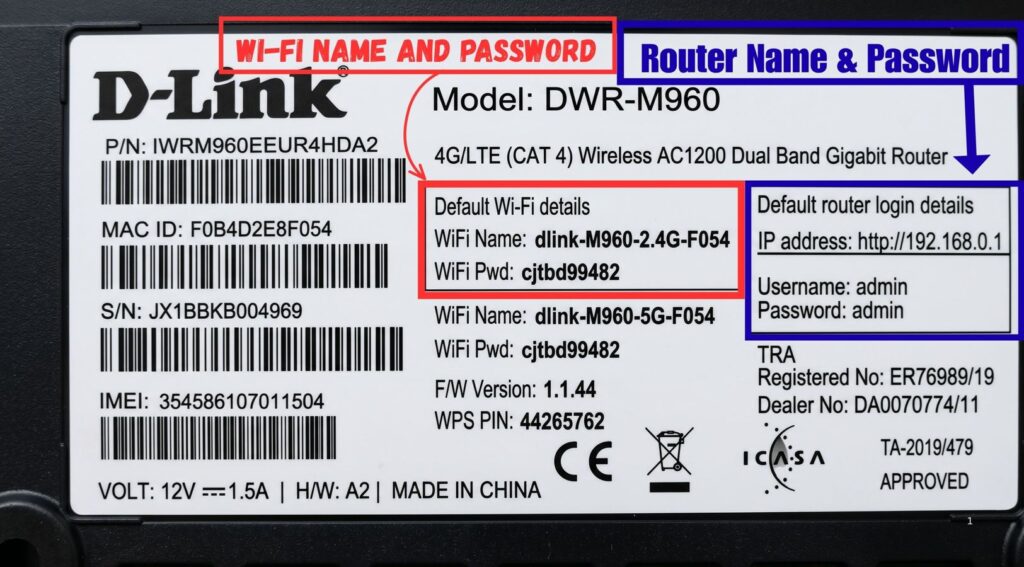
- Log in with the admin username and password printed on your router sticker.
- Then open WiFi, Wireless, WLAN, or Security settings, enter your new WiFi password, and click Save or Apply.
After saving the new password, your phone, laptop, smart TV, and other devices will disconnect. Reconnect them using the new password.
Before You Start: Things You Need
Before you begin the du WiFi password change process, keep these things ready:
- A phone, laptop, tablet, or PC connected to your du WiFi
- Your router’s login IP address
- Admin username and password
- Router sticker details from the back or bottom of the device
- A new strong WiFi password
- A few minutes to reconnect your devices after saving
If possible, use a laptop connected with an Ethernet cable. This is not required, but it helps because WiFi may disconnect once you save the new password.
Common du Router Login IP Addresses
Most users get stuck at the router login step. The router page is not a normal website. It is a local admin page that opens only when your device is connected to the router.
Try these common du WiFi password change IP address options:
- 192.168.0.1
- 192.168.1.1
- 192.168.70.1
- dlink.router.com, for some D-Link routers
If you searched for Https 192.168 70.1 Du WiFi password, you are probably trying to open the du 5G router page. Type it directly in the browser address bar as 192.168.70.1 or https://192.168.70.1. Do not type it into Google search.
For many users, 192.168.1.1 du router login works. For some Home Wireless 4G routers, 192.168.0.1 may work better. For some 5G routers, 192.168.70.1 is commonly searched.
How to Change du WiFi Password Step by Step
Follow these steps carefully.
Step 1: Connect to Your du WiFi Network
First, connect your mobile, laptop, or PC to the du WiFi network you want to edit. You cannot usually access the router settings if you are using mobile data or another WiFi network.
If your WiFi is not connecting because you forgot the password, check the default password printed on the router label. If that does not work, you may need a reset du WiFi password method using the router reset button, which is explained later.
Step 2: Open the du Router Login Page
Open Chrome, Safari, Edge, Firefox, or any browser you use. In the address bar at the top, type one of these:
- 192.168.0.1
- 192.168.1.1
- 192.168.70.1
Press Enter.
Do not search “du router login” in Google and click random websites. You need the local router page, not a public website.
Step 3: Enter the du Router Login Password
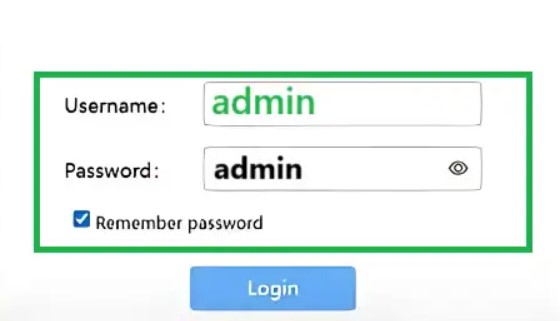
Now you should see a login screen. Enter the router admin username and password.
In many cases, the default username is:
- admin
The password may be:
- admin
- password
- printed on the router sticker
- a custom password set during installation
The du router login password is not always the same as your WiFi password. This is important. The WiFi password connects your devices to the internet. The router login password opens the router settings page.
If admin/admin does not work, check the label on the back or bottom of your router. Some routers use different default details.
Step 4: Open WiFi, Wireless, WLAN, or Security Settings
After logging in, look for a menu with one of these names:
- WiFi
- Wireless
- WLAN
- Wireless Settings
- WiFi Settings
- Security
- Network Settings
The exact words may change depending on your du router model. A D-Link, Huawei, ZTE, Linksys, or 5G router may show slightly different menu names, but the idea is the same.
If you see both 2.4GHz and 5GHz networks, choose the network band you want to update.
Step 5: Choose 2.4GHz or 5GHz WiFi
Many du routers broadcast two WiFi networks:
- 2.4GHz WiFi
- 5GHz WiFi
The 2.4GHz network usually reaches farther but may be slower. The 5GHz network is usually faster but has a shorter range.
If your router has both, you may need to update the du home WiFi password for each band separately. For example, if you only change the 5GHz password, your 2.4GHz WiFi may still use the old password.
For a du 5G router password change, look for WiFi-2.4G Settings or WiFi-5G Settings. Update the password for the band you actually use, or update both for consistency.
Step 6: Change the WiFi Password Field
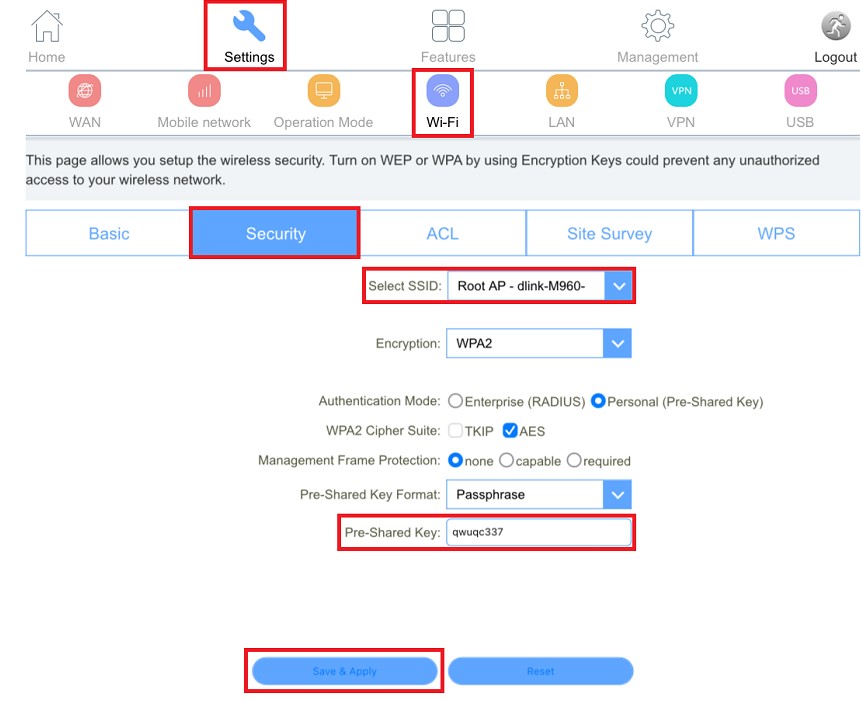
Now find the password field. It may be called:
- Password
- WiFi Password
- Wireless Password
- Pre-Shared Key
- WPA Key
- Security Key
- Passphrase
Delete the old password and type your new password.
A strong WiFi password should be hard to guess but easy enough for you to remember. Use a mix of uppercase letters, lowercase letters, numbers, and symbols.
Example format:
NexaHome@2026Net
Do not use simple passwords like:
- 12345678
- password123
- your phone number
- your name
- duwifi123
A weak password can let neighbors, guests, or unknown devices use your internet without permission.
Step 7: Save or Apply Changes
Click Save, Apply, Submit, or Save & Apply. Your router may take a short time to update. In some cases, it may restart.
Once saved, your old password will stop working. This is normal.
Step 8: Reconnect Your Devices
Now reconnect all your devices using the new WiFi password:
- Smartphones
- Laptops
- Smart TVs
- Tablets
- Gaming consoles
- Smart speakers
- Cameras
- Printers
If a device keeps trying the old password, open WiFi settings, tap the network name, choose Forget Network, and reconnect with the new password.
How to Change du WiFi Password from Mobile
If you do not have a laptop, you can still change the password from your phone. The process is almost the same.
Here is how to change du WiFi password from mobile:
- Connect your phone to the du WiFi network.
- Open Chrome, Safari, or another browser.
- Type 192.168.0.1, 192.168.1.1, or 192.168.70.1 in the address bar.
- Log in using the admin username and password.
- Go to WiFi Settings, WLAN, Wireless, or Security.
- Enter the new password.
- Tap Save or Apply.
- Reconnect your phone using the new password.
If the router page looks too small on your phone, rotate your phone sideways or use desktop mode in the browser.
Can You Use a du WiFi Password Change App?
Many users search for du WiFi password change app because they want a quick mobile option. The du app is useful for managing account services, bills, plans, and support, but router WiFi password changes are usually done through the router admin page.
So, if you want to update the actual WiFi password, the browser method is the safest option. Open the router IP address while connected to your du WiFi and change it from the WiFi settings page.
If your specific router or service supports app-based WiFi management, you can check inside the du app. But if you do not see the option, use the browser login method.
How to Change du WiFi Password and Name
If you want a cleaner network name, you can change the WiFi name and password together.
The WiFi name is also called:
- SSID
- Network Name
- Wireless Name
Here is how to change du WiFi password and name:
- Log in to the du router page.
- Open WiFi, WLAN, or Wireless Settings.
- Find SSID or Network Name.
- Enter your new WiFi name.
- Find Password, WPA Key, or Pre-Shared Key.
- Enter your new password.
- Save changes.
For example, instead of a default name like du-Home-5G-ABC, you can use something simple like NexaHomeWiFi.
Avoid using personal details in the WiFi name. Do not include your full name, apartment number, phone number, or address.
du Home Wireless 4G Password Change
For du 4G router WiFi password changes, the router page is commonly accessed through 192.168.0.1 or a local D-Link router address on supported models.
Once logged in, look for:
Settings → WiFi → Security
Then choose the SSID for 2.4GHz or 5GHz, enter the new password in the Pre-Shared Key field, and save the change.
If your du Home Wireless 4G internet is slow or unstable, changing the password can help if unknown devices are using your connection. But if the signal is weak, also move the router near a window or open area and restart it.
du Home Wireless 5G Password Change
For du 5G WiFi password changes, users often search for 192.168.70.1 du WiFi password because many 5G routers use that local address.
After logging in, check for separate WiFi bands:
- WiFi-2.4G Settings
- WiFi-5G Settings
Choose the band, update the password, and save. If both bands have different names, repeat the change for each one.
A du 5G router password change is useful when you want to block unknown users, secure a new router, or update the default password after installation.
How to Change du WiFi Password Linksys Router
Some users search for how to change du WiFi Password Linksys because their setup may use a Linksys router connected to a du internet line.
The steps are similar:
- Connect to the Linksys WiFi.
- Open the router IP address in a browser.
- Log in with the router admin details.
- Go to Wireless or WiFi Settings.
- Change the SSID or WiFi password.
- Save changes and reconnect devices.
If the du router is separate from the Linksys router, make sure you are logging in to the correct router. Check the WiFi name you are connected to and use the gateway IP from your device settings.
What If the du Router Login Page Does Not Open?
If the login page does not load, do not panic. Try these fixes:
- Make sure your device is connected to du WiFi.
- Turn off mobile data on your phone.
- Type the IP in the browser address bar, not Google search.
- Try 192.168.0.1, 192.168.1.1, and 192.168.70.1.
- Restart the router and try again.
- Use another browser.
- Try a laptop or Ethernet cable.
- Check the router sticker for the correct IP address.
If none of the IP addresses work, find the default gateway on your device.
On Windows, open Command Prompt and type:
ipconfig
Look for Default Gateway.
On iPhone, tap your WiFi network details and look for Router.
On Android, open WiFi details and look for Gateway or Router.
That gateway address is usually your router login IP.
What If the du Router Login Password Does Not Work?
If the du router login password does not work, try these steps:
- Check the router sticker again.
- Try admin as the username.
- Try admin as the password.
- Try the password printed on the router label.
- Ask the person who installed or previously managed the router.
- Try another browser or device.
If you changed the admin password before and forgot it, you may need to reset the router. This is different from changing only the WiFi password.
How to Reset du WiFi Password
If you cannot log in or the WiFi password is completely lost, you may need a du WiFi password reset.
Most routers have a small reset button on the back or bottom. You usually need a paperclip or pin to press it.
Basic reset steps:
- Keep the router powered on.
- Find the small Reset button.
- Press and hold it for around 10 seconds.
- Wait for the router lights to blink and restart.
- Connect using the default WiFi name and password printed on the router.
- Set a new WiFi password again.
Only reset the router if necessary. A factory reset can remove custom WiFi names, passwords, and other settings.
Difference Between WiFi Password and Router Admin Password
This is where many people get confused.
WiFi Password
This is the password you enter on your phone, laptop, or smart TV to connect to the internet.
Router Admin Password
This is the password used to open the router settings page.
When you change du WiFi password, you are changing the password for devices to connect to WiFi. When you do a du router login password change, you are changing the admin password for router settings.
For better security, change both if your router still uses the default admin password.
Best Password Tips for du WiFi Security
A strong password helps protect your home internet from unknown users.
Use these tips:
- Use at least 12 characters.
- Mix letters, numbers, and symbols.
- Avoid names, birthdays, or phone numbers.
- Do not share the password with everyone.
- Change it if guests used it for a long time.
- Update it if your internet suddenly becomes slow.
- Keep your router admin password separate from your WiFi password.
You do not need to change your WiFi password every week. But it is smart to update it when you suspect someone else has access.
Troubleshooting After Changing du WiFi Password
After you change the password, some devices may not reconnect immediately. Here is what to do.
Phone Not Connecting
Forget the old WiFi network and reconnect with the new password.
Laptop Keeps Saying Wrong Password
Restart the laptop, forget the network, and type the new password carefully.
Smart TV Not Connecting
Open network settings on the TV, disconnect from the old WiFi, then reconnect manually.
Printer or Camera Offline
Many printers and smart cameras need WiFi setup again after a password change. Use their mobile app or setup button to reconnect.
Internet Still Slow
Changing the password can remove unknown users, but it will not fix every speed issue. Router location, signal strength, network coverage, and too many connected devices can also affect speed.
Still getting weak WiFi after changing your du password? Follow our practical guide to boost your WiFi signal and improve coverage, router placement, speed, and stability in every room at home easily.
FAQs About How to Change du WiFi Password
How do I change my du home WiFi password?
Connect to your du WiFi, open the router IP address in a browser, log in with the admin details, go to WiFi or Security settings, enter a new password, and save. After that, reconnect all devices with the new password.
What is the du router login IP address?
Common du router login IP addresses include 192.168.0.1, 192.168.1.1, and 192.168.70.1. The correct IP can depend on your router model, so check the sticker on the router if one address does not work.
How do I change my 192.168.1.1 password on WiFi?
Open 192.168.1.1 in your browser while connected to the router. Log in with the admin details, open Wireless or WLAN settings, find the password field, enter a new WiFi password, and save.
How do I access du router settings?
Connect to your du WiFi network, open a browser, type the router IP address in the address bar, and log in with the username and password printed on the router label.
Can I change du WiFi password from mobile?
Yes. You can change it from a phone browser. Connect your phone to du WiFi, open the router IP address, log in, update the WiFi password, and save.
Can I change du WiFi password and name together?
Yes. In WiFi or Wireless settings, change the SSID for the WiFi name and update the password field. Save the changes and reconnect your devices.
What if 192.168.70.1 does not open?
Make sure you are connected to your du WiFi, turn off mobile data, and type the IP directly in the browser address bar. If it still does not open, try 192.168.0.1 or 192.168.1.1.
Is du WiFi password change online possible?
Yes, but it is done through the local router admin page, not a normal public website. You must be connected to the du router network to access the settings page.
What is the default du router login password?
Many routers use admin as the default username and admin as the default password, but this can vary by router model. Always check the sticker on your router for the correct details.
Will changing my WiFi password improve speed?
It can help if unknown users are connected to your network. However, speed also depends on signal strength, router location, network coverage, and how many devices are connected.
Final Thoughts
Now you know how to change du WiFi password using the 4G or 5G router login page. The process is simple: connect to your du WiFi, open the correct router IP, log in, go to WiFi settings, update the password, and save.
For most users, the main challenge is not the password change itself. It is finding the correct IP address and understanding the difference between the WiFi password and the router admin password.
If you want the safest setup, change your WiFi password, use a strong password, update both 2.4GHz and 5GHz bands, and reconnect your phones, laptops, and smart TVs carefully. A few minutes of setup can protect your home network and keep unwanted devices away.