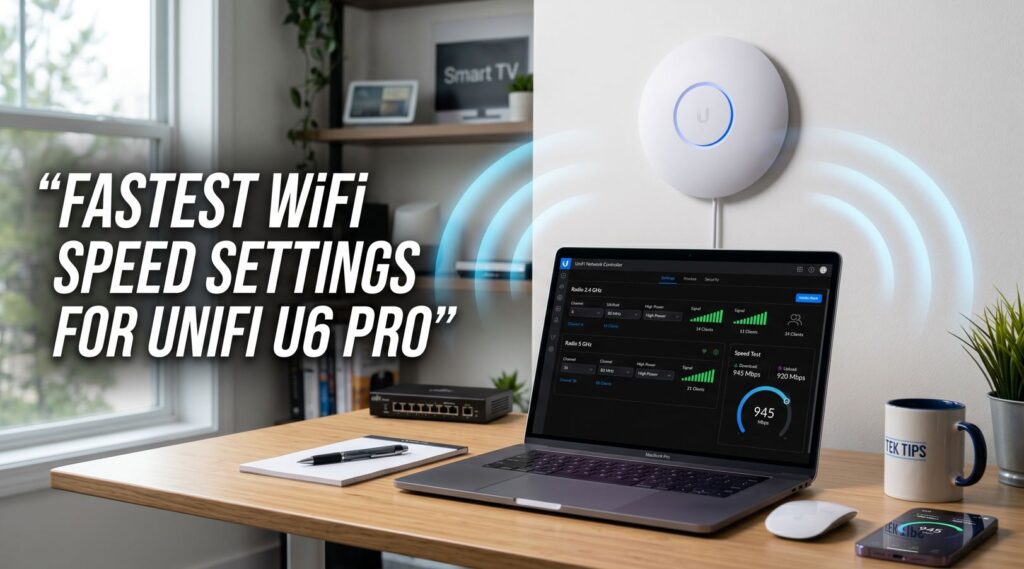
Getting fast WiFi from a UniFi U6 Pro should feel simple, but many people install the access point, run a speed test, and wonder why they are only seeing 250 Mbps, 400 Mbps, or 600 Mbps instead of the huge numbers shown in the specs.
The truth is simple: the UniFi U6 Pro is a very capable WiFi 6 access point, but the fastest result depends on your channel width, radio settings, client device, interference, cable, switch port, and where the AP is mounted.
This guide explains the fastest WiFi speed settings UniFi U6 Pro users should try first, without making your network unstable. The goal is not just a bigger speed test number. The real goal is faster downloads, smoother streaming, lower lag, and better performance on phones, laptops, smart TVs, and other connected devices.
Need stronger coverage before tuning UniFi settings? Read our guide on how to boost your WiFi signal for simple ways to improve range, speed, and stability.
What Speed Can the UniFi U6 Pro Really Deliver?
The UniFi U6 Pro supports WiFi 6, 4×4 MIMO on 5 GHz, and 2×2 MIMO on 2.4 GHz. Ubiquiti lists the U6 Pro with a maximum 5 GHz data rate of 4.8 Gbps at 160 MHz and 573.5 Mbps on 2.4 GHz at 40 MHz. It also uses a 1 GbE wired uplink, which means internet or LAN traffic through one AP is practically limited by that gigabit Ethernet port before WiFi theory numbers matter.
So, should you expect 4.8 Gbps on your phone? No.
Most phones and laptops are 2×2 WiFi clients, not 4×4. Real throughput is usually much lower than the PHY link rate shown in UniFi. Ubiquiti also notes that real throughput is normally lower than the theoretical PHY rate shown for a wireless client.
In a clean setup, many users may see around:
- 500–800 Mbps on modern WiFi 6 phones or laptops near the AP
- 300–600 Mbps one or two rooms away
- 50–150 Mbps on 2.4 GHz, depending on interference
- Lower speeds if the AP is meshed, blocked by walls, or using a poor cable
That is why the best UniFi U6 Pro speed settings are about balance: fast enough to unlock WiFi 6 performance, but stable enough for daily use.
Best Fastest WiFi Speed Settings for UniFi U6 Pro
Here is the quick setup most users should start with.
5 GHz Radio Settings for Maximum Speed
For the fastest UniFi U6 Pro WiFi speed, use the 5 GHz band as your main performance band.
Recommended 5 GHz settings:
| Setting | Recommended Value |
|---|---|
| Channel Width | 80 MHz |
| Channel | Manual, clean channel after RF scan |
| Transmit Power | Medium or custom-tuned |
| Band | 5 GHz enabled |
| WiFi Mode | WiFi 6 / 802.11ax enabled |
| Meshing | Disable if AP is wired |
| Minimum RSSI | Optional, use carefully |
| Band Steering | Prefer 5 GHz or manually separate SSIDs |
Ubiquiti recommends 80 MHz on 5 GHz for maximum throughput in most cases, while 160 MHz can be used for top performance in cleaner environments.
2.4 GHz Radio Settings for Stability
Do not try to make 2.4 GHz your speed band. Use it for smart home devices, older devices, printers, cameras, and long-range coverage.
Recommended 2.4 GHz settings:
| Setting | Recommended Value |
|---|---|
| Channel Width | 20 MHz |
| Channel | 1, 6, or 11 |
| Transmit Power | Low or lower than 5 GHz |
| Use Case | IoT, older devices, longer range |
| Avoid | 40 MHz on 2.4 GHz |
Ubiquiti recommends keeping 2.4 GHz at 20 MHz to reduce interference.
Step-by-Step: How to Configure UniFi U6 Pro for Faster WiFi
Step 1: Open UniFi Network Settings
Open your UniFi Network application, then go to your UniFi U6 Pro access point.
You can usually adjust radio settings from:
UniFi Devices > Select U6 Pro > Settings
Or globally from:
Settings > WiFi / Radios
The exact menu names may vary slightly depending on your UniFi Network version, but the radio options are usually under AP settings, WiFi settings, or Radios.
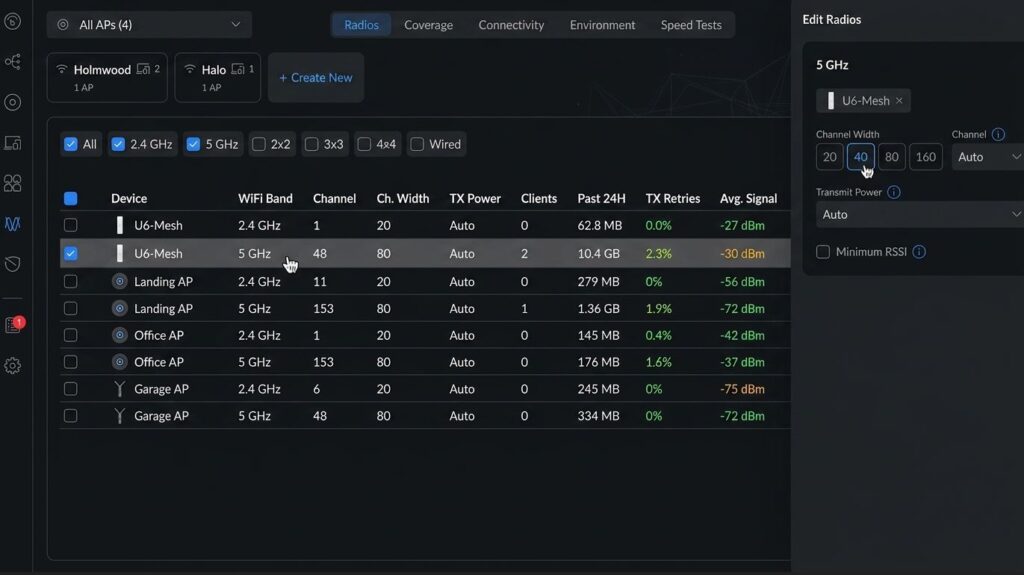
Step 2: Set 5 GHz Channel Width to 80 MHz
The biggest speed improvement usually comes from changing the 5 GHz channel width.
If your UniFi U6 Pro is set to 20 MHz or 40 MHz on 5 GHz, your WiFi speed may feel capped. Moving to 80 MHz gives compatible WiFi 5 and WiFi 6 devices more room to transfer data.
Use:
5 GHz Channel Width: 80 MHz
This is usually the sweet spot for speed and stability. It is fast enough for modern phones, laptops, streaming devices, and gaming devices, but not as fragile as 160 MHz.
Should You Use 160 MHz on UniFi U6 Pro?
You can test 160 MHz if you live in a low-interference area and have devices that support it. The U6 Pro supports 160 MHz on 5 GHz, but that does not mean it is always the best setting.
Use 160 MHz only when:
- You have very little nearby WiFi interference
- Your client device supports 160 MHz
- You are close to the AP
- You want maximum speed test numbers
- You are okay testing for stability
Avoid 160 MHz when:
- You live in an apartment, townhouse, or dense area
- Your devices randomly drop to slower speeds
- Smart TVs or Apple TV devices behave poorly
- You have multiple nearby APs
- You see high channel utilization
For most homes and small offices, 80 MHz is the best fastest WiFi speed setting for UniFi U6 Pro because it gives strong speed without creating as many interference problems.
Step 3: Keep 2.4 GHz at 20 MHz
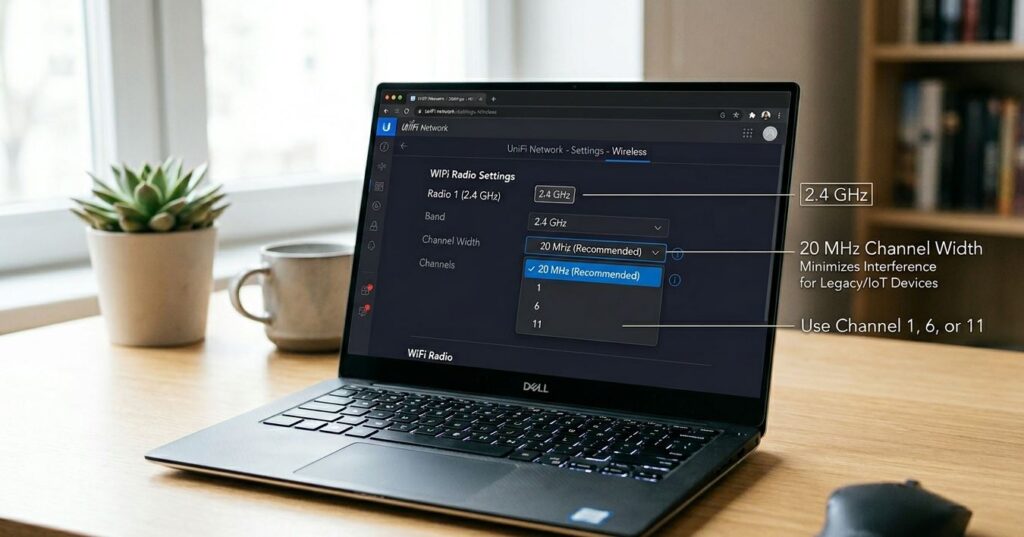
A common mistake is setting 2.4 GHz to 40 MHz because it looks faster. In reality, 2.4 GHz has very limited clean space. Wider channels often create more overlap and more noise.
Use:
2.4 GHz Channel Width: 20 MHz
Then manually choose:
Channel 1, 6, or 11
These are the safest non-overlapping 2.4 GHz channels. If you have multiple UniFi access points, avoid putting nearby APs on the same 2.4 GHz channel when possible.
This setting helps smart TVs, smart plugs, cameras, printers, and older phones stay connected without hurting the rest of your WiFi network.
Step 4: Run an RF Scan Before Choosing Channels
Do not blindly copy channel numbers from another person’s setup. Your best channel depends on your building, nearby routers, walls, and interference.
In UniFi, run an RF scan or use the channel scan tool from your AP. Ubiquiti recommends choosing channels with lower interference and lower utilization; for 2.4 GHz, it recommends using channels 1, 6, and 11.
For 5 GHz, you can start by testing common channel groups such as:
- 36–48
- 149–161
- DFS channels if supported and stable in your area
DFS channels can be cleaner, but they may not be ideal everywhere. Some devices handle DFS poorly, and radar detection can force the AP to change channels. If your WiFi suddenly disconnects or moves channels, test a non-DFS channel.
Step 5: Do Not Always Use High Transmit Power
Many people think “High TX power” means faster WiFi. It can actually make your network worse.
If your U6 Pro is shouting too loudly, your phone may hear the AP well, but the AP may not hear your phone clearly. This creates an unbalanced connection. You may see a strong signal but poor speed.
Good starting point:
- 5 GHz TX Power: Medium
- 2.4 GHz TX Power: Low
- Or set 2.4 GHz several dB lower than 5 GHz
This encourages phones and laptops to stay on faster 5 GHz instead of clinging to slower 2.4 GHz.
For a single AP, Auto or Medium may work fine. For multiple APs, custom tuning is often better because high power can create roaming problems and AP overlap.
Step 6: Disable Wireless Meshing If the U6 Pro Is Wired
If your UniFi U6 Pro is connected by Ethernet, you usually do not need wireless meshing enabled.
Wireless meshing is useful when you cannot run a cable, but it can reduce performance because the AP must use wireless backhaul. Ubiquiti notes that wireless mesh is less performant than wired connections and may suffer more in high-interference environments.
Use:
Wireless Meshing: Off
When all APs are hardwired.
This simple change can help avoid strange roaming or uplink behavior.
Step 7: Check Ethernet Cable and Port Speed
Before blaming WiFi, check the wired side.
The UniFi U6 Pro has a gigabit Ethernet uplink, so the AP should negotiate at 1 Gbps/full duplex. If it negotiates at 100 Mbps, your WiFi will never test above that.
Check:
- AP uplink speed in UniFi Network
- Switch port speed
- Ethernet cable condition
- PoE switch or injector quality
- Router/switch bottlenecks
Ubiquiti recommends checking for unexpectedly low port speeds and swapping cables if needed.
Use at least a good Cat5e cable, but Cat6 is a better choice for fresh installs.
Step 8: Use the Right WiFi Security Settings
For best compatibility and performance, use modern security.
Recommended:
- WPA2/WPA3 Personal if all devices work well
- WPA2 Personal if older devices have problems
- Avoid outdated security modes
- Avoid unnecessary legacy compatibility settings
Some older devices may struggle with WPA3, protected management frames, or newer WiFi features. If a smart TV or IoT device refuses to connect, create a separate IoT SSID with more compatible settings.
Step 9: Separate IoT Devices from Fast Devices
Your fastest WiFi clients should not be dragged down by old devices.
A clean UniFi setup may use:
Main WiFi Network
Use this for:
- Phones
- Laptops
- Tablets
- Gaming handhelds
- New streaming devices
Settings:
- 5 GHz preferred
- 80 MHz channel width
- WPA2/WPA3
- WiFi 6 enabled
IoT WiFi Network
Use this for:
- Smart plugs
- Smart TVs
- Cameras
- Printers
- Older devices
Settings:
- 2.4 GHz enabled
- 20 MHz channel width
- WPA2 if needed
- Simple compatibility-focused setup
This does not magically increase your internet speed, but it makes your network easier to tune and troubleshoot.
Step 10: Test Speed the Right Way
A speed test can mislead you. It depends on your internet provider, test server, phone, laptop, signal, and current network traffic.
For better testing:
- Stand 6–10 feet from the U6 Pro with clear line of sight.
- Make sure your device is connected to 5 GHz.
- Check the client’s link rate in UniFi.
- Run multiple speed tests on different servers.
- Test local LAN speed if possible.
- Compare phone and laptop results.
- Test again one room away.
If your internet plan is 500 Mbps, you cannot speed test 900 Mbps from the internet. If your laptop has an older WiFi card, it may be the bottleneck, not the U6 Pro.
Best UniFi U6 Pro Settings for iPhone, Laptop, and Smart TV
Best Settings for iPhone
For a modern iPhone:
- Use 5 GHz
- Set 5 GHz channel width to 80 MHz
- Keep signal around -50 to -60 dBm for strong performance
- Avoid forcing 160 MHz unless you have tested stability
- Keep 2.4 GHz lower power so the iPhone prefers 5 GHz
If your iPhone speed is stuck around 200–300 Mbps near the AP, check whether it is connected to 2.4 GHz, using a narrow channel, or roaming to the wrong access point.
Best Settings for Laptop
For laptops:
- Update the WiFi driver
- Confirm WiFi 6/802.11ax support
- Use 5 GHz 80 MHz
- Check link speed in Windows, macOS, or UniFi
- Test while plugged into power if the laptop uses power-saving WiFi modes
A laptop with WiFi 5 can still be fast, but a WiFi 6 laptop usually performs better near the U6 Pro.
Best Settings for Smart TV and Streaming Devices
For smart TVs and streaming boxes:
- Use wired Ethernet if possible
- Use 5 GHz if the TV is near the AP
- Use 2.4 GHz if the TV is far away and 5 GHz is weak
- Avoid 160 MHz if the device behaves strangely
- Keep IoT devices on a separate SSID if needed
For 4K streaming, you usually do not need 800 Mbps. Stability matters more than a huge speed test number.
Common Reasons UniFi U6 Pro WiFi Is Slow
The Device Is Connected to 2.4 GHz
This is the most common reason. A phone may show full bars but still be on slower 2.4 GHz.
Fix:
- Check the client band in UniFi
- Lower 2.4 GHz transmit power
- Use band steering carefully
- Create separate SSIDs for testing
5 GHz Channel Width Is Too Narrow
If 5 GHz is set to 20 MHz or 40 MHz, speed may be much lower.
Fix:
- Set 5 GHz to 80 MHz
- Reconnect the client
- Test again near the AP
160 MHz Is Causing Interference
160 MHz can look good on paper but perform worse in crowded areas.
Fix:
- Change 5 GHz back to 80 MHz
- Pick a cleaner channel
- Retest speed and stability
AP Is Using Wireless Mesh
A meshed AP can be much slower than a wired AP.
Fix:
- Hardwire the U6 Pro
- Disable meshing if not needed
- Check uplink type in UniFi
Bad Cable or 100 Mbps Link
If the AP uplink is stuck at 100 Mbps, WiFi will be capped.
Fix:
- Replace the Ethernet cable
- Check switch port speed
- Re-seat the cable
- Try a different PoE port
Too Much Transmit Power
High power can create sticky clients and poor roaming.
Fix:
- Set 5 GHz to Medium
- Set 2.4 GHz to Low
- Avoid all APs blasting at High
Fastest Recommended UniFi U6 Pro Configuration
Here is a practical “fast but stable” profile.
UniFi U6 Pro Fast Home Setup
| Band | Channel Width | Channel | TX Power | Purpose |
|---|---|---|---|---|
| 2.4 GHz | 20 MHz | 1, 6, or 11 | Low | IoT and range |
| 5 GHz | 80 MHz | Clean manual channel | Medium | Main speed band |
Advanced Speed Testing Setup
Use this only for testing:
| Band | Channel Width | Channel | TX Power | Purpose |
|---|---|---|---|---|
| 2.4 GHz | 20 MHz | 1, 6, or 11 | Low | Compatibility |
| 5 GHz | 160 MHz | Clean channel | Medium | Maximum test speed |
If 160 MHz improves speed and stays stable, you can keep it. If devices disconnect, drop speed, or behave oddly, return to 80 MHz.
Should You Use UniFi Default WiFi Speeds: Maximum Speed or Conservative?
UniFi may offer default WiFi speed profiles or optimization options depending on your Network version. The safer approach is to understand what the profile changes.
A “maximum speed” style setup usually widens channels and favors throughput. A “conservative” setup usually favors stability and lower interference.
For most people:
- Use 80 MHz on 5 GHz
- Use 20 MHz on 2.4 GHz
- Avoid extreme transmit power
- Pick channels based on your RF environment
- Keep firmware updated
That gives you a strong mix of speed and reliability.
UniFi WiFi Optimization Settings Worth Checking
BSS Transition
BSS Transition can help devices move between APs more efficiently in multi-AP environments. Ubiquiti describes BSS Transition as a setting that helps clients switch between APs more efficiently.
Use it when:
- You have multiple UniFi APs
- Phones stick to a far AP
- Roaming feels slow
Test it if some older clients behave strangely.
Fast Roaming
Fast roaming can help in some multi-AP networks, especially with modern clients. However, not every smart home device likes it.
Use it on your main SSID if your devices support it. Avoid it on IoT networks if older devices disconnect.
Minimum RSSI
Minimum RSSI can kick weak clients off an AP, but it can also create connection problems when set too aggressively.
Use it only after your channels and power are tuned.
Band Steering
Band steering can encourage devices to use 5 GHz, but it is not magic. Some users prefer separate SSIDs for 2.4 GHz and 5 GHz when troubleshooting.
A simple setup:
- One main SSID with band steering preferred to 5 GHz
- One separate IoT SSID for 2.4 GHz devices
Best Placement for UniFi U6 Pro Speed
Settings matter, but placement matters more than many people expect.
For best U6 Pro performance:
- Mount it on the ceiling if possible
- Keep it away from metal objects
- Avoid hiding it inside cabinets
- Place it near the center of the coverage area
- Do not mount multiple APs too close together
- Avoid placing it behind TVs or large appliances
If your signal is -70 dBm or worse, changing channel width will not magically create fast WiFi. Move closer, improve placement, or add another wired AP.
Realistic Speed Expectations
The fastest WiFi speed settings for UniFi U6 Pro will not make every device hit gigabit speed.
Real-world speed depends on:
- Client WiFi standard
- MIMO support
- Distance from AP
- Walls and materials
- Channel width
- Interference
- AP uplink speed
- Internet plan
- Server used for speed test
A good target near the AP on 5 GHz 80 MHz is often 500–800 Mbps on a strong WiFi 6 device. If you are getting that, your U6 Pro is likely performing well.
If you need guaranteed gigabit performance for a desktop PC, NAS, gaming setup, or workstation, use Ethernet. WiFi is convenient, but wired connections are still better for consistent maximum speed.
FAQ: Fastest WiFi Speed Settings UniFi U6 Pro
What are the fastest WiFi speed settings for UniFi U6 Pro?
Set 5 GHz channel width to 80 MHz, manually choose a clean 5 GHz channel after an RF scan, keep 2.4 GHz at 20 MHz, use medium 5 GHz transmit power, low 2.4 GHz transmit power, and disable wireless meshing if the AP is wired.
Should I use 80 MHz or 160 MHz on UniFi U6 Pro?
Use 80 MHz for most homes and offices. Try 160 MHz only if your area has low interference and your devices support it. If 160 MHz causes drops or slower performance, return to 80 MHz.
Why is my UniFi U6 Pro only getting 300 Mbps?
Your device may be connected to 2.4 GHz, using 40 MHz or 20 MHz on 5 GHz, connected to a poor channel, limited by interference, using wireless mesh, or connected through a bad cable or 100 Mbps switch port.
What channel should I use on UniFi U6 Pro?
For 2.4 GHz, use 1, 6, or 11. For 5 GHz, run an RF scan and choose the cleanest channel with low interference and low utilization. Do not copy someone else’s channel without checking your own environment.
Is high transmit power better for UniFi U6 Pro?
Not always. High transmit power can create roaming problems and unbalanced connections. Medium power on 5 GHz and low power on 2.4 GHz is often better for real performance.
How fast is the UniFi U6 Pro?
The U6 Pro has a listed maximum 5 GHz data rate of 4.8 Gbps at 160 MHz, but real-world WiFi speed is much lower and depends heavily on the client device and environment.
Should I separate 2.4 GHz and 5 GHz SSIDs?
You do not have to, but separate SSIDs can help troubleshooting. Many users keep one main SSID for normal devices and one 2.4 GHz IoT SSID for smart home devices.
Does wireless meshing slow down UniFi U6 Pro?
It can. A wired AP usually performs better than a meshed AP. If your U6 Pro is connected by Ethernet, disable meshing unless you truly need it.
Conclusion
The best fastest WiFi speed settings UniFi U6 Pro setup is not about turning every option to the highest value. The best setup is usually 5 GHz at 80 MHz, 2.4 GHz at 20 MHz, clean manual channels, sensible transmit power, wired uplink, updated firmware, and proper AP placement.
If you want the highest possible speed test number, you can experiment with 160 MHz on 5 GHz. But for most real homes and offices, 80 MHz gives the best balance of speed, range, and stability.
Start with the recommended settings, test one change at a time, and check the client’s actual connection details in UniFi. That is the safest way to make your U6 Pro faster without making your WiFi unreliable.