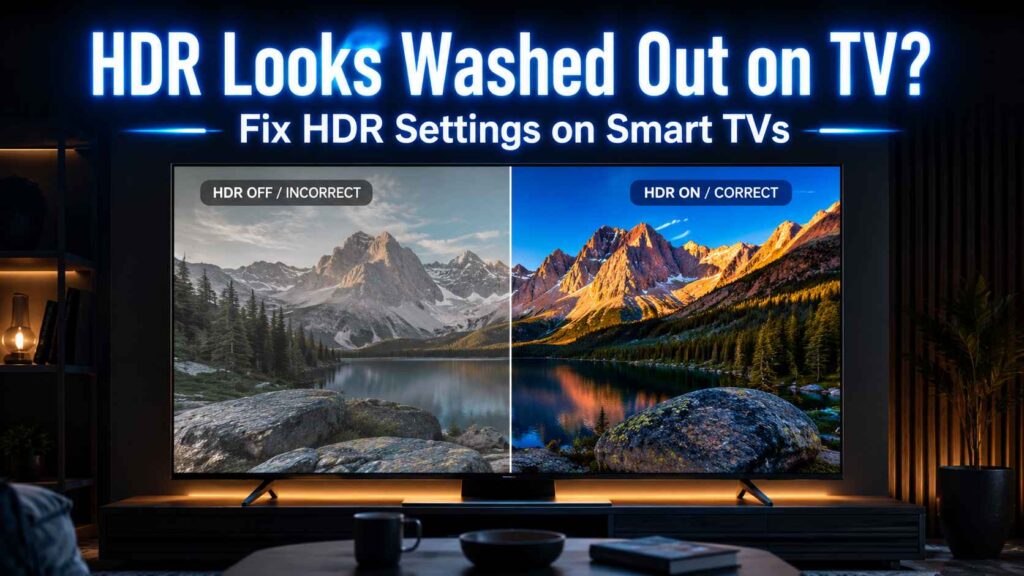
HDR should make a picture look richer, sharper, and more alive. When HDR looks washed out, the image usually turns gray, flat, or dull because one part of the setup is off. Most of the time, the problem is not the TV panel itself. It is the picture mode, the HDMI signal setting, the source device, or a power-saving feature that is quietly reducing brightness and contrast. HDR only works properly when the TV, source, and content all support it.
That is why a movie can look great on one HDMI port and disappointing on another. It is also why many people notice HDR picture looks faded on TV right after turning on a new streaming box, game console, or Blu-ray player.
Quick Fix: HDR Looks Washed Out on TV
If your HDR picture looks faded, gray, or dull:
- Switch to Movie or Cinema mode
- Enable HDR on the HDMI input
- Disable Energy Saving mode
- Make Sure the Movie, Show, Game, or Video Supports HDR
- Restart the TV and source device
- Update TV software
Many HDR issues are resolved within minutes using these steps.
Common HDR Problems and Quick Fixes (Table)
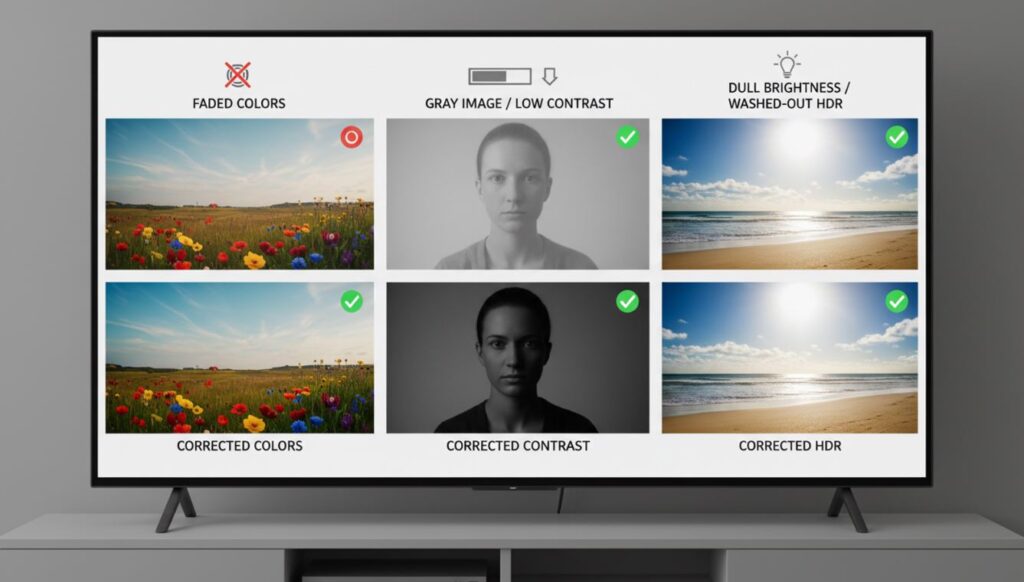
| Problem | Likely Cause | Fix |
|---|---|---|
| HDR looks gray | Wrong picture mode | Switch to Movie mode |
| HDR colors look faded | Energy Saver enabled | Disable Energy Saver |
| HDR not detected | HDMI HDR disabled | Enable HDMI HDR |
| HDR looks dim | Source output issue | Verify HDR output |
Why Does HDR Look Washed Out?
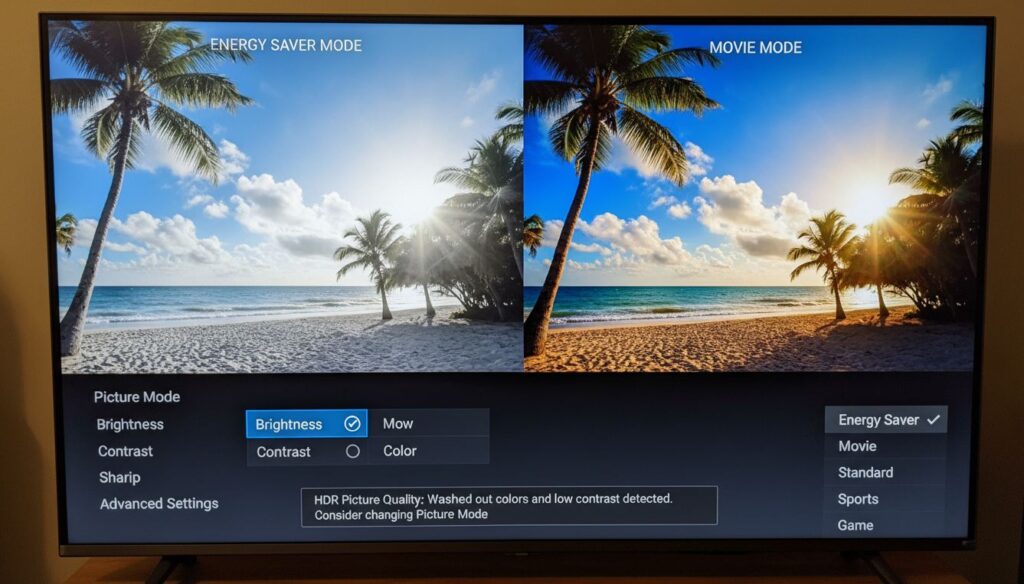
1) The TV is in the wrong picture mode
A bright showroom mode can make HDR look unnatural. A power-saving mode can make it look too dim. Samsung, LG, and TCL all document picture modes that change brightness, contrast, and color behavior together, so a simple mode change can completely alter the image.
2) HDR is not fully enabled on the HDMI port
On many smart TVs, HDR needs a special HDMI setting to unlock the full signal. Samsung uses HDMI UHD Color, LG uses HDMI Ultra HD Deep Color, and Sony uses HDMI signal format: Enhanced format. If the right port is still on the basic setting, the TV may not show HDR correctly.
3) The source is not sending HDR
A TV can only display real HDR if the source device is outputting HDR and the content itself supports it. LG’s HDR guide is very clear about this: you need an HDR-capable TV, an HDR-capable source, and HDR content. If any one of those is missing, the picture can look flat or faded.
4) Brightness-saving features are flattening the image
Many TVs include energy-saving features that reduce screen brightness automatically. LG and TCL both note that these kinds of settings can make the image look darker or less vivid. On newer TCL Google TV models, Standard mode is designed to save energy and may appear dimmer than expected.
5) Picture settings are not balanced for HDR
HDR is not fixed by turning every slider up. Brightness, contrast, color, and black level need to work together. Sony and Samsung both explain that picture controls directly affect how the image is rendered, which is why careless adjustments can leave HDR looking gray instead of rich.
How to Fix Washed Out HDR on TV
Step 1: Make Sure the Movie, Show, Game, or Video Supports HDR
Start with a known HDR title from a supported app or device. If one app looks fine and another looks dull, the issue may be with the app or source device, not the television. LG’s HDR guidance confirms that all three parts of the chain matter: TV, source, and content.
If HDR is not being recognized properly, it may be due to HDMI signal issues or incorrect port settings. Read this guide to fix it:
👉 HDMI Not Working on TV – Full Fix Guide
Step 2: Switch to a better picture mode
For most people, the best starting point is Movie, Cinema, Filmmaker Mode, or a dedicated HDR mode. Samsung says Movie is better for dark-room viewing and Filmmaker Mode avoids extra processing. LG lists Cinema, Cinema Home, Standard, Game Optimizer, and FILMMAKER MODE as main picture choices on its HDR-capable TVs.
Step 3: Enable the HDR-friendly HDMI setting for that port
This is one of the most common fixes for HDR mode washed out TV complaints.
- On Samsung, turn on HDMI UHD Color for the port your device uses.
- On LG, set HDMI Ultra HD Deep Color to On.
- On Sony, set HDMI signal format to Enhanced format on the correct input. Sony also notes that some models support HDR only on specific ports.
Step 4: Turn off automatic brightness reduction
If HDR still looks dull, check for settings such as Energy Saver, Auto Power Save, AI Brightness, or Adaptive Brightness. LG specifically warns that brightness-saving features can make the screen look dark, and TCL’s own notes show that lower-power modes can make the picture appear dimmer.
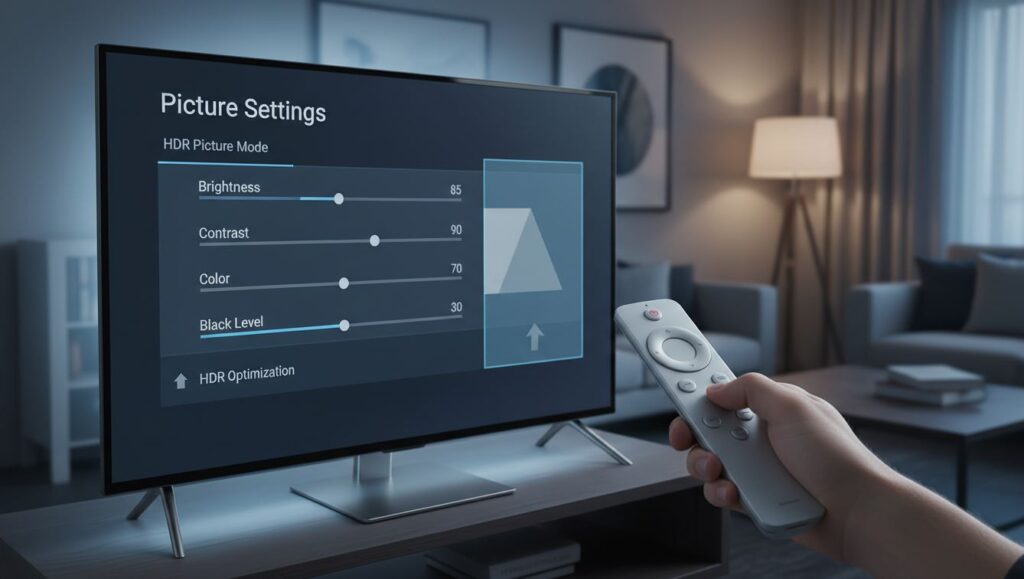
Step 5: Adjust brightness, contrast, and color with restraint
A common mistake is making the picture “brighter” by maxing out every setting. That often causes HDR image looks gray on TV problems instead of fixing them. Use a small number of careful changes:
- Raise brightness only enough to restore detail.
- Increase contrast only until highlights still look natural.
- Keep color strong, but not cartoonish.
- Leave black level at the correct setting for the input device.
Step 6: Restart the TV and the source device
A restart can clear HDMI handshake problems between the TV, streaming box, soundbar, or console. If HDR is not being recognized properly, rebooting both devices often forces a fresh connection. Sony’s HDR support notes also stress correct cable and port setup for HDR playback.
Step 7: Update the TV software
Firmware updates can improve HDMI compatibility and picture handling. If your TV has been behaving oddly after a device change, updating the TV is worth doing before you assume the panel is defective. Sony, Samsung, LG, and TCL all keep support pages for setup and picture troubleshooting.
Brand-Specific Fixes
Samsung: HDR washed out TV fix
On Samsung TVs, open Settings → Picture → Picture Mode and test Movie or Filmmaker Mode first. Samsung says Movie is better for dark rooms, while Filmmaker Mode reduces extra processing. Then go to Expert Settings and fine-tune Brightness, Contrast, and Color instead of changing too many settings at once.
For HDMI sources, go to Picture → Expert Settings → HDMI UHD Color and turn it on for the exact port your device uses. Samsung explains that this helps optimize UHD 50P/60P signals. If the TV has HDR+ Mode, some older models may use that option as part of HDR handling.
LG: HDR display washed out on smart TV
On LG TVs, check that the source is actually sending HDR, then go into Picture Mode and try Cinema, Cinema Home, Standard, Game Optimizer, or FILMMAKER MODE depending on the room and the type of content. LG says HDMI Ultra HD Deep Color must be turned on for the connected HDMI port when you use a compatible playback device.
If the screen still looks flat, look for Energy Saver or AI Brightness and turn them off for testing. LG says those settings can reduce visible brightness and make the screen appear darker than expected.
Sony: HDR image looks gray on TV fix
For Sony TVs, open Settings → External Inputs → HDMI signal format and switch the correct port to Enhanced format. Sony says to use a Premium High-Speed HDMI cable for HDR playback and to connect it to the HDR-compatible HDMI port. Sony also notes that some models support 4K Enhanced format only on certain ports, so choosing the right input matters.
After that, use the picture controls to fine-tune the image instead of pushing brightness too high. Sony’s guidance makes it clear that contrast, brightness, and color all affect the final HDR picture.
TCL: HDR looks dull on TV fix
On TCL Google TV models, open Picture Settings and test the available picture modes. TCL’s support pages show modes such as Vivid and other picture presets, and the company explains that these modes change contrast and color behavior. TCL also says the normal Standard mode may save energy, which can make the picture appear less bright than expected.
If HDR still looks flat, check the brightness, contrast, black level, and color saturation controls inside the picture menu. TCL includes those settings in its official picture adjustment guide, which makes them a safe place to start when doing HDR color settings on TV or TV HDR color correction.
Best HDR Settings for TV
There is no single perfect number for every TV, but a strong starting point usually looks like this:
- Picture mode: Movie, Cinema, or Filmmaker Mode
- HDMI port: HDR-enabled or Enhanced/Deep Color mode
- Brightness: high enough to keep shadow detail visible
- Contrast: high, but not clipped
- Energy saving: off for testing
- Color: natural, not overly boosted
That setup usually gives better results than a bright but flat preset. It is also the easiest path for smart TV HDR calibration when you just want the picture to look right without turning the image unnatural.
Common HDR Picture Quality Issues TV Owners Notice
People usually describe the problem in a few different ways:
- HDR picture looks faded on TV
- TV HDR colors look washed out
- HDR looks dull on TV
- HDR display washed out on smart TV
- HDR mode washed out TV
- HDR picture quality issues TV
- HDR brightness settings TV do not seem to help
- fix faded HDR colors on TV
All of these usually point to the same thing: the signal path, the picture mode, or the automatic brightness controls are not set up correctly.
FAQ
Why does HDR look washed out on TV?
Usually because the TV is in the wrong picture mode, the HDMI port is not set for HDR, or the source is not sending a true HDR signal.
How do I fix washed out HDR on TV fast?
Start with Movie or Cinema mode, enable HDR on the correct HDMI port, and turn off any energy-saving feature that reduces brightness.
Why do HDR colors look washed out on smart TV apps?
Because some apps, devices, or HDMI settings are not passing HDR correctly. The TV may be showing SDR-style output instead of HDR.
Is Vivid mode the best HDR setting?
Not usually. It can look bright, but it is often less accurate than Movie, Cinema, or Filmmaker Mode.
Can a bad HDMI port cause HDR to look dull?
Yes. If the port is not set to HDR-friendly mode, the TV may not receive the full HDR signal. Sony, Samsung, and LG all document this behavior in their support guides.
Final Takeaway
If HDR looks washed out, do not start by randomly changing every slider. Start with the source, the HDMI port, and the picture mode. Then turn off any feature that lowers brightness, and fine-tune contrast and color gently. That order solves most HDR looks washed out on TV problems and gives you a much better chance of restoring deep blacks, clean highlights, and richer HDR color.
TechNexa Hub shares practical fixes for Wi-Fi, mobile issues, laptop comparisons, and smart TV help, so readers can solve everyday tech problems with less guessing and more confidence.