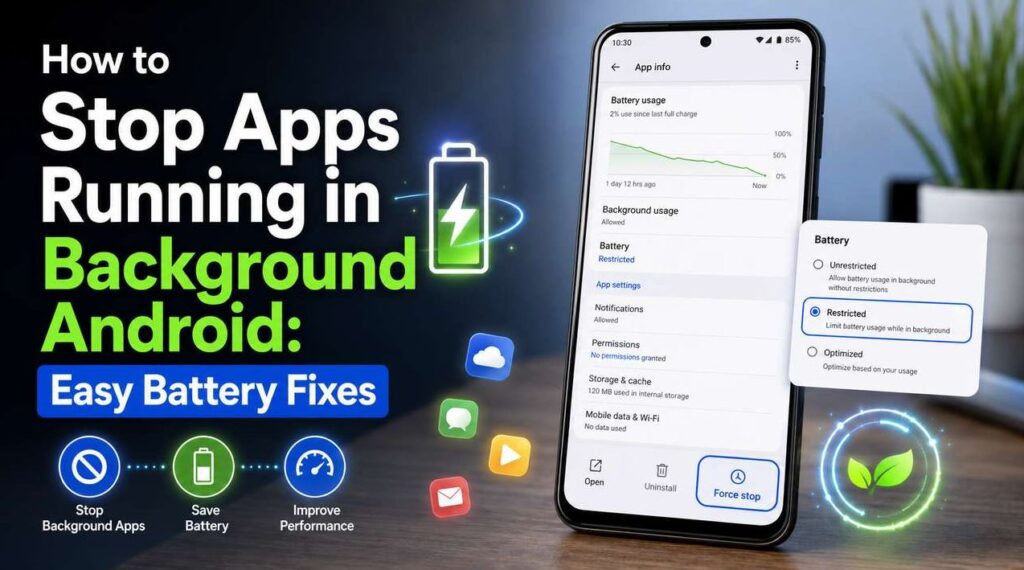
Our Android phone can feel slow, warm, or low on battery even when you are barely using it. One common reason is background apps. These apps may refresh content, sync files, send notifications, track location, or use mobile data while you are not actively looking at them.
The good news is simple: you do not need to be a phone expert to fix it. If you want to know how to stop apps running in background Android, the best approach is to control app battery use, background data, permissions, and unused apps one by one.
Android settings can look slightly different on Samsung, Google Pixel, Motorola, OnePlus, Xiaomi, and other phones, but the main idea is the same. Android lets you close apps, restrict background apps, and limit high battery use through built-in settings. Google’s Android help also recommends restricting apps with high battery use and using battery-saving settings when needed.
How to Stop Apps Running in Background Android
Here is the fast fix if you want to stop Android background apps right away:
- Open Settings.
- Tap Apps.
- Choose the app you want to control.
- Tap Battery or App battery usage.
- Select Restricted, Optimized, or turn off Allow background usage.
- Go back to the app settings and open Mobile data or Mobile data & Wi-Fi.
- Turn off Background data if the app does not need internet access when closed.
- Use Force Stop only when an app is frozen, draining battery, or behaving badly.
- Uninstall or disable apps you no longer use.
That is the simplest way to stop apps running Android in the background without installing extra tools.
What Does Android Background Activity Mean?
Android background activity means an app is doing something while you are not actively using it. For example, a weather app may update forecasts, a messaging app may check for new chats, and a photo app may back up images.
This is not always bad. Some Android background activity is useful. The problem starts when too many background apps use battery, data, memory, or location access for things you do not need.
Want to understand app refresh before changing settings? Read App Refresh in Background guide to learn what it does, when to turn it off, and how it affects battery, data, and Android background apps.
Common signs include:
- Battery draining faster than normal
- Phone heating up while idle
- Mobile data ending too quickly
- Apps sending too many notifications
- Phone feeling slow or laggy
- High application usage in battery settings
So, the goal is not to stop every app. The smart goal is to stop background apps Android does not need to keep active.
If your phone also heats up or loses battery while plugged in, read our guide on why your phone gets hot while charging and battery keeps dropping to understand how heavy usage, charging problems, and background apps can work together.
How to Check Apps Running in Background Android
Before you disable background apps, check which apps are actually active or using power.
Check Battery Usage
Go to:
Settings > Battery > Battery usage
You should see which apps used the most battery recently. If a game, shopping app, short video app, or social media app appears high on the list even though you barely used it, that app may be running too much in the background.
This is one of the best places to find background apps android users often forget about.
Check Recent Apps
You can also close Android background apps from the recent apps screen:
- Swipe up from the bottom and hold for a moment.
- Swipe left or right to view open apps.
- Swipe up on an app card to close it.
- Tap Clear all if your phone shows that option.
Google’s Android help explains that users can close one app or close all apps from the recent apps view, depending on the device.
Check Running Services for Advanced Users
Some Android phones let you view running services through Developer Options. This can show active processes and memory use, but it is not meant for casual changes.
Use this only if you understand what you are changing. Limiting processes too aggressively may break notifications, syncing, music playback, navigation, or security alerts.
Method 1: Restrict Background Apps from Battery Settings
The safest way to stop apps running in the background Android is to restrict each app from battery settings.
Steps to Restrict an App
- Open Settings.
- Tap Apps.
- Select the app.
- Tap Battery or App battery usage.
- Choose Restricted or turn off Allow background usage.
On some phones, you may see options like:
- Unrestricted
- Optimized
- Restricted
- Allow background activity
- Put app to sleep
- Deep sleeping apps
Choose Restricted for apps you do not need running all day.
This method helps restrict Android background apps without deleting anything.
Best Apps to Restrict First
You can usually restrict these safely:
- Games you play occasionally
- Shopping apps
- Food delivery apps
- Travel apps you rarely open
- Photo editing apps
- Video apps
- Social media apps you check manually
- Apps you installed once and forgot
Be more careful with messaging, banking, health, calendar, alarm, and security apps. Those may need background access to work properly.
Method 2: Disable Background Data for Apps
If an app does not need internet access when you are not using it, turn off its background data. This is a great way to prevent background app activity and reduce mobile data use.
How to Disable Background Data
- Open Settings.
- Tap Apps.
- Choose the app.
- Tap Mobile data, Data usage, or Mobile data & Wi-Fi.
- Turn off Background data.
Google’s Pixel help says Android users can allow or restrict background data usage by app, which is useful when you want better control over mobile data.
Use this for apps that do not need live updates, such as games, shopping apps, entertainment apps, or apps you only open manually.
This is also a practical fix for people wondering how to prevent background apps android from using data quietly.
Method 3: Force Stop Apps That Misbehave
Force Stop is useful when an app is stuck, frozen, overheating your phone, or draining the battery quickly.
How to Force Stop an App
- Open Settings.
- Tap Apps.
- Select the app.
- Tap Force Stop.
- Confirm if Android asks.
Force Stop is stronger than closing an app from the recent apps screen. It shuts the app down until you open it again or until another allowed process wakes it.
Use Force Stop for problem apps, not every app all day. If you force stop apps constantly, you may not get alerts, updates, or background tasks you actually need.
Method 4: Use Battery Saver or Power Saving Mode
Battery Saver is a quick way to stop apps in background activity across your phone. It may reduce syncing, background refresh, animations, location activity, and other battery-heavy actions.
How to Turn On Battery Saver
Go to:
Settings > Battery > Battery Saver
On Samsung phones, you may see:
Settings > Battery > Power saving
Turn it on when your battery is low or when your phone is draining too quickly.
Battery Saver is helpful because it can stop background apps Android system-wide without changing every app manually. The trade-off is that some alerts or updates may arrive later.
If your phone still drains fast after restricting background apps, follow these practical tips to optimize smartphone battery life and improve screen, charging, location, network, and app settings.
Method 5: Turn Off Apps You Do Not Use
Sometimes the best answer to how do I stop apps is simple: remove what you do not need.
Uninstall Unused Apps
- Press and hold the app icon.
- Tap Uninstall.
- Confirm.
Or use:
Settings > Apps > App name > Uninstall
Removing unused apps is the cleanest way to stop apps running background because the app is no longer on your phone.
Disable Preinstalled Apps
Some phones include preinstalled apps you cannot uninstall. In that case:
- Open Settings.
- Tap Apps.
- Select the app.
- Tap Disable.
Disabling an app can stop it from running or showing in your app drawer. Only disable apps you understand. Do not disable system apps unless you are sure they are safe to turn off.
Method 6: Turn Off Location, Notifications, and Sync
Some apps keep waking up because they have permissions they do not need. If an app has location, notification, or sync access, it may stay more active than expected.
Review App Permissions
Go to:
Settings > Privacy > Permission manager
Check access for:
- Location
- Camera
- Microphone
- Contacts
- Files
- Nearby devices
- Notifications
Google’s Android help explains that users can change app permissions from Android settings, including choosing an app and adjusting what it can access.
For example, a shopping app probably does not need your location all day. A photo editing app probably does not need background location at all.
Change location access to Allow only while using the app when possible.
Turn Off Notifications for Noisy Apps
If an app keeps sending alerts you do not care about:
- Open Settings.
- Tap Notifications.
- Choose the app.
- Turn off unnecessary alerts.
This may not fully disable background app activity, but it reduces interruptions and may stop apps from waking up as often.
Method 7: Use Developer Options Carefully
Some guides suggest changing Background process limit in Developer Options. This can reduce the number of apps Android keeps active, but it is not the best first step.
How to Open Developer Options
- Open Settings.
- Tap About phone.
- Tap Build number seven times.
- Enter your PIN if asked.
- Go back to Settings and open Developer Options.
A Google Android community guide explains that tapping Build number seven times enables Developer Options on Android and Pixel devices.
Should You Change Background Process Limit?
Only advanced users should change it. If you set the limit too low, your phone may stop multitasking properly. You may lose timely notifications, music may stop, maps may pause, or apps may reload too often.
For most users, battery restriction and background data settings are safer than changing Developer Options.
How to Stop Apps from Running in Background Without Breaking Important Features
Not every app should be restricted. Some apps need background access to do their job.
Do not aggressively restrict:
- Messaging apps you rely on
- Email apps used for work
- Calendar apps
- Alarm and reminder apps
- Navigation apps
- Banking and payment apps
- Security apps
- Health and fitness tracking apps
- Cloud backup apps, if you want automatic backup
If you disable Android background access for these apps, you may miss alerts or important updates.
A good rule is this: restrict apps that entertain, sell, or distract; allow apps that protect, remind, guide, or communicate.
What If Apps Keep Coming Back?
Sometimes you close background apps, but they return later. That can happen for a few reasons:
- The app is allowed to sync
- Notifications are enabled
- Location permission is set to always allow
- The app starts after reboot
- Another connected service wakes it
- The phone brand has its own battery manager
- The app is poorly optimized
Try this order:
- Restrict battery usage.
- Disable background data.
- Turn off unnecessary notifications.
- Change location access to while using.
- Clear app cache.
- Update the app.
- Uninstall and reinstall it.
- Remove the app if it still causes problems.
This is the most practical way to stop Android background apps that keep restarting.
Close Background Apps vs Restrict Background Apps
Closing and restricting are not the same.
Close Background Apps
When you close background apps from the recent apps screen, you remove them from the recent view. This can help with frozen or buggy apps, but many apps can start again later.
Restrict Background Apps
When you restrict background apps from battery settings, you tell Android to limit what the app can do when you are not using it. This is usually better for battery life and data control.
So, if you want a quick cleanup, close apps. If you want a longer-lasting fix, restrict apps.
How to Disable Background Apps Android Users Do Not Need
If you want to disable background apps more deeply, combine these settings:
- Set battery usage to Restricted
- Turn off Background data
- Disable unnecessary notifications
- Remove location access
- Turn off auto-sync if the app has it
- Disable or uninstall unused apps
This layered method is better than using random cleaner apps. Many “booster” or “task killer” apps promise quick results, but they may add more background activity themselves.
Do You Need an App to Remove Background Activity?
Usually, no. You do not need an app to remove background activity on modern Android phones. Built-in Android settings are enough for most users.
Third-party cleaner apps can sometimes create more problems than they solve. They may show ads, ask for too many permissions, or keep running in the background themselves.
Use Android’s own battery, data, and permission tools first.
Best Real-World Setup for Better Battery Life
Here is a simple setup that works well for most people:
Keep These Apps Allowed
- Phone
- Messages
- WhatsApp or your main chat app
- Calendar
- Alarm
- Banking
- Maps
- Security apps
Restrict These Apps
- Games
- Shopping apps
- Food apps
- Streaming apps you rarely use
- Social media apps you open manually
- Photo editors
- Old utility apps
- Duplicate apps
Review Monthly
Once a month, check:
- Battery usage
- Mobile data usage
- App permissions
- Unused apps
- Recently installed apps
This habit keeps your phone clean without over-managing it every day.
Common Mistakes to Avoid
Closing Every App All the Time
You do not need to close every app every few minutes. Android already manages memory. Constantly closing and reopening apps can sometimes use more power.
Restricting Messaging Apps
If you restrict your main messaging app, you may miss messages.
Using Too Many Cleaner Apps
A cleaner app may run in the background too. Use built-in settings before installing more tools.
Ignoring App Permissions
Battery settings help, but permissions matter too. A location-heavy app can drain battery if it always tracks your location.
Disabling System Apps Randomly
Some system apps are needed for Android features. Disable only apps you clearly recognize and do not need.
FAQ: Stop Apps Running in the Background Android
How do I close running apps on Android?
Swipe up from the bottom of the screen and hold, then swipe up on any app card to close it. On some phones, you can tap Clear all to close Android background apps from the recent apps screen.
How do I stop apps from running in background?
Open Settings > Apps > App name > Battery, then choose Restricted or turn off Allow background usage. You can also turn off background data from the app’s mobile data settings.
How do I turn off background apps?
To turn off apps in background Android, restrict battery usage, disable background data, and remove permissions the app does not need. This works better than only swiping the app away.
How to stop background app activity for one app?
Go to Settings > Apps, choose the app, open Battery, and set it to Restricted. Then open Mobile data and turn off Background data if the app does not need live internet access.
How to disable background apps Android safely?
Disable background apps Android safely by starting with games, shopping apps, and apps you rarely use. Avoid restricting alarms, messages, banking, maps, and security apps unless you understand the effect.
What is the best way to restrict background apps?
The best way to restrict background apps is to use Android’s built-in battery settings. Choose Restricted for apps that do not need to refresh, sync, or send alerts when closed.
Can Android stop apps running in background automatically?
Yes, Android can limit some unused apps automatically through battery optimization and adaptive battery features, but manual settings give you more control over specific apps.
How to stop Android apps from running in the background permanently?
For apps you do not need, uninstall them. For apps you want to keep, restrict battery use, disable background data, turn off notifications, and remove unnecessary permissions.
How to stop apps running in the background on Android without deleting them?
Use Settings > Apps > App name > Battery > Restricted. This lets you keep the app installed while limiting what it can do in the background.
How to stop apps running in background on android for mobile data?
Open the app’s settings, tap Mobile data or Data usage, then turn off Background data. This prevents apps running background internet activity when you are not using them.
Is Force Stop safe?
Force Stop is safe for problem apps, but it should not be used constantly on important apps. If you Force Stop your messaging, alarm, or email app, alerts may not arrive until you open the app again.
What does disable background app mean?
To disable background app activity means to limit what an app can do when it is not open on your screen. This may include syncing, refreshing, location use, and mobile data use.
Why do background apps come back after I close them?
Some apps restart because they have notifications, sync access, location permission, or startup behavior. Restricting battery use and background data is stronger than only closing apps.
How to prevent apps running background after restart?
Check battery settings, turn off background data, disable auto-start if your phone offers it, and uninstall apps you do not need. Some phone brands also include sleeping apps or app launch controls.
How to prevent background apps android from draining battery?
Use Battery Saver, restrict high-use apps, turn off background data, and review permissions. Also remove apps you have not used in a long time.
What is the difference between stop background apps Android and close apps?
To close apps means removing them from the recent apps screen. To stop background apps Android more effectively, restrict battery and data permissions from app settings.
Should I use a task killer app?
Usually, no. Built-in Android tools are safer and more reliable. A task killer may run in the background itself and may interfere with normal phone behavior.
How to stop the apps running in background Android if settings look different?
Use your Settings app and look for similar names: Apps, Battery, App battery usage, Mobile data, Background data, Power saving, Sleeping apps, or App launch. The wording changes by phone brand, but the function is similar.
Conclusion
Learning how to stop apps running in background Android is mostly about control. You do not need to shut down everything. You only need to limit apps that waste battery, data, memory, or privacy access without giving you real value.
Start with battery usage, restrict the worst apps, disable background data, review permissions, and uninstall anything you no longer use. With a few small changes, your Android phone can feel faster, last longer, and stay easier to manage every day.