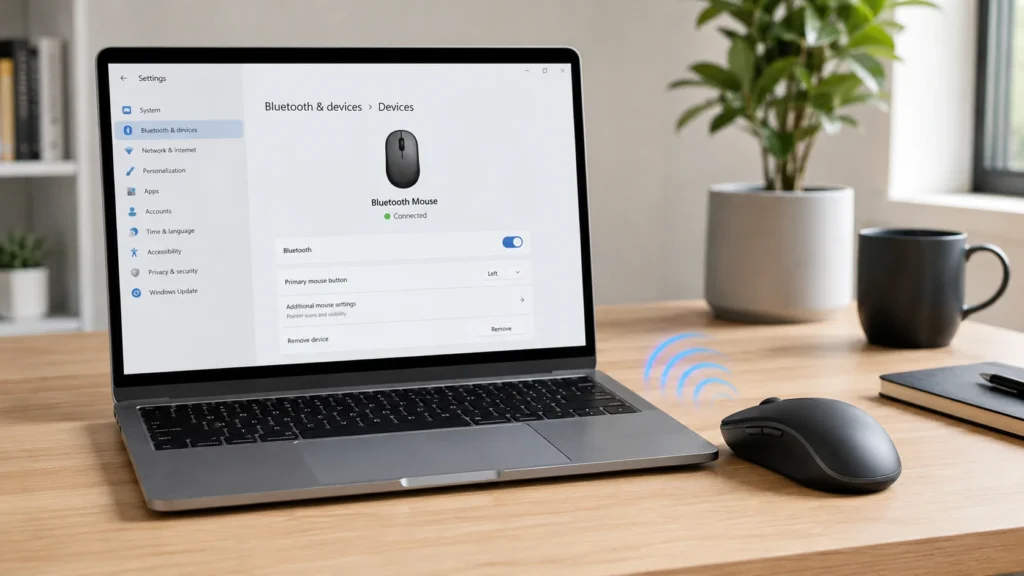
A Bluetooth mouse is one of those small upgrades that can make a laptop feel much easier to use. You get a cleaner desk, smoother control, and one less cable in the way. The setup is usually simple, but it can become confusing when every laptop, mouse brand, and system uses slightly different wording.
Maybe your Windows laptop says “Add device.” Maybe your Mac shows the mouse under Bluetooth. Maybe your Logitech mouse has an Easy-Switch button. Maybe your Microsoft mouse has a small pairing button underneath. And sometimes the mouse simply refuses to appear.
This guide explains how to connect a Bluetooth mouse on Windows, Mac, Chromebook, Ubuntu, Android, iPad, and iPhone. It also covers Logitech, Microsoft, Apple, onn, Evoluent, and common fixes when a Bluetooth mouse won’t connect.
How to Connect a Bluetooth Mouse
To connect a Bluetooth mouse, turn on the mouse, put it in pairing mode, open Bluetooth settings on your laptop or device, choose the mouse name, and confirm the connection. Once paired, most devices remember the mouse and reconnect automatically the next time it is turned on.
Here is the basic process:
- Turn on the Bluetooth mouse.
- Press and hold the pairing button until the light blinks.
- Open Bluetooth settings on your laptop, tablet, or phone.
- Choose Add device, Pair new device, or Connect.
- Select your mouse name.
- Move the mouse to check that the pointer works.
If you came here wondering “how do I connect a Bluetooth mouse,” that is the simple version. The sections below show the exact steps for each device.
Before You Start: Check the Mouse Type
Not every wireless mouse uses Bluetooth. This is where many people get stuck.
A Bluetooth mouse connects directly through your device’s built-in Bluetooth setting. A regular wireless mouse often uses a small USB receiver. If your mouse came with a tiny dongle and does not have a Bluetooth button or Bluetooth mode, it may not pair through Bluetooth at all.
Bluetooth Mouse vs Wireless Mouse
If you want to know how to install wireless mouse accessories, check the connection method first.
A Bluetooth mouse setup does not need a USB receiver. You pair it from your device settings. A USB wireless mouse needs the receiver plugged into the laptop. Some mice support both Bluetooth and USB receiver modes, so you may need to switch to Bluetooth mode before pairing.
What You Need
Before starting the Bluetooth mouse pairing process, make sure:
- Bluetooth is turned on.
- The mouse has battery power.
- The mouse is close to the laptop or device.
- The mouse is not already connected to another nearby device.
- The mouse is in pairing mode.
How to Make Bluetooth Mouse Discoverable
A laptop cannot find your mouse unless the mouse is discoverable. This means the mouse is ready to pair with a new device.
How to Put Bluetooth Mouse in Pairing Mode
Most Bluetooth mice use a similar method:
- Turn the mouse on.
- Find the Pair, Connect, Bluetooth, or Easy-Switch button.
- Hold the button for 3 to 5 seconds.
- Wait for a blinking light.
- Keep the mouse near your laptop.
If you are asking how to make Bluetooth mouse discoverable, the blinking light is usually the sign you need. Some mice blink blue, white, or green. Logitech models often blink quickly when they are ready. Microsoft models usually flash a small LED after the pairing button is held.
How to Connect a Bluetooth Mouse to a Laptop
The steps are almost the same on most laptops:
- Put the mouse in pairing mode.
- Open your laptop’s Bluetooth settings.
- Select Add device or Pair new device.
- Choose the mouse from the list.
- Wait for the connection to complete.
This is the general answer to how to connect a Bluetooth mouse to a laptop? Now let’s break it down by system.
How to Connect a Bluetooth Mouse on Windows 11
Windows 11 has a clean Bluetooth menu, so the process is quick when the mouse is ready to pair.
Windows 11 Steps
- Turn on the mouse.
- Hold the pairing button until the light blinks.
- Click Start.
- Open Settings.
- Go to Bluetooth & devices.
- Turn Bluetooth on.
- Click Add device.
- Choose Bluetooth.
- Select your mouse name.
- Click Done when pairing finishes.
After that, the Bluetooth mouse connection should happen automatically whenever the mouse is on and nearby.
If Windows 11 Does Not Find the Mouse
Try these quick checks:
- Turn Bluetooth off and back on.
- Move the mouse closer.
- Replace or charge the battery.
- Remove the mouse from another laptop or tablet.
- Hold the pairing button again until the light blinks.
How to Connect a Bluetooth Mouse on Windows 10
Windows 10 uses slightly different labels, but the setup is still easy.
Windows 10 Steps
- Turn on the mouse.
- Put the mouse in pairing mode.
- Click Start.
- Open Settings.
- Select Devices.
- Click Bluetooth & other devices.
- Turn Bluetooth on.
- Click Add Bluetooth or other device.
- Choose Bluetooth.
- Select the mouse from the list.
If you previously paired the mouse but it stopped working, remove it from the Bluetooth list, restart the laptop, and pair Bluetooth mouse again.
How to Connect a Bluetooth Mouse to a Mac
If you are asking how do you connect a Bluetooth mouse to a Mac, the key is to make the mouse discoverable first.
Mac Steps
- Turn on your mouse.
- Put it in pairing mode.
- Click the Apple menu.
- Open System Settings.
- Click Bluetooth.
- Turn Bluetooth on.
- Select your mouse when it appears.
- Click Connect.
That is the standard Bluetooth mouse setup Mac process for most brands.
Setup Bluetooth Mouse Mac Tips
To setup Bluetooth mouse Mac devices smoothly:
- Keep the mouse close to the Mac.
- Charge the mouse first.
- Disconnect it from other devices.
- Remove old pairings if needed.
- Restart the Mac if the mouse does not appear.
If your Bluetooth mouse won’t connect Mac, forget the mouse in Bluetooth settings, restart both devices, then pair again.
Apple Bluetooth Mouse Setup
Apple Bluetooth mouse setup is usually simple with Magic Mouse.
Magic Mouse Setup on Mac
- Charge the Magic Mouse.
- Turn it on.
- Open System Settings.
- Click Bluetooth.
- Select Magic Mouse.
- Click Connect.
If an Apple Bluetooth mouse won’t connect, charge it for a while, turn Bluetooth off and on, then try again. If a code is requested on a compatible Apple device, 0000 is commonly used for Magic Mouse pairing.
How to Connect a Logitech Bluetooth Mouse
Logitech mice are popular because many models can pair with more than one device. The exact button may vary, but most supported models use an Easy-Switch button.
Logitech Bluetooth Mouse Pairing Steps
Here is how to connect a Logitech Bluetooth mouse:
- Turn the mouse on.
- Press the Easy-Switch button to choose a channel.
- Hold the Easy-Switch button for about 3 seconds.
- Wait for the LED to blink quickly.
- Open Bluetooth settings on your laptop.
- Select the Logitech mouse name.
- Finish pairing.
This is the usual Logitech Bluetooth mouse pairing method for many MX, M, and Ergo models.
Connect Logitech Bluetooth Mouse to More Than One Device
Some Logitech mice can remember multiple devices. You can connect Logitech Bluetooth mouse channel 1 to a laptop, channel 2 to a tablet, and channel 3 to another computer.
To switch between them, press the Easy-Switch button. To pair a new device, choose a channel and hold the button until the light blinks.
Pairing a Logitech Bluetooth Mouse
When pairing a Logitech Bluetooth mouse, make sure it is in Bluetooth mode. If you use the USB receiver, that is a different connection method.
If you see Logitech Bluetooth mouse not connecting, try this:
- Choose the correct Easy-Switch channel.
- Hold the button longer.
- Replace or charge the battery.
- Remove the old Bluetooth entry.
- Pair it again from the start.
Logitech Mouse Not Connecting Bluetooth
If your Logitech mouse not connecting Bluetooth problem continues, check whether your exact model supports Bluetooth. Some Logitech gaming mice use a receiver-only wireless system and do not pair through regular Bluetooth settings.
Does Logitech Pro X Superlight Mouse Connect via Bluetooth?
Many people ask: does Logitech ProX Superlight mouse connect via Bluetooth? You may also see the question written as does logitech prox superlight mouse connect via bluetooth.
The answer is no for standard PRO X SUPERLIGHT models. These mice use Logitech G LIGHTSPEED wireless with a USB receiver, not normal Bluetooth pairing. To use one, plug in the LIGHTSPEED receiver or connect with the cable when needed.
If you want a Logitech mouse that can pair directly through Bluetooth, choose a model that clearly lists Bluetooth support.
How to Connect a Microsoft Bluetooth Mouse
Microsoft Bluetooth mice usually have a pairing button on the bottom.
Microsoft Mouse Steps
Here is how to connect a Microsoft Bluetooth mouse:
- Turn on the mouse.
- Press and hold the pairing button underneath.
- Wait until the light flashes.
- On Windows, open Settings.
- Go to Bluetooth & devices.
- Click Add device.
- Choose Bluetooth.
- Select the Microsoft mouse.
How to Pair Bluetooth Microsoft Mouse
If you need to know how to pair Bluetooth Microsoft mouse models, remember this: the pairing button must be held until the LED flashes. If the light is not blinking, the mouse may not show up on your laptop.
Microsoft Bluetooth Mouse Won’t Pair
If your Microsoft Bluetooth mouse won’t pair, remove the old device entry from Windows Bluetooth settings, restart the computer, hold the pairing button again, and add the mouse as a new Bluetooth device.
Arc Touch Mouse Bluetooth Setup
Arc Touch Mouse Bluetooth setup follows the same idea as other Microsoft mice.
- Turn the mouse on.
- Put it in pairing mode.
- Open Bluetooth settings.
- Choose Add device.
- Select the Arc Touch Mouse.
- Wait for the connection.
If pairing fails, check the battery and make sure the mouse is not already connected to another computer.
How to Connect Bluetooth Mouse to Chromebook
Chromebooks work well with Bluetooth accessories when the device is in pairing mode.
Chromebook Steps
- Turn on the mouse.
- Hold the pairing button until the LED blinks.
- Click the time in the bottom-right corner.
- Select Bluetooth.
- Turn Bluetooth on.
- Choose Pair new device.
- Select the mouse.
- Follow any prompt shown on the screen.
That is how to connect Bluetooth mouse to Chromebook. If the mouse does not appear, turn it off, wait a few seconds, then put it back in pairing mode.
Bluetooth Mouse Ubuntu Setup
Ubuntu Bluetooth mouse setup is also straightforward on most modern laptops.
Ubuntu Steps
- Turn on the mouse.
- Put it in pairing mode.
- Open Settings.
- Select Bluetooth.
- Turn Bluetooth on.
- Choose your mouse from the list.
- Click Pair or Connect.
This covers the basic Bluetooth mouse Ubuntu setup.
Ubuntu Bluetooth Mouse Auto Connect
If Ubuntu Bluetooth mouse auto connect is not working, remove the mouse from Bluetooth settings, restart the laptop, and pair it again. If the problem keeps returning, check system updates and power settings, because Bluetooth behavior can be affected by drivers and power management.
How to Connect Bluetooth Mouse to Android?
If you want to know how to connect Bluetooth mouse to Android?, the process is similar on many phones and tablets.
Android Steps
- Turn on the mouse.
- Put it in pairing mode.
- Open Settings.
- Tap Connected devices.
- Tap Pair new device.
- Select your mouse.
- Accept any pairing request.
After pairing, a pointer should appear on the screen.
Connect Bluetooth Mouse to Android Tablet
To connect Bluetooth mouse to Android tablet, follow the same steps: open Settings, go to Connected devices, tap Pair new device, and choose the mouse.
A mouse can be useful on an Android tablet for writing, spreadsheets, remote work, and browsing large pages.
How to Connect Bluetooth Mouse to Samsung Phone?
For how to connect Bluetooth mouse to Samsung phone?, open Settings, tap Connections, choose Bluetooth, turn it on, and select the mouse while it is in pairing mode.
You can also swipe down from the top of the screen and press the Bluetooth icon to reach Bluetooth settings faster.
How to Connect Bluetooth Mouse to iPad?
The iPad supports many Bluetooth mice and trackpads.
iPad Steps
- Turn on your mouse.
- Put it in pairing mode.
- Open Settings.
- Tap Bluetooth.
- Turn Bluetooth on.
- Select the mouse under available devices.
- Follow any prompt.
That is how to connect Bluetooth mouse to iPad? in simple steps.
Pair Bluetooth Mouse with iPad
When you pair Bluetooth mouse with iPad, you can adjust pointer behavior later. Open Settings, go to General, then choose Trackpad & Mouse if the option appears.
You may be able to adjust tracking speed, scrolling direction, and other pointer settings.
How to Connect Bluetooth Mouse to iPhone?
To learn how to connect Bluetooth mouse to iPhone?, use the same basic pairing flow.
- Turn on the mouse.
- Hold the pairing button.
- Open Settings.
- Tap Bluetooth.
- Turn Bluetooth on.
- Tap the mouse name.
A mouse can help with accessibility, remote desktop apps, presentations, and hands-free control when the phone is on a stand.
onn Wireless Mouse: How to Connect Bluetooth
For onn wireless mouse how to connect Bluetooth, first check that your model supports Bluetooth. Some onn mice use only a USB receiver, while others support Bluetooth mode.
onn Bluetooth Steps
- Turn the mouse on.
- Switch it to Bluetooth mode if there is a mode button.
- Hold the connect button until the light blinks.
- Open Bluetooth settings on your laptop or tablet.
- Select the onn mouse name.
- Complete pairing.
If your onn wireless Bluetooth mouse won t connect, check the batteries, confirm Bluetooth mode is selected, and remove any old pairing before trying again.
Evoluent Vertical Mouse 4 Bluetooth Pairing on Mac
Some readers type evoluent vertical mouse 4 how to bluetooth pairing mac because this model has specific compatibility notes.
For the Evoluent VerticalMouse 4 Bluetooth Mac model, turn on the mouse, open Mac Bluetooth settings, and add the mouse when it appears. If it has already been paired with another Mac, turn the mouse off and on, then try pairing again.
Make sure your exact Evoluent model is the Bluetooth version, because some VerticalMouse models use USB or receiver-based wireless instead.
How to Install Bluetooth Mouse Software
Most laptops install Bluetooth mouse support automatically after pairing. For normal left click, right click, scrolling, and pointer movement, you usually do not need extra software.
You may want the brand’s app if you need:
- Custom button controls
- Gesture settings
- Battery information
- Pointer profiles
- Firmware updates
- App-specific shortcuts
For example, Logitech users may use Logi Options+ or G HUB depending on the model. Many Microsoft and Apple mouse settings can be adjusted inside the system settings.
Install Bluetooth Mouse Without Extra Apps
To install Bluetooth mouse support without extra apps, pair the mouse through Bluetooth settings first. Then test basic movement and clicks. Install the brand app only if you need advanced features.
How to Install Wireless Mouse Correctly
If you are asking how to install wireless mouse devices in general, choose the right method:
- For Bluetooth, pair through device settings.
- For a USB receiver mouse, plug in the receiver.
- For dual-mode mice, choose Bluetooth mode or receiver mode before setup.
Do not try to pair a receiver-only mouse through Bluetooth. It will not appear because it does not broadcast as a Bluetooth device.
How to Install Bluetooth Driver?
If your laptop does not show Bluetooth settings, the driver may need attention. This mainly applies to Windows laptops.
How to Install Bluetooth Driver on Windows
Here is how to install Bluetooth driver support safely:
- Right-click Start.
- Open Device Manager.
- Expand Bluetooth.
- Right-click your Bluetooth adapter.
- Choose Update driver.
- Restart your laptop.
If Windows cannot find a driver, use your laptop maker’s support page or the official adapter maker page.
Bluetooth Driver for Windows 11
If you need a Bluetooth driver for Windows 11, start with Windows Update. If Bluetooth is still missing, download the driver from your laptop brand or your wireless adapter maker.
Bluetooth Driver for Windows 10
For Bluetooth driver for Windows 10 issues, use Device Manager first. If that does not work, install the official driver package for your laptop model.
Download Bluetooth Driver for Windows 10 64-bit
To download Bluetooth driver for Windows 10 64-bit, avoid random driver websites. Use the official laptop brand page, Windows Update, or the adapter maker. This helps reduce the risk of installing unsafe or wrong software.
How to Reinstall Bluetooth Driver Windows 11?
For how to reinstall Bluetooth driver Windows 11?, open Device Manager, uninstall the Bluetooth adapter, restart the laptop, and let Windows reinstall it. Then open Bluetooth settings and pair the mouse again.
How to Reinstall Bluetooth Driver Windows 10?
For how to reinstall Bluetooth driver Windows 10?, use the same Device Manager method. If the driver does not return after restarting, install the correct driver from the laptop maker.
The phrase reinstall Bluetooth driver Windows usually means removing the broken Bluetooth adapter entry and letting Windows rebuild it during restart.
Bluetooth Mouse Won’t Connect: Main Reasons
If your Bluetooth mouse won’t connect, the cause is usually simple.
Common reasons include:
- The mouse is not in pairing mode.
- The battery is low.
- Bluetooth is turned off.
- The mouse is connected to another device.
- The mouse is too far away.
- Old pairing data is stuck.
- The Bluetooth driver is outdated.
- The mouse is not a real Bluetooth model.
Why Won’t My Bluetooth Mouse Connect?
If you are asking why won’t my Bluetooth mouse connect, follow this order:
- Turn the mouse off and on.
- Charge it or replace the battery.
- Hold the pairing button until the light blinks.
- Remove the mouse from old Bluetooth pairings.
- Restart your laptop or device.
- Pair it again.
- Update or reinstall the Bluetooth driver if needed.
This solves many cases of Bluetooth mouse not connecting, Bluetooth mouse not connecting Mac, and Logitech Bluetooth mouse not connecting.
How to Fix Bluetooth Mouse Not Connecting
Here is a practical repair path for how to fix Bluetooth mouse not connecting.
1. Forget the Mouse
Open Bluetooth settings, select the mouse, and choose Remove, Forget, or Unpair.
2. Restart Both Devices
Restart the laptop or tablet. Turn the mouse off for a few seconds, then turn it back on.
3. Pair Again
Put the mouse in pairing mode and add it again from Bluetooth settings.
4. Move Closer
Keep the mouse close to the device during setup. Distance and interference can cause pairing failure.
5. Check the Driver
On Windows, update or reinstall the Bluetooth driver if the mouse still does not pair.
Bluetooth Keyboard and Mouse Not Connecting
If your Bluetooth keyboard and mouse not connecting at the same time, the issue is probably with the laptop’s Bluetooth system, not both accessories.
Try this:
- Turn Bluetooth off and on.
- Restart the laptop.
- Check airplane mode.
- Remove old Bluetooth devices.
- Update system software.
- Update the Bluetooth driver.
- Pair one device at a time.
If one device works and the other fails, focus on the accessory that will not pair.
Reconnect Bluetooth Mouse After It Stops Working
To reconnect Bluetooth mouse devices that were already paired, turn the mouse off and on first. Wait a few seconds. If it does not reconnect, open Bluetooth settings and click the saved mouse name.
If that fails, remove the mouse from the list and pair it again as a new device.
Brand-by-Brand Quick Fixes
Logitech
Use the Easy-Switch button and hold it until the light blinks quickly. If the mouse has several channels, choose the channel you want before pairing.
Microsoft
Hold the small pairing button on the bottom until the LED flashes. If it fails, remove the old mouse entry in Windows and pair again.
Apple
Charge the Magic Mouse first. If it does not connect, turn Bluetooth off and on, restart the Mac or iPad, and pair again.
onn
Check whether the mouse is in Bluetooth mode. If it is in receiver mode, it may not appear in Bluetooth settings.
Evoluent
Confirm the mouse is the Bluetooth model. Some Evoluent models are wired or receiver-based and will not pair through Bluetooth.
FAQ
How do I connect a Bluetooth mouse?
Turn on the mouse, put it in pairing mode, open Bluetooth settings, choose Add device or Pair new device, then select the mouse name.
How do I connect a Bluetooth mouse to a laptop?
Enable Bluetooth on the laptop, hold the mouse pairing button until the light blinks, select the mouse in Bluetooth settings, and confirm the connection.
How to pair Bluetooth mouse without a receiver?
Put the mouse in pairing mode and select it from Bluetooth settings. A real Bluetooth mouse does not need a USB receiver.
What is Bluetooth mouse pairing?
Bluetooth mouse pairing is the first-time connection process that lets your laptop, tablet, or phone remember the mouse.
What is the difference between Bluetooth mouse connect and USB receiver setup?
Bluetooth mouse connect means pairing through Bluetooth settings. USB receiver setup means plugging a small receiver into a USB port.
What should I do if Bluetooth mouse not connecting Mac?
Remove the mouse from Bluetooth settings, restart the Mac, turn the mouse off and on, put it back in pairing mode, and connect again.
Why is my Logitech Bluetooth mouse not connecting?
It may be on the wrong Easy-Switch channel, low on battery, already paired to another device, or not in pairing mode.
What if Microsoft Bluetooth mouse won’t pair?
Hold the pairing button until the LED flashes. If it still fails, remove the old Bluetooth entry, restart Windows, and pair again.
Can I connect Bluetooth mouse to Android tablet?
Yes. Open Settings, tap Connected devices, choose Pair new device, and select the mouse while it is in pairing mode.
Can I pair Bluetooth mouse with iPad?
Yes. Open Settings, tap Bluetooth, turn Bluetooth on, and select the mouse from the available devices list.
Can I use a Bluetooth mouse on Ubuntu?
Yes. Open Settings, go to Bluetooth, turn it on, put the mouse in pairing mode, and select the mouse.
How do I install Bluetooth mouse support?
Pair the mouse through Bluetooth settings first. Extra software is optional unless you need advanced button controls or custom features.
Final Takeaway
Learning how to connect a Bluetooth mouse is mostly about three things: turn on Bluetooth, make the mouse discoverable, and select it from the device list.
If pairing does not work the first time, do not assume the mouse is broken. Charge it, hold the pairing button longer, remove old pairings, restart the device, and try again. On Windows, a Bluetooth driver update or reinstall can also help.
Once the mouse is paired, it should reconnect automatically whenever it is powered on and close to your laptop, tablet, or phone. That gives you a cleaner setup, easier control, and a more comfortable way to work.