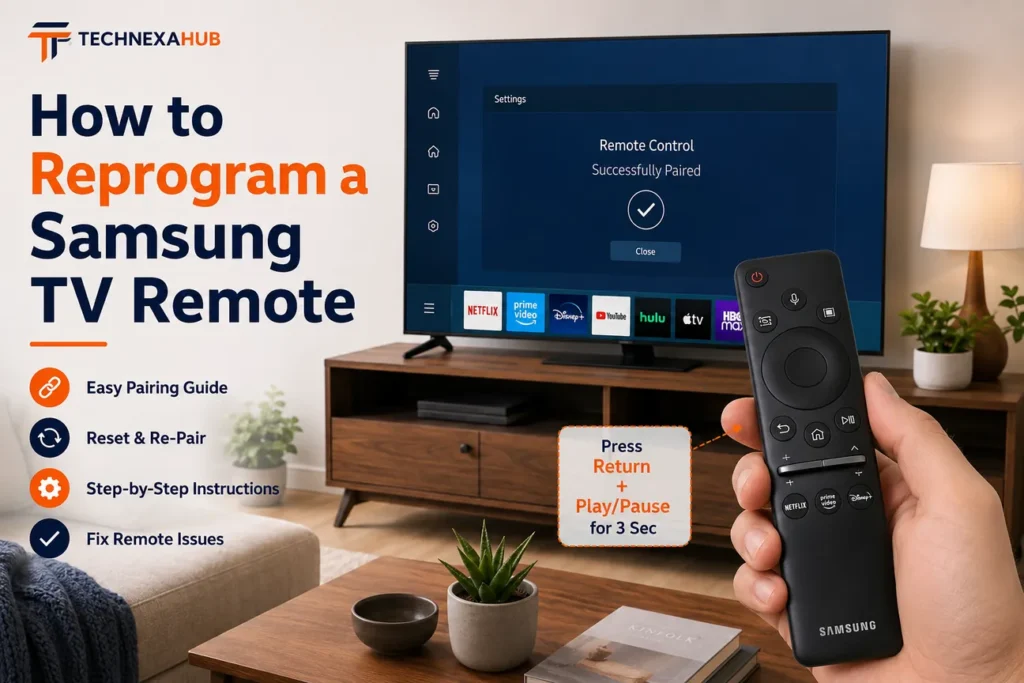
If your Samsung TV remote has stopped responding, lost its connection, or will not control the TV properly, you can usually fix it without replacing the remote. For most Samsung Smart Remotes, turn on the TV, point the remote toward it, then hold Return + Play/Pause together for at least 3 seconds. The TV should display a message when the remote reconnects.
If that does not work, the next step depends on the remote you have. A battery-powered Smart Remote, SolarCell Remote, standard infrared remote and replacement remote do not always use the same reset procedure.
This guide explains how to reprogram a Samsung TV remote, how to reset and re-pair it, and what to do when the remote still will not connect.
How to Reprogram a Samsung TV Remote
For a compatible Samsung Smart Remote:
- Turn on the Samsung TV.
- Point the remote at the TV.
- Press and hold Return + Play/Pause at the same time.
- Keep holding for at least 3 seconds.
- Release the buttons when the TV displays the connection message.
- Test the remote.
Samsung documents this as the manual pairing procedure for its Smart Remotes. The recommended operating distance is about 6 metres (20 feet), although the actual range can vary with the environment.
Important: If your remote has separate Play and Pause buttons rather than one combined Play/Pause button, you may have a standard infrared remote. That type of remote generally does not require Bluetooth pairing.
Reprogramming vs Resetting vs Pairing: What’s the Difference?
These terms are often mixed together, but they describe different things.
- Pairing: Connecting a Smart Remote to the TV through its wireless connection.
- Re-pairing: Connecting the remote again after that connection has been lost.
- Resetting: Rebooting or clearing the remote’s current connection state so it can be connected again.
- Programming: Configuring a remote to control the TV or other compatible equipment.
So, if your Samsung remote suddenly stopped controlling the TV, you probably need to re-pair it, not enter a programming code.
How to Pair a Samsung Smart Remote
This is the first method to try if you have a Samsung Smart Remote.
Step 1: Turn on the TV
If the remote is not working, use the physical control on the TV to switch it on.
Step 2: Point the remote at the TV
Stand reasonably close to the television and aim the front of the remote toward it.
Step 3: Hold Return + Play/Pause
Press both buttons at the same time and continue holding them for more than 3 seconds.
Step 4: Watch the TV screen
The pairing process should begin and the TV should show an on-screen message when the remote connects.
Step 5: Test the controls
Try the following:
- Home
- Volume
- Direction buttons
- Channel controls
- App navigation
- Voice control, if your remote supports it
If those functions respond normally, your Samsung Smart Remote is paired.
How to Reset a Samsung TV Remote
The correct reset method depends on the remote.
Battery-powered Samsung remote
Samsung’s current troubleshooting instructions say to:
- Remove the batteries.
- Press and hold the Power button for about 8 seconds.
- Reinsert the batteries.
- Test the remote.
- If it is a Smart Remote, pair it with the TV again if necessary.
This is a useful first step when a battery-powered Samsung remote is completely unresponsive.
Samsung Smart Remote with a navigation centre button
Samsung also documents a different reboot method for certain Smart Remotes: press and hold Return + Enter (the centre of the navigation pad) for more than 10 seconds. After this reset, the remote needs to be paired with the TV again.
This is why you should not assume that every Samsung remote uses the same factory-reset button combination.
How to Re-Pair a Samsung TV Remote
If your remote used to work but suddenly disconnected, try pairing it again before doing anything more complicated.
With the TV switched on:
- Point the remote toward the TV.
- Press Return + Play/Pause simultaneously.
- Hold both buttons for at least 3 seconds.
- Wait for the pairing message.
- Test the remote.
Samsung recommends keeping the Smart Remote within about 6 metres of the TV while pairing. Wireless conditions can affect the usable distance.
This is the practical solution for how to re pair Samsung TV remote, how to sync Samsung remote to TV, how to resync Samsung Smart Remote, and how to reconnect Samsung TV remote.
How to Reprogram a Samsung SolarCell Remote
Samsung SolarCell Remotes are slightly different because they have a built-in rechargeable battery and solar panel.
If your SolarCell Remote is not responding, check its charge first. Samsung says it can be charged by exposing the solar panel to light or, on compatible models, by using a USB-C cable.
Pair a SolarCell Remote
For compatible SolarCell Remotes:
- Turn on the TV.
- Point the remote toward the TV.
- Hold Return + Play/Pause together.
- Continue for at least 3 seconds.
- Release the buttons when the TV confirms that the remote is connected.
Some SolarCell Remotes can also connect automatically when you turn on the TV and press a button.
Reset a newer SolarCell Remote
Samsung’s 2025 SolarCell Remote guide documents a two-stage process on compatible models:
- Hold Return + Voice together for at least 3 seconds to reset the remote.
- Then hold Return + Play/Pause together for at least 3 seconds to pair it again.
Samsung’s broader troubleshooting guide also documents Return + Enter for 10 seconds for certain 2021-or-newer solar remotes.
The difference is important: there is no single reset combination that applies to every Samsung SolarCell Remote. The exact model and generation matter.
How to Reprogram a BN59 Samsung Remote
If the back of your remote says BN59, do not assume that “BN59” identifies one particular remote.
BN59 is used across multiple Samsung remote models, and their buttons and functions can differ. Samsung’s own documentation shows individual Smart Remote models with different layouts and features.
Before trying a button combination, check the complete model number printed on the remote.
A useful clue is the button layout:
- One combined Play/Pause button: likely a Smart Remote.
- Separate Play and Pause buttons: likely a standard infrared remote.
- Solar panel on the back: SolarCell Remote.
If you are trying to learn how to reprogram BN59 Samsung remote, the complete model number is much more useful than BN59 alone.
Samsung TV Remote Won’t Pair? Try This
When a Samsung remote will not pair, work through these checks in order.
1. Check the power source
For a battery-powered remote, install fresh batteries and make sure they are facing the correct direction.
Samsung recommends replacing batteries when the remote does not transmit properly.
For a SolarCell Remote, charge it using light or USB-C if supported.
2. Reset the remote
Use the reset procedure that matches your remote.
Do not use a random button combination just because it worked on another Samsung model.
3. Pair it again
Hold Return + Play/Pause for at least 3 seconds while pointing the remote at the TV.
4. Move closer
Try pairing from close to the TV. Samsung recommends staying within approximately 6 metres for Smart Remote operation.
5. Restart the television
If the remote still will not connect, restart the TV. A normal power restart is different from a factory reset and does not mean you need to erase your TV settings.
6. Check the remote’s signal
If you have a standard infrared remote, or you want to determine whether the remote is transmitting, Samsung recommends using a digital camera or phone camera.
Point the front of the remote toward the camera and press the Power button. If an infrared light is visible on the camera display, the remote is transmitting a signal.
Keep in mind that not every phone camera displays infrared in exactly the same way.
How to Reprogram a Samsung TV Remote Without the Power Button
You do not necessarily need the remote’s Power button to pair a Smart Remote.
If the TV is off, use its physical control to switch it on. Then point the Smart Remote at the television and hold Return + Play/Pause for at least 3 seconds.
If the remote has no power because its batteries are empty or its rechargeable battery is depleted, however, pairing will not succeed until the remote has enough power to transmit.
How to Program a New Samsung TV Remote Control
If you bought a compatible replacement Samsung Smart Remote, the process is generally the same as pairing an existing Smart Remote.
- Turn on the TV.
- Point the replacement remote toward the television.
- Hold Return + Play/Pause together.
- Continue for at least 3 seconds.
- Wait for the connection confirmation.
- Test the controls.
Compatibility is important. A replacement remote that looks similar may not support every function of your TV.
If a replacement remote will not pair, check its complete model number and compatibility with your specific television model.
How to Program a Samsung Universal Remote Control
Universal Remote setup is different from pairing the Samsung Smart Remote itself.
If you want your Samsung remote to control another device, such as a set-top box or compatible external equipment, use the TV’s Universal Remote setup where supported.
The TV may ask you to identify the type of device and the input to which it is connected, then perform an on-screen test.
This is useful when the Samsung remote controls the TV but does not control the connected device.
If your Samsung TV remote is working but you need help managing apps, learn how to download and install apps on a Samsung TV directly on your Smart TV with this practical step-by-step guide.
Samsung TV Remote Pairing Problems and Solutions
| Problem | What to try first |
|---|---|
| Remote does nothing | Replace batteries or charge it |
| Smart Remote lost connection | Hold Return + Play/Pause |
| SolarCell Remote is weak | Charge through light or USB-C |
| Remote still will not pair | Reset it using the correct model-specific method |
| TV responds to infrared remote but not Smart features | Re-pair the Smart Remote |
| Replacement remote will not connect | Check compatibility and model number |
| Remote controls TV but not external equipment | Set up Universal Remote |
| Power button does not work | Turn on TV using its physical control, then pair the Smart Remote |
If your Samsung remote still isn’t working after a reset or re-pairing, check this Smart TV Remote Not Working guide for practical fixes, including battery, sensor, pairing, and reset problems.
If your Samsung TV remote works but the apps still fail to open, check this troubleshooting guide for practical fixes when your Samsung TV is connected to the internet but apps are not working.
If YouTube is the only app giving you trouble after fixing your Samsung remote, follow these simple steps to troubleshoot YouTube when it stops working on your Smart TV.
Is There a Samsung Smart Remote Reset Code?
Usually, you do not need a numeric reset code.
Samsung’s official instructions use button combinations and reset procedures rather than one universal four-digit code for Smart Remote pairing.
The important distinction is between pairing the remote to the TV and programming a universal remote to operate another device.
If someone tells you there is one Samsung Smart Remote reset code that works for every Samsung TV, be cautious. Samsung’s current support documentation shows different procedures across remote types and generations.
Frequently Asked Questions
How do I reprogram a Samsung TV remote?
For a compatible Smart Remote, turn on the TV, point the remote at it, and hold Return + Play/Pause for at least 3 seconds. Wait for the pairing confirmation on the screen.
How do I reset and repair a Samsung remote?
First use the reset procedure appropriate to your remote model. Then pair it again by holding Return + Play/Pause for at least 3 seconds.
What is the Samsung TV remote pairing button?
There is no single pairing button. On compatible Smart Remotes, the pairing command is the combination Return + Play/Pause.
How do I resync a Samsung Smart Remote?
Turn on the TV, point the remote toward it, and hold Return + Play/Pause together for at least 3 seconds.
How do I reset a Samsung Smart Remote control?
The procedure depends on the remote. Samsung documents Return + Enter for more than 10 seconds on certain Smart Remotes, while some newer models have a separate reset procedure.
How do I clear Samsung Smart Remote pairing?
Reset the remote using the instructions for its model, then pair it with the intended TV again. Samsung’s reset and pairing procedures vary between remote generations.
Why won’t my Samsung TV remote pair after resetting?
The most common possibilities are insufficient battery charge, an incompatible replacement remote, excessive distance from the TV, or using the wrong reset procedure for the remote generation.
Can I reprogram a Samsung remote without the TV’s Power button?
Yes, in many cases. Turn on the TV using its physical control, then use Return + Play/Pause to pair a compatible Smart Remote.
Getting Your Samsung Remote Working Again
The easiest answer to how to reprogram a Samsung TV remote is also the one most people need: if you have a compatible Samsung Smart Remote, turn on the TV and hold Return + Play/Pause for at least 3 seconds.
If that fails, do not immediately buy another remote or perform a TV factory reset. Check the remote’s power, identify its exact type and model, reset it using the appropriate procedure, and then pair it again.
For battery-powered remotes, Samsung currently recommends removing the batteries and holding Power for about 8 seconds. For certain Smart and SolarCell Remotes, Samsung documents other reset combinations, including Return + Enter or, on some newer models, Return + Voice.
That model-specific approach is the safest way to get a Samsung remote working again without changing settings that do not need to be changed.