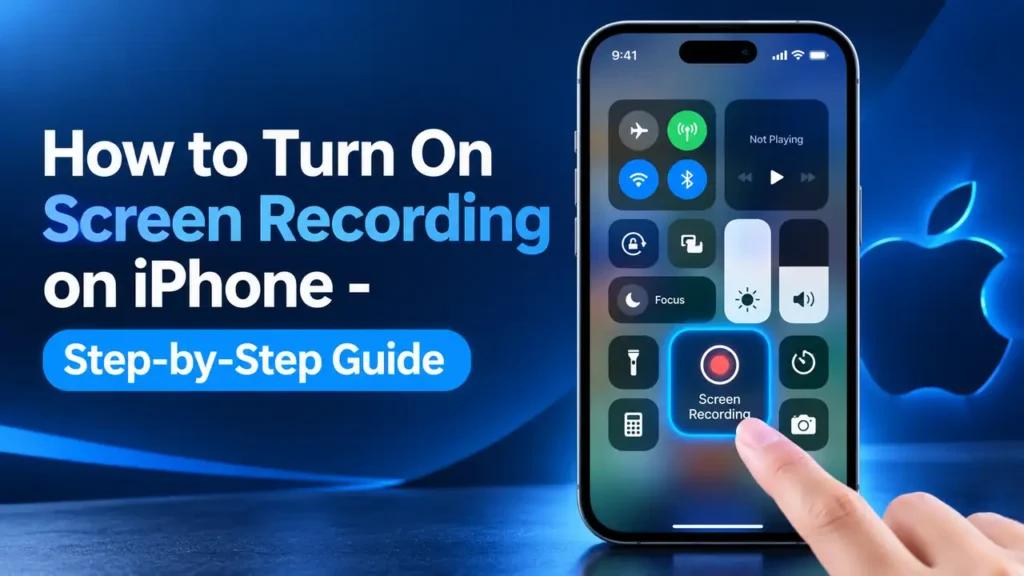
Need to know how to turn on screen recording on iPhone? You can record your screen in just a few taps using Control Center. This quick guide shows you how to find Screen Recording on iPhone, add the button if it is missing, and how to record your screen on iPhone with or without microphone audio. Follow the simple steps below to start recording right away.
Learn Now how to turn on screen recording on iPhone, add the button to Control Center, record with sound or a microphone, stop recording, and find videos.
How to Turn On Screen Recording on iPhone
1. Open Control Center
On iPhone X and newer, swipe down from the top-right corner.
On iPhone SE, iPhone 8, and earlier Home button models, swipe up from the bottom edge.
2. Add the Screen Recording Button
If you can already see the recording control, skip this step.
- Open Control Center.
- Touch and hold the background.
- Tap Add a Control.
- Choose Screen Recording.
- Tap anywhere to return to Control Center.
This answers how to add screen recording to Control Center on iPhone, how to add screen record on iPhone, and how to get screen recording on iPhone.
3. Start Recording
Tap the Screen Recording button.
A three-second countdown appears. Once it finishes, leave Control Center and do whatever you want to capture.
That is how to start screen recording on iPhone and the simplest how to record your screen on iPhone method.
How to Stop Screen Recording on iPhone
When you finish:
- Tap the red recording indicator at the top of the screen.
- Tap Stop.
You can also open Control Center and tap the red recording control.
Your recording is then saved automatically in Photos.
How to Screen Record on iPhone 13, 14, 15, 16, and 17
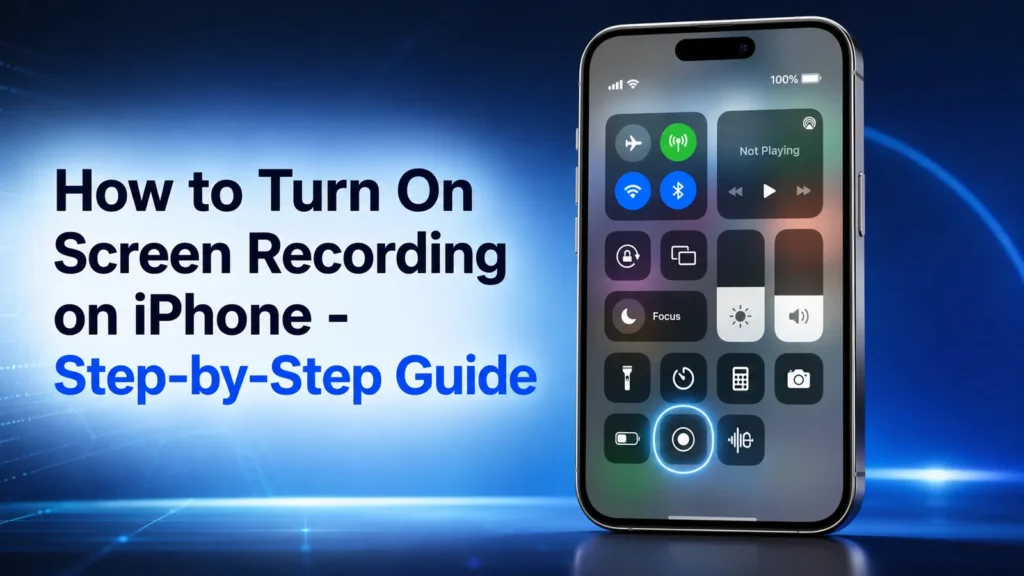
The basic steps are the same across recent iPhone models.
How to Screen Record on iPhone 13
For how to screen record on iPhone 13, open Control Center and tap Screen Recording.
How to Turn On Screen Recording on iPhone 13 Pro Max
For how to turn on screen recording on iPhone 13 Pro Max, add Screen Recording to Control Center if it is not already there, then tap it.
How to Screen Record on iPhone 14
For how to screen record on iPhone 14, open Control Center, tap Screen Recording, and wait for the countdown.
How to Screen Record on iPhone 15
For how to screen record on iPhone 15 or how to turn on screen recording iPhone 15, use the same Control Center steps.
How to Turn On Screen Recording on iPhone 16
For how to turn on screen recording on iPhone 16, open Control Center and add Screen Recording if necessary.
If you are seeing no screen record on iPhone 16, check whether the control has been removed from Control Center.
How to Turn On Screen Recording on iPhone 17
For how to turn on screen recording on iPhone 17, open Control Center, add Screen Recording, and tap the control.
The same process covers how to screen record iPhone 17. Apple’s current iPhone instructions use this Control Center workflow.
I Can’t Find Screen Record on My iPhone
If you are thinking, i can t find screen record on my iphone, do not install another recorder yet.
Try this:
- Open Control Center.
- Touch and hold the background.
- Tap Add a Control.
- Select Screen Recording.
If the screen recording not showing on iPhone or the screen recording button missing on iPhone, adding the control back should put it in Control Center.
Need to troubleshoot a locked iPhone? Read our guide on how to factory reset iPhone without a password for the steps to reset your device.
This is also the quickest answer to how to find screen recording on iPhone and where is screen recording on iPhone.
How to Enable Screen Recording on iPhone
There is no separate Screen Recording app to download.
To how to enable screen recording on iPhone, add its control to Control Center.
To how to activate screen recording on iPhone, tap the control and wait for the three-second countdown.
In everyday terms, how to turn on screen recorder on iPhone simply means adding and tapping that built-in control.
How to Record Screen and Audio on iPhone
You can record the iPhone display while also capturing sound.
How to Screen Record With Microphone on iPhone
- Open Control Center.
- Touch and hold the Screen Recording button.
- Turn Microphone on.
- Tap Start Recording.
- Wait for the three-second countdown.
Want to record your screen and include your voice? Open Control Center, press and hold the Screen Recording button, turn on Microphone, and tap Start Recording. Your iPhone will capture the screen along with audio from the microphone.
This is useful when you’re explaining an app, making a tutorial, or showing someone how to complete a task on your iPhone.
Keep in mind that some apps may prevent certain audio or video content from being recorded. Screen Recording also cannot be used at the same time as screen mirroring.
You can record your iPhone screen with microphone audio for tutorials and demonstrations. If you need to capture a phone conversation, read our guide on how to record a phone call on iPhone for the steps and options.
How to Save Screen Recording on iPhone
You normally do not have to save the file yourself.
The recording is automatically stored in the Photos app.
Where Are Screen Recordings Saved on iPhone?
Open:
Photos → Collections → Media Types → Screen Recordings
That is where are screen recordings saved on iPhone and how to find screen recordings on iPhone after recording.
Screen Recording Settings on iPhone
For additional capture options, go to:
Settings → General → Screen Capture
Current iPhone software includes capture settings such as SDR and HDR for supported screenshots and recordings.
These are the main iPhone screen recorder settings and screen recording settings iPhone users may need.
For ordinary recordings, however, you can leave these settings alone and simply use Control Center.
How to Screen Record on iPhone iOS 18
For how to screen record on iPhone iOS 18, open Control Center and use the Screen Recording control.
For how to add screen recording to Control Center iOS 18, customize Control Center and add Screen Recording when it is missing.
Apple introduced the more flexible Control Center customization approach in iOS 18 and later.
How to Screen Record on iPhone iOS 17
For how to screen record on iPhone iOS 17, open Control Center and tap the Screen Recording control.
If the button is unavailable, add it through the Control Center settings for that iOS version.
The exact Control Center appearance can differ between iOS versions, so focus on finding the Screen Recording control rather than looking for a particular icon position.
Quick iPhone Screen Recording Tutorial
Here is the complete iPhone screen recording tutorial in seven steps:
- Open Control Center.
- Add Screen Recording if you cannot see it.
- Tap Screen Recording.
- Wait three seconds.
- Record the screen.
- Tap the red indicator to stop.
- Open Photos to watch the video.
That is how to set up screen recording on iPhone and how to use screen recording on iPhone without an additional app.
Frequently Asked Questions
How do I turn on Screen Recording on iPhone?
Open Control Center, add Screen Recording if it is missing, and tap the recording button. After the three-second countdown, your screen begins recording.
Where is the Screen Recording button on iPhone?
The iPhone screen recording button is in Control Center. If you cannot see it, use Add a Control to place Screen Recording there.
Why can’t I find Screen Recording on my iPhone?
The control may not have been added to Control Center. Open Control Center, touch and hold the background, choose Add a Control, and select Screen Recording.
Can I record my iPhone screen with my voice?
Yes. Touch and hold Screen Recording, turn on Microphone, and start the recording.
Does iPhone automatically save screen recordings?
Yes. Screen recordings are automatically saved in your Photos library.
Can I record every app on my iPhone?
No. Some apps may block their content from being recorded. Screen Recording also cannot be used at the same time as screen mirroring.
Final Takeaway
The easiest way to how to turn on screen recording on iPhone is:
Control Center → Add a Control → Screen Recording → Tap Record → Stop → Photos
For a voice recording, press and hold the Screen Recording control and switch on Microphone before starting.
Once you add the button, you will not need to add it again for future recordings.