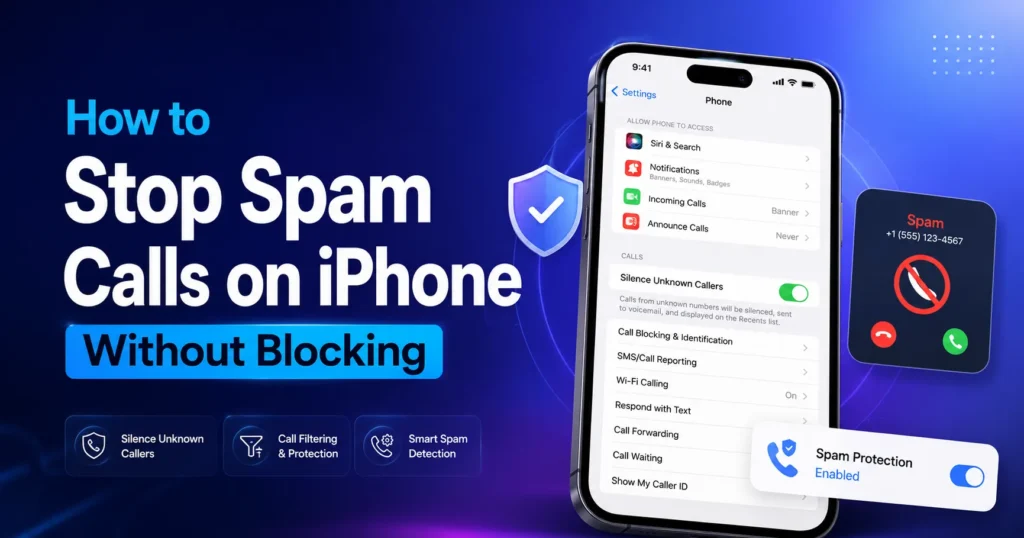
Spam calls can interrupt your day at any time. Instead of blocking every unknown number, you can use Apple’s built-in call screening and spam filtering features to reduce unwanted calls automatically.
If you’re wondering how to stop spam calls on iPhone without blocking, the methods below work on iPhone 11, iPhone 12, iPhone 13, iPhone 14, iPhone 15, iPhone 16, and iPhone 17 running a supported version of iOS.
Apple’s built-in features can help reduce spam calls, but protecting your iPhone is just as important. If you’re locked out of your device, check out our step-by-step guide on how to factory reset an iPhone without a password:
How to Stop Spam Calls on iPhone Quick Answer
To stop spam calls on your iPhone without blocking every caller:
- Open Settings.
- Tap Apps > Phone.
- Select Screen Unknown Callers.
- Turn on Silence Unknown Callers.
- Enable Call Filtering if it’s available.
- Turn on your carrier’s spam protection.
- Keep your iPhone updated.
These settings reduce spam calls while allowing trusted contacts and important callers to reach you.
After Stop Spam Calls on iPhone in any model, you can get even more from your iPhone’s calling features. If you need to save important conversations for future reference, learn how to record a phone call on iPhone with our easy step-by-step guide:
Turn On Silence Unknown Callers
The fastest way to stop spam calls on iPhone is to silence calls from numbers you don’t recognize.
Steps
- Open Settings.
- Tap Apps.
- Select Phone.
- Tap Screen Unknown Callers.
- Choose Silence.
After you enable this feature:
- Contacts still ring normally.
- Recent outgoing numbers can still call you.
- Unknown callers go directly to voicemail.
- You can review missed calls later if they’re important.
If you’re trying to stop constant spam calls on iPhone or stop receiving spam calls on iPhone, this should be the first setting you turn on.
Enable Call Filtering
Call Filtering helps identify suspicious callers before they interrupt you.
Steps
- Open Settings.
- Tap Apps.
- Select Phone.
- Open Call Filtering.
- Turn on available spam filtering options.
If your carrier identifies a number as Spam Risk, Spam Likely, or Potential Spam, your iPhone can filter many of these calls automatically. This is one of the easiest ways to stop spam risk calls on iPhone without blocking every number.
Turn On Your Carrier’s Spam Protection
Most mobile carriers provide free tools that detect spam and scam calls before they reach your phone.
AT&T
If you use AT&T, turn on the carrier’s spam protection service from your account or official app. This helps reduce unwanted calls and works well if you’re trying to stop spam calls on AT&T iPhone.
Verizon
Verizon users should enable Call Filter to identify spam callers before the phone rings. It’s one of the simplest ways to stop spam calls on iPhone Verizon.
T-Mobile
T-Mobile customers can activate Scam Shield to help block or silence known spam callers. This is a useful option if you’re trying to stop spam calls on iPhone T-Mobile.
Many carrier spam filters are available at no extra cost, making them a good choice if you want to stop spam calls on iPhone for free.
Keeping spam protection turned on helps protect your iPhone from unwanted calls, but it’s also important to keep your personal data safe. If you accidentally remove important pictures, learn how to recover deleted photos on iPhone fast with our complete step-by-step guide
Which Method Works Best?
For the best results, use all three protections together.
| Feature | Reduces Spam Calls | Blocks Every Number | Free |
|---|---|---|---|
| Silence Unknown Callers | ✅ | ❌ | ✅ |
| Call Filtering | ✅ | ❌ | ✅ |
| Carrier Spam Protection | ✅ | ❌ | Usually |
Using these features together is much more effective than blocking spam numbers one at a time.
Does This Work on Every iPhone?
Yes. These steps work the same way on most recent iPhone models.
Whether you’re trying to stop spam calls on iPhone 11, iPhone 12, iPhone 13, iPhone 14, iPhone 15, iPhone 16, or iPhone 17, you’ll find these settings in the Phone section of Settings. The exact options may vary slightly depending on your iOS version and mobile carrier, but the overall process is the same.
that you’ve Stop Spam Calls on iPhone, you can also improve your iPhone’s privacy. Learning how to hide iPhone apps without deleting them helps keep personal apps out of sight while maintaining easy access. Read this complete guide:
How to Stop Spam Calls and Texts on iPhone
Spam often comes through both phone calls and text messages. Turning on Apple’s message filtering helps reduce unwanted texts while keeping important conversations easy to find.
Keeping spam calls and texts under control helps you stay focused on important conversations. If you accidentally remove a message while managing your inbox, knowing how to find deleted messages on iPhone can help you recover important texts. Read our complete guide:
Filter Unknown Senders
- Open Settings.
- Tap Apps.
- Select Messages.
- Turn on Filter Unknown Senders.
After you enable this setting:
- Messages from saved contacts stay in your main inbox.
- Messages from unknown numbers move to a separate list.
- You can review them later without constant notifications.
If you’re trying to stop spam calls and texts on iPhone or stop getting spam texts and calls on iPhone, this is one of the best settings to enable.
Filtering unknown senders is a simple way to reduce spam and keep your Messages app organized. If you’re getting too many notifications from a conversation you no longer want, learn how to leave a group chat on iPhone with our easy step-by-step guide.
How to Stop Spam FaceTime Calls on iPhone
Spam FaceTime calls can be just as annoying as regular spam calls.
To reduce them:
- Open Settings.
- Tap Apps.
- Select FaceTime.
- Make sure your contact information is correct.
- Ignore or report unknown FaceTime spam calls when possible.
If you receive repeated FaceTime spam from the same account, you can block that contact. For random callers, using Apple’s call screening features is usually enough.
What to Do if Spam Calls Keep Coming Back
Some scammers frequently change their phone numbers, so blocking one number doesn’t stop future calls.
If you’re still getting unwanted calls:
- Keep Silence Unknown Callers turned on.
- Enable your carrier’s spam protection.
- Install every available iOS update.
- Never answer suspicious calls unless you’re expecting one.
- Let unknown callers leave a voicemail.
Using these steps together is the most effective way to stop all spam calls on iPhone and reduce daily interruptions.
Common Mistakes That Increase Spam Calls
Avoid these habits if you want fewer spam calls.
Answering Unknown Numbers
Many automated systems record when a number answers. Ignoring suspicious calls can reduce repeat attempts.
Calling Spam Numbers Back
Returning a spam call confirms your number is active and may lead to more unwanted calls.
Clicking Links in Spam Texts
Never tap links or reply to suspicious text messages. Delete them instead.
Sharing Your Number Everywhere
Only provide your phone number to trusted businesses and services.
Can You Stop Spam Calls Without Blocking Numbers?
Yes.
If your goal is to stop spam calls on iPhone without blocking, Apple’s built-in tools are usually enough for most people.
Instead of filling your blocked list with hundreds of numbers, these features:
- Silence unknown callers.
- Filter suspected spam.
- Let important callers leave voicemail.
- Continue allowing saved contacts to reach you.
This approach works well if you want fewer interruptions while avoiding unnecessary blocks.
Which iPhone Models Support These Features?
Apple includes these call protection features on supported versions of iOS across most recent devices.
You can use the same steps if you want to stop spam calls on:
- iPhone 11
- iPhone 12
- iPhone 13
- iPhone 14
- iPhone 15
- iPhone 16
- iPhone 17
- iPhone 17 Pro Max
The menu names may change slightly between iOS versions, but the process remains almost the same.
Extra Tips to Reduce Spam Calls
These simple habits can help lower the number of unwanted calls over time.
- Keep your contact list updated.
- Review app permissions before sharing your phone number.
- Use strong privacy settings whenever possible.
- Report scam calls through your carrier if that option is available.
- Don’t enter your phone number on websites you don’t trust.
These steps won’t stop every spam call immediately, but they can help reduce future calls.
Frequently Asked Questions
How do I stop getting spam calls on iPhone?
Turn on Silence Unknown Callers, enable Call Filtering, activate your carrier’s spam protection, and keep your iPhone updated.
How do I stop spam calls on iPhone for free?
Apple includes free tools such as Silence Unknown Callers, and many mobile carriers also provide free spam detection.
Can I stop spam calls without blocking every number?
Yes. Apple’s call screening features reduce unwanted calls without requiring you to block each caller manually.
Why do I still receive spam calls after turning on these settings?
No spam filter catches every unwanted call because scammers constantly change phone numbers. Using Apple’s built-in features together with your carrier’s spam protection provides the best results.
Will important calls still come through?
Yes. Calls from saved contacts and other recognized numbers continue to ring normally. Unknown callers can still leave a voicemail, so you won’t miss important messages.
Conclusion
If you’re trying to figure out how to stop spam calls on iPhone without blocking every number, the simplest solution is to use the tools already built into your iPhone.
Turn on Silence Unknown Callers, enable Call Filtering, activate your carrier’s spam protection, and keep iOS up to date. These settings work together to reduce spam calls on iPhone while allowing trusted callers to reach you.
Whether you use an iPhone 11, iPhone 12, iPhone 13, iPhone 14, iPhone 15, iPhone 16, or iPhone 17, these steps provide a quick and reliable way to cut down on spam calls without manually blocking hundreds of numbers.